

- Overview
- Transcript
2.4 Accessibility Concerns and Best Practices
Let’s say you’re creating a webpage and you want to display a table with some data. For a sighted user, it’s easy to scan a table, see the relationship between the table headings and the individual cells, and glean the necessary information.
Users with any form of visual impairment, however, might not be able to interpret the table and make the proper connections. They have to rely on assistive technology such as screen readers to read the contents of tables out loud. To make sure table content is read properly, it’s the web designer’s job to use the correct markup. In this final lesson, we’ll look at some examples.
Related Links
2.4 Accessibility Concerns and Best Practices
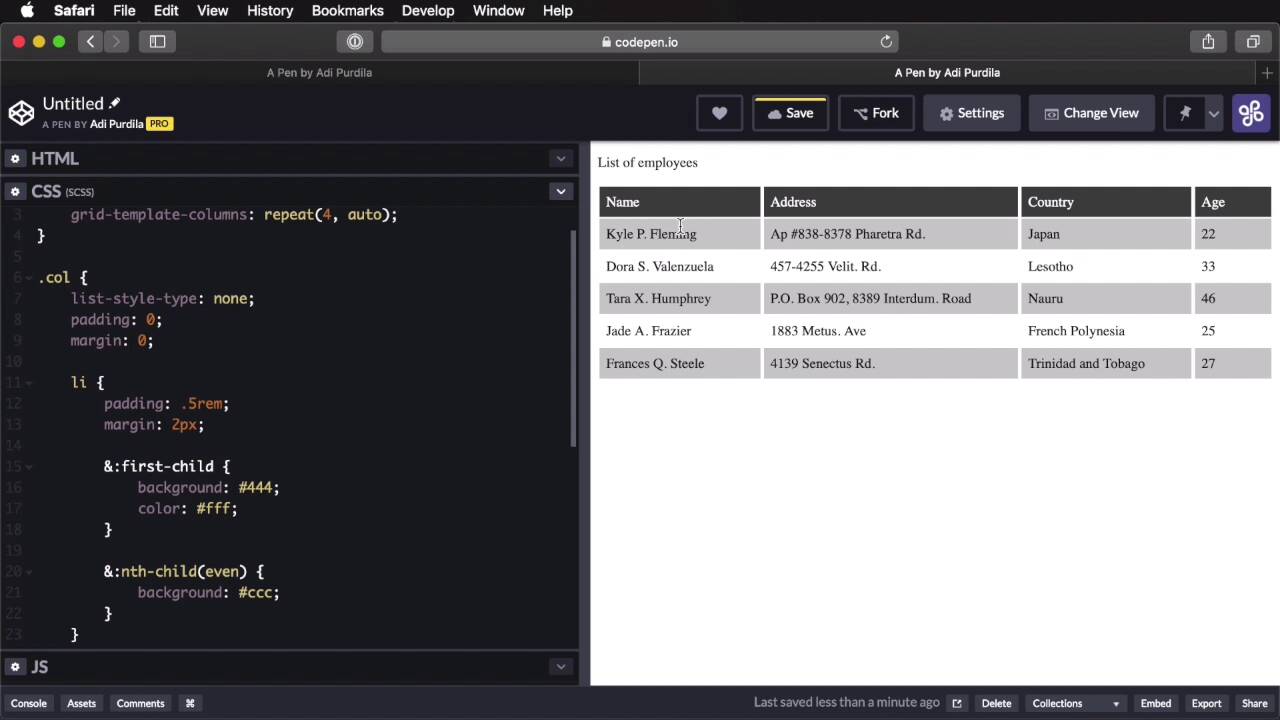
Let's say you're creating a webpage and you want to display a table inside it with some information. Now for a sighted user it's really easy to see the table, to scan it, to make the necessary connections between the table headings and the table cells. But for users that have a visual impairment, that cannot see that table, well, it's difficult or it's impossible for them to make those connections because they cannot see that table. So they have to rely on a screen reader to read that table out loud. And by doing this they can interpret the information. Now to make sure this happens properly, or to make sure this table is read properly, you need to start by using the correct markup. And that means using a table element and not some fancy markup with some fancy CSS to mimic the look of a table. That's why I said in the first lesson of the course that it's important for accessibility reasons, to use the proper markup. Because a screen reader will not read a bunch of divs that are made to look like a table as a table, it will just read them as blocks of information, and that's it. So let me show you an example, here we have a simple table. I am using the correct markup so table, this id has has nothing to do with accessibility really, but then I added a caption. Now, a caption is very useful for letting users know what that table is all about, and this will actually be read by most screen readers. Then I'm using a thead, thead, tbody, these are not really necessary for accessibility purposes, but I decided to use the markup here anyway. Then I'm defining a row for table headings, and then I'm using the correct markup for the rest of the table as well, using trs and the tds to display the rows and cells. Now here I am using a scope col on the table headings, now I'm marking these table headings or table headers so that it's easier to associate cells with the proper headings. If I were to have a th here, so I'm gonna have column headers but also row headers, I will do this and I'm gonna do the same for all of them. So again, by using the scope, I'm creating a way to associate the cells with either the column headers or the row headers. And this is something you should keep in mind. For now, I'm just using column headers, so we're gonna stick with that. So this is a best practice that you can use when building tables for accessibility purposes. Another best practice is to avoid using complicated tables with multiple row spans. By doing that you are making it harder for the user to understand the structure of that table when it's being read out loud by a screen reader. Now to kind of demonstrate why it's important to use the correct markup, what I'm gonna do is compare this table, which is written correctly with a table that was created using non-semantic elements but it was styled to look like a table. So let's create the new pen here. And in this pen I just created a div with a class of my-table, a paragraph that should serve as our caption, and then I have a div class columns, which will hold basically all of my columns. And then for each column, I have an unordered list with a class of col, and then list items for each of these elements. So to style this, let's begin with these columns, let's use CSS grid to display these. We'll say grid-template-columns: repeat(4, auto ) Let's do a four column layout with auto, and then, col. And now let's actually use SCSS here to write this a little bit faster, right, list-style-type none to remove those bullet points. Let's reset the padding and margin. Okay, and then let's target the list item, let's add a little bit of padding and a little bit of margin, maybe one or two pixels. And then we'll target the first-child, let's do a background of #444 and I'll set the color to white. And now let's do the zebra, so let's say nth-child (even) background ccc. So that's a quick styling of a bunch of lists, basically. But if you look at these two, well, they look very very similar, don't they? You could think, when you see this, this is a table, cool. But behind it, it's not a table, it's a bunch of divs and lists that are just made to look like a table. So let's go ahead and save both of these, oops! And let's switch to live view for both of them. Okay, so this is my semantic table, this is my non-semantic table. So now what I'm gonna do is activate the voice over assistant on my computer, and I'm gonna have it read this table and navigate this table, just like you would on a screen reader. Maybe it's not exactly the same experience, but it's pretty, pretty close. So I hope you would be able to hear the voiceover assistant, let's go. >> Voiceover on Safari. A Pen by Adi Purdila Live Preview window. Frame zero has keyboard focus, down arrow. >> Let's move here. >> Name, you are currently in a text element inside a cell. >> All right, let's move here. >> Row 206 Kyle P Fleming. >> Let's move here. >> You are currently on address, Ap #838-8378 Pharetra Rd. Column 204, you are currently on a text element inside a cell. >> Now you'll notice that as I navigate through these cells, the voice assistant will let me know on which column I am, so it's gonna say the name of the column first, look. >> Country, Japan. >> It says country, so it said the name. >> You are currently on a text element inside a cell. >> It said the name of the column first, and then the value inside that cell. And as I go through these, it's gonna do the same thing. >> Age 22, row three of six name Dora S Valenzuela, car address 457- 4-, Country Lesotho, age 33. Row four of six, Name, Tara X Humphrey, address, PO Box, Country, Nauru age 46, column four of four. You are currently on a text element inside a cell. >> All right, so this is basically how screen readers do this, they give you you controls that you can use to go through each cell, and depending on the column of that cell, they're gonna let you know what is inside it. Now if we switch to this. >> A Pen by Adi Purdila Live Preview, web content. >> We're gonna do the same thing here and we're gonna try to read every single cell. And let's see how that goes. All right, so now I'm inside our alleged table, right? And before on the semantic table, I could just use Ctrl+Alt and left and right arrows to move inside my table. So I could go to this row, and then this row or this cell, and this cell and this cell and so on, so it was really easy to navigate between these. But now if I press Ctrl+Alt+Right. >> Dora S Valenzuela, you are currently on a text element. >> If I navigate with the arrows inside this alleged table, it's just gonna read the text, because it has nothing to do with the name up here. This is not viewed as a table heading, it's just viewed as another piece of text. >> Jade A Frazier, you are currently- >> All right, so it just- >> F, f, new month, I have number 838-8378, Ferretra Road. >> All right, so I have no continuity when I'm using this non-semantic table. The way it reads the elements is from top to bottom. So it reads this list and when it gets here, it goes on to the next item, which is address, and then it reads this, this, this, this and this, and then it goes here to the country. So I cannot navigate like I was doing on the semantic table where it would be reading my name, and then I would press the right arrow, it would say address and then it would read the address. Use the right arrow again, it would say country, and read the country name and so on. I can't do that here, the assistant only reads this markup as a list, because that's what it is. So by doing this, you're really, really compromising the experience for people who rely on a screen reader to navigate a web page. All right, you're making this unusable essentially, and for what? Because you thought it would be cooler to use divs instead of tables? Not really worth it, and that's a quick look at how to make tables more accessible. There's a lot more to talk about on the topic so make sure you check out the lesson notes, I've included some great resources there. That's the end of this guide to using HTML tables in this modern age. I hope you found it useful and I hope you maybe realize that tables are not actually all that bad when you're using them for the right thing. Thank you very much for watching this course, I'm Adi Purdila, and until next time, take care.





