

- Overview
- Transcript
2.1 jQuery UI Selectmenu Widget
The Selectmenu widget in jQuery UI is essentially a stylized HTML select element. In this lesson, you’ll learn the basics of adding a Selectmenu widget to your web page.
Related Links
1.Introduction
1.1Introduction00:41
1.2Introduction to jQuery UI04:40
2.jQuery Form Elements
2.1jQuery UI Selectmenu Widget07:14
2.2jQuery UI Autocomplete Widget05:47
2.3jQuery UI Spinner Widget06:59
2.4jQuery UI Datepicker Widget06:27
2.5jQuery UI Checkboxradio Widget03:12
2.6jQuery UI Button Widget04:02
2.7jQuery UI Progress Bar Widget09:54
3.Conclusion
3.1Final Thoughts00:39
2.1 jQuery UI Selectmenu Widget
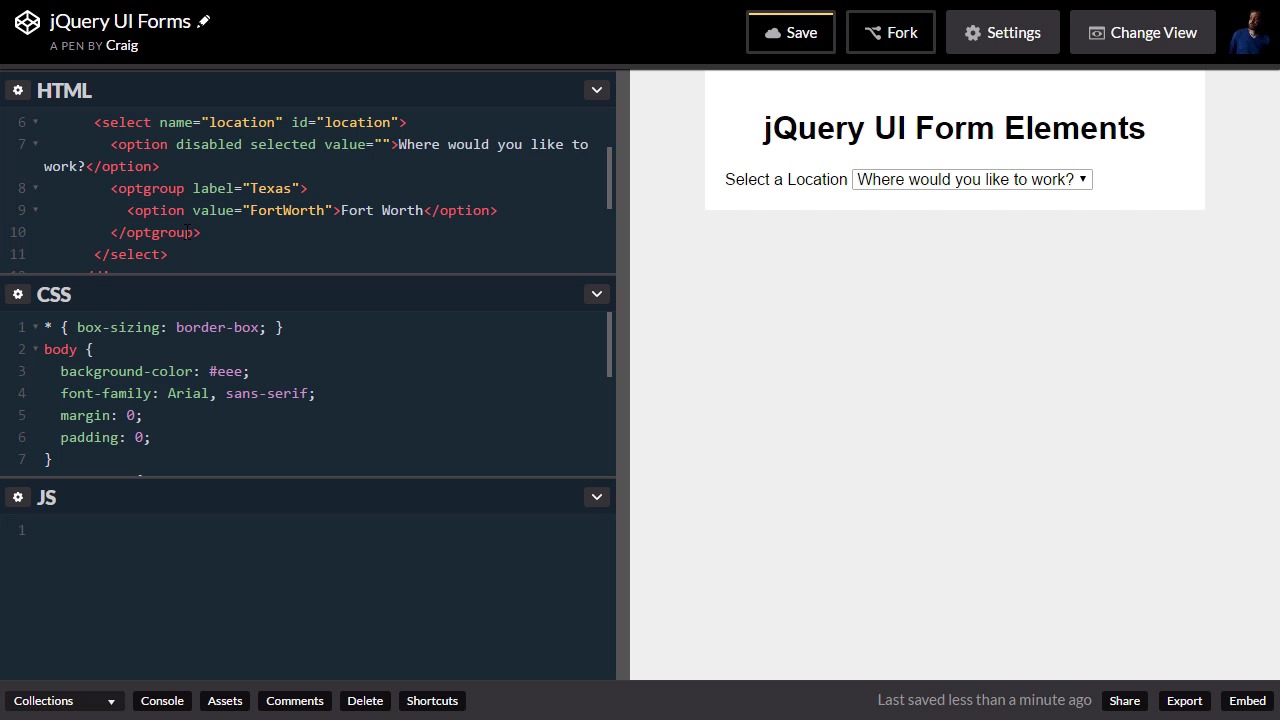
Hello and welcome back in this lesson we're going to get started with our very first jQuery UI element. We're going to build a select menu using jQuery U.I. and it's really just a matter of building the right HTML and then activating it using jQuery. So, you can find the URL for this starting pen that we're looking at here in your course notes for this lesson. Once you've opened up that starting pin and I want you to click on the Fork button. So that we can start with a brand new copy of our code without overwriting the old code and we're gonna start with this new fork. So, you will notice and our HTML we've just got very very simple HTML. Here we have a container div which is the section with a white background and then we have a form with and each one inside of it and our CSS we're simply setting the box sizing for everything on the page border box we're setting up some basics for our body. And our container and that's about it. So, let's jump back into our HTML. And let's add a select menu here. S, o for most of the jQuery UI items that we're going to be creating in this course. I'm going to surround this in a div have with a class of a UI widget. This class basically just adds some simple styles to whatever UI elements that you add. So, we're gonna put it all inside this div with the class of UI Widget, excuse me. And I'm gonna create, first of all, a label for our drop down menu. So, let's set this label for and we'll give this an ID of a location. Let's say that we have, let's say that this is a job application and we wanna ask the user where would they like to work what city would they like to work in? So, this is a label for that dropdown so for location, and then inside the label. We're just gonna say select the a location, and we'll close that legal tag, and then after that we're gonna have our select item. So, we're building this out just like a normal HTML select element we're going to give it a name of location. And I'm also gonna give it an ID of a location. And that ID needs to match this four element that we gave to our label. And then, let's get a couple of lines and close our select item and then we just need a number of options inside our are selected menu. So, we're gonna have one option. This one's going to be disabled. So, we're gonna give it the disabled property. We're also gonna make it selected. We'll give it the selected property. I'm gonna set its value equal to an empty set of quotation marks and we're just gonna have some text here that says where would you like to work? And so, that option will be selected by default but that option does not have a value. Also it's disabled so if we choose something else we won't be able to go back to this disabled option. All right, so after option let's create an opt group and let's give this a label set that equal to Texas. So, all of the cities inside this opt group, all the options inside this opt group are going to be cities inside Texas. So, we'll have an option with a value of maybe Fort Worth and for the values here you'll notice I'm not putting in the spaces in there. And then, will enter in the text that's going to show up for that particular option. All right so I'm gonna finish filling up the rest of this and then we'll move forward. Okay, so finished filling this out if we double click on the HTML section that will expand that out a little bit more. So, we can see the whole thing. So, here's our select item here we have a couple of groups one of them has Texas cities and it and the other one has a couple of Oklahoma cities and it. So, this would ideally be all the cities where this particular company operates. Then we click on the dropdown and we can see what those operative groups look like. So now, in order to activate this, in order to get jQuery UI to point to this and activate it as a selector menu it would just jump down to our JavaScript. And let's go ahead and create our starting function or our document load function in jQuery which would look like this. Ever dollar sign and then inside parentheses, we have a function. And all that means is that once the page has finished loading, we're going to perform everything inside this function so we're going to do that for for all of our code in this short course. So at this point, I want to point to our location object. Remember, we gave that select menu an ID of location. And so, we're gonna use jQuery to point to that. We're gonna type dollar sign. And then, inside parentheses and inside quotation marks. We're gonna use the CSS selector for that item. And again, it has an ID of location. So, we're gonna type pound location. And then all we have to do here to activate this as a jQuery UI select menu is to type .select menu all lowercase open close parentheses, semicolon to end your statement. And we can already see the styling changes on that dropdown. As for the items in the dropdown it still looks pretty much the same but the dropdown itself looks a lot better. It looks a lot cleaner. And one thing I want to do real quick in our CSS is I want to create a rule for the label element. We're gonna have a lot of labels here. First of all, I want them to be block level elements, so I'm gonna set the display to block. So that they show up on a line by themselves and let's go ahead and make this multiple lines here. And we're gonna set the font weight to bold. There we go and then I want to put some margin top of about 20 pixels. And that will give us some separation from other items that are going to appear above other labels that we place on the stage as we move forward. So, those are the basics of creating a very simple jQuery UI object. You simply input the HTML that you need and then in JavaScript you're going to point to the item you just created and then type .select menu or .button or dot whatever it is you're creating. And again, you can find more information about that if you go to the jQuery UI website. And right now on the API documentation will just click here to go to the main jQuery UI website. And under widgets you'll see an option for select menu. So here, we can see what these look like. We can click on View Source to see all of the sample code for what was created up here. And then, at the very bottom if we wanna see more options we can click on API documentation. And here, we can see a lot more options available for this particular item. Now for our select menu we're not really going to use any of these options but as we move forward and start looking at some other jQuery UI elements we will take a look at some of these extra options that we can use in jQuery UI. So once again, thank you so much for watching. Be sure to save your work and I'll see you in the next lesson.





