

- Overview
- Transcript
2.2 Back to Top
Let’s learn how to create a disappearing “back to top” button, giving us an animated scrolling effect when clicked.
Useful Links
2.2 Back to Top
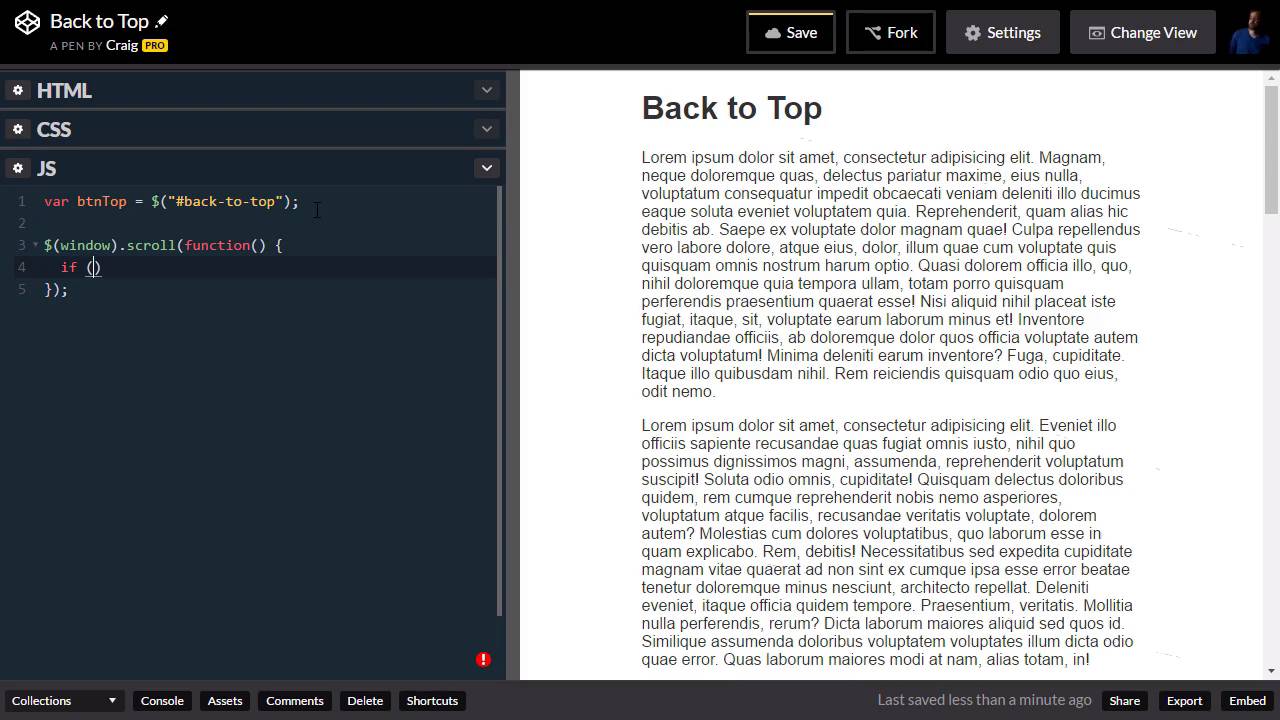
Hello and welcome back. In this lesson we're gonna create an animated scrolling effect with this back to top button which first of all is not going to be visible until we start scrolling down. Once we start scrolling down we're going to use jQuery to make it visible. And then once we click on it, we're gonna create an animated scrolling effect to bring us back to the top of the page. So you can see in our HTML and you can find the link for this code pen in your course notes for this lesson. But at the very top of our HTML we have this button with an ID of back to top. And if we go into our CSS, we see the rule for this back to-to-button. Now right now, all I've given it is a pointer cursor, but we're gonna do a couple more things. I want it to be fixed to the very bottom of the page, and right now it's up here at the top. So first of all we are going to create a position rule, and we are going to set the position to a value of fixed. Now so far that hasn't changed a whole lot. You can see that the text over here on the right has moved up to the top because the button itself is no longer holding that position on the page. Because it's now fixed. But now I wanna move it down to the bottom of the page. So I'm gonna use the bottom property and set it to a value of 10px so that it will be ten pixels from the bottom of the page. And it looks pretty good there, I'm gonna go ahead and set the left position as well. It won't move it much but we'll go ahead and set that to a value of 10px as well. So we've got the button where we want it. And now if we scroll up and down we can see that that button stays in place, but I don't want it to be visible by default. I don't wanna see it until we start scrolling down a little bit. So in addition to these extra properties that we've added to this rule, I'm also going to set the display property to a value of none. And that gets rid of the button for us. So everything that we have left to do is going to be in jQuery so we can jump into our JavaScript window now and get started. Now we're going to be referencing this button a couple of times in our jQuery code and so to make our code a little bit more efficient and to avoid having to search the dome for this item more than once. We're going to store the item in a variable. So, I'm gonna create a variable here called btnTop and I'm gonna set this to the button itself. So, if you remember that button has an id so we're gonna use pound here of back-to-top. So now we just need to refer to this variable anytime we wanna point to that button. And, again, the reason that makes it more efficient is because this type of jQuery lookup has to search through the entire dom, the entire page, to find that back to top element every time it's used. But if we store it in a variable, we only have to search through the HTML once to find it and then we can just refer to it using that variable. So what I want to do is I want to create a scroll event so that when we scroll our window, once we scroll down about a hundred pixels then our button will fade in and we'll be able to see it. So let's create that scroll effect the way we do that in jQuery is we use our jQuery selector to point to the window. So we have $ and then parenthesiss and inside those parenthesis I'm gonna type in the word window then outside the parenthesis, I'm gonna type .scroll. And then inside another set of parenthesis we're going to have our functions. So we'll type out function here, open and close parenthesis, opening and closing curly bracket. Nudge those curly brackets down, and a semi-colon to end our statement. So all I'm gonna do here is I'm gonna check the position of the scroll bar on the window. And if we've scrolled up at least 100 pixels, then I want that button to fade in. So the way we do that, we'll create our if function here. And we're gonna point to window again. So we're gonna use the same selector here. If $window and then after the closing parenthesis for that, but still inside the parentheses for the if statement, we're gonna point to .scroll and then Top, with a capital T, open and close parentheses. That will return the scroll position. So if that scroll position is greater than 100, then I want something to happen. So we'll put our opening and closing curly brackets for that if statement. And inside that if statement we're gonna say btnTop, which is the variable we're using to point to our button. We're gonna say btnTop.fadeIn, with a capital I. And then inside parenthesis we can specify how long we want that. Fade into last in this is gonna be in terms of milliseconds. So I want it to last half a second so that would be 500 milliseconds and then we'll put our semi colon at the end. So now we can test that, we'll scroll down a little bit and once we get to 100 pixels we see that back to top button fade in now wanted to feed back out. If we scroll back up to the top so all we need to do here is put in else statement. So we're gonna say else and then we'll basically do the same thing and copy this line of code here. And then paste it, except instead of fadeIn, we're gonna do a fadeOut over that same duration of 500 milliseconds. So now we scroll down, we see it fade in, we scroll up, we see it fade up easy enough. So now what I wanna do is I want to be able to click on this back to top button to scroll back up to the top of the page. But I don't want it to just jump to the top, I want a nice smooth scrolling animation. So we're gonna do that in jQuery as well. We're gonna skip a couple lines here, and we're gonna create a click event for our button top variable so b t n top dot on and then inside parenthesis and inside quotation marks we'll type click, and then outside the quotation marks we'll type comma function, open close parenthesis, opening and closing curly brackets, and then inside that function, all we wanna do is animate the body of our document, and we're gonna set the scroll top value to zero. So we're gonna animate from whatever it's current scroll top value is, all the way back to zero. And the way we do that is we're gonna create a jQuery selector here. And you'll notice here that I'm going to include HTML and body. So HTML comma body. And this is to handle multiple browsers. HTML will work on some browsers, body will work on others. So we're just include both of them. And then we're going to say .animate. And when we use the animate function in jQuery, we need. Parentheses, and then inside those parentheses we need an object, a JavaScript object containing the property value pairs that we want to animate. So the way we create an object in JavaScript is with curly brackets. So we have our parentheses, our curly brackets, and inside the curly brackets we're gonna point to the scroll top property and we're gonna set it to a value of zero. And then we'll go to the end of that line and put a semicolon there to end our statement and that's all we need. So again, we're using the jQuery animate function, and inside this object here, we're just telling it what property to animate. We're gonna animate the scroll top property to a value of zero. So let's test that out. We're gonna scroll down using the scroll bar, and then we'll click on the Back to Top button and there we go. It animates back to the top of the page. So that's how you create a disappearing back to top button that will animate your page back to the top whenever you click on it. Thank you for watching and I'll see you in the next lesson.





