

- Overview
- Transcript
2.3 Contextualized Events
Creating event handlers such as click events can be tricky if the elements you want to click don’t load at the same time as the rest of the page. In this lesson, I’ll explain a quick trick to resolve this issue.
Useful Links
2.3 Contextualized Events
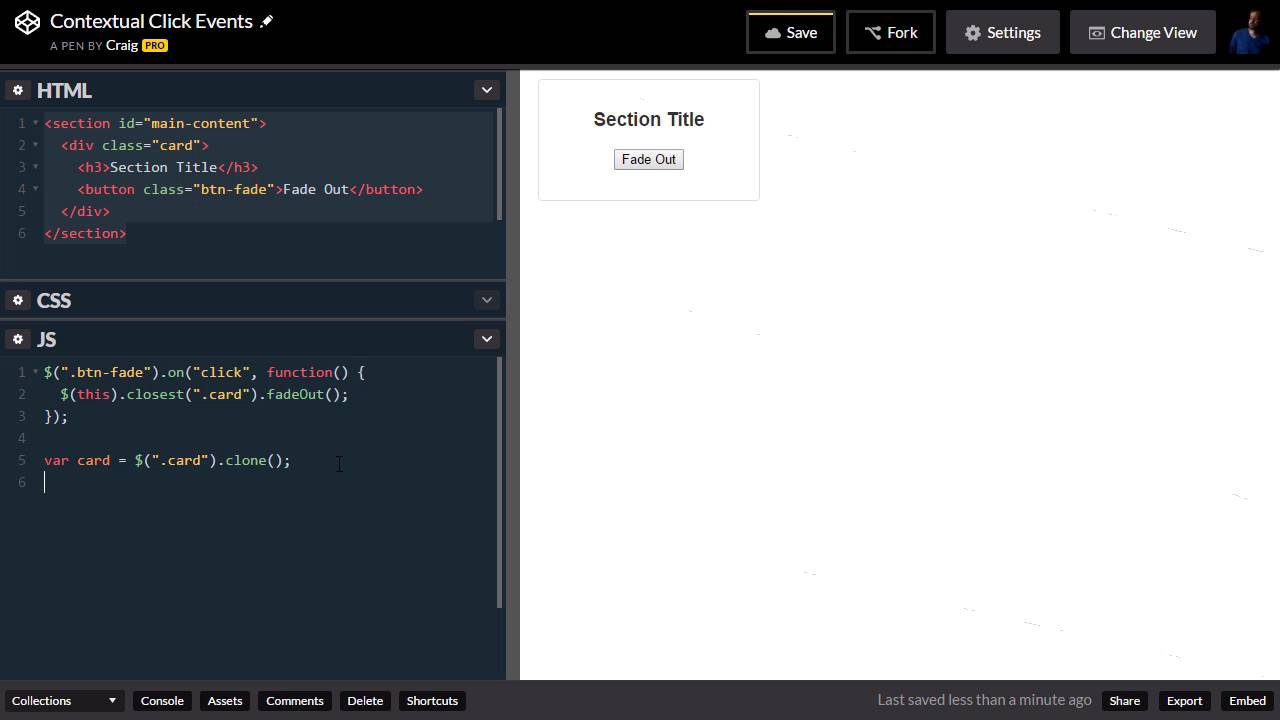
Hello and welcome back. Click Events are very easy to create in JavaScript. For example, we could very easily create a Click Event that will cause this section to fade out. And we're gonna do that in just a moment. But sometimes you'll come across an issue with your click events not working because a button has loaded after the page has finished loading. For example, let's say that you're building an e-commerce website, and you want to pull in a list of products from a database. So your page initially loads, and then after your items are loaded from the database, then those items are added to the screen. Along with the add to cart buttons that are associated with each of those products. And when you do something like that you might find that your click events no longer work because when you initially created those click events those buttons didn't exist yet. Well, in this lesson I want to recreate that issue in JavaScript and then show you how we can fix it. Now we're not actually gonna be loading anything from a database here. We're gonna keep it pretty simple just using JavaScript. But you can see on our screen here that we have a simple Fade Out button, and when we click on that, I want it to fade out this section here. Now you'll notice in our HTML, we have a section element with an id of main-content. Inside that we have a div with a class of card, which contains a h3. And a button. And when we click on this button, we want this entire card div to fade out. But if you're loading multiple products, for example, you might have a series of these cards that are added to your screen. And we wanna make sure that our click events are going to work for those cards. So you can find the URL for this starting pen in your course note for this lesson, once you open that up go ahead and click on fork to create a new copy of it and all the changed we make will be saved in this new forked version. So you can take a look to your CSS and see how that card is styled but we're going to jump into the JavaScript now and make this work. So first of all, I wanna create the fade out. So, whenever we click on this button, which, by the way, has a class of btn-fade, whenever we click on that, we want this whole section to fade out. So, first, we're gonna point to the button itself. So we're gonna create our JavaScript or jQuery selector, excuse me. And we're pointing to the BTN Fade class, so we're gonna say dot, btn, hyphen fade and then we're gonna create a click event here. So we're gonna say on, click, and we click on that we're gonna run a function. Let's go ahead and nudge those closing curly brackets and parenthesis down semicolon to end our statement there. And then inside that click event we want that entire section to fade out. So, first of all let's point to the button by pointing to dollar sign and then inside parentheses point to this. That will point to whichever button we just clicked on. And then we want to find the card element that contains that button that we just clicked on. And I'm gonna do that using jQuery's closest method. And the way that works is after our selector here we're gonna type dot Closest and then inside quotation marks here we need the CSS selector for the item that we're looking for. The element that we're looking for. We're looking for the closest element with a class of card applied to it so m gonna type dot card here. So when we do this dot closest card this again is pointing to the button itself. And the closest card element is the one that is containing that button. So once we find that card we just want it to fade out so after our closing parenthesis there we're gonna type .fade and then out with a capital O. Open and close parentheses and a semicolon to end our statement. So this should work just fine. If we click on the fade out button, we see that that section fades out just like we expected it to. Well, I'm gonna reload that. I'm gonna right click and click on reload frame and we should see. Popup again, and we do. So now I want to simulate what would happen if we had some buttons that didn't load until after the page was finished loading, for example if we were to load them from a database, and then populate the screen with these products that have an add to cart button or whatever the button is that you're looking for. So the way I'm going to duplicate this is I'm gonna create a variable called card. We're gonna create a new instance of this card dev basically by cloning it. And we're gonna use the jQuery clone method to do this. So for our card we're gonna set this equal to a clone of our card class. So, I'm gonna point to the element of the class of cards. So, we'll do that here .card and then we're simply going to say dot clone, open close parentheses semicolon to end our statement. So basically we've created another copy of this .div with a class of card and everything that's inside of it that we've stored in this variable called card. Well, now I want to append this new copy of it to our main content section here. And that's very easy to do. First, we need to point to our main content section. So we'll create our jQuery selector here. And then inside quotation marks, we're gonna point to that main content ID. So #main -content, And then we're gonna say .append. And then what are we going to append to it? We're going to append that card element that we just created, and we'll put a semi colon at the end of that statement. So now we can see this new card has just shown up because we created a clone of that div and then we appended that new clone to our main content, so now we see two of them, but now we're going to see a little bit of a problem. Our first one here at the top should work just fine. We created our click event for a div that was already there on the screen. So, if we click on Fade Out, we see it fades out just fine, and the second one moves up into its place. But our second one wasn't created until after that click event was created, so if we click fade out on this one, you'll see that that's not going to work. And that's the same effect that you would get if you were to, for example, again load your products after the page loads and then all of a sudden, you have all of these add to cart buttons that don't work. Well fixing this is very, very easy. There are a couple of ways you could do it. You could wait until after. All of your items are loaded to create this Click Event. Or sometimes you might have some buttons that are already on the screen you need those buttons to work immediately, but you also want any new ones that show up to work as well. And this particular method that we're gonna cover will handle all of those issues. So we wanna do is we wanna create a context, and we want to use that context to define our click event. And our context is basically just gonna be this section that contains our buttons. All of our buttons are going to be inside this section element with an ID of main-content. So for our click event, instead of just saying button fade on click, we wanna look at all the button fades that are inside that context. And when we give it that context, that should take care of our issue. So what I'm gonna do at the very beginning. So I'm gonna nudge everything down. And I'm gonna create a variable called context. And we're gonna set this equal to our main content div, or our main content section element. So it has an ID of main-section. And we're storing that that again in a variable called context. And now instead of creating the click event directly on this button fade class, we're gonna use the context. So the way that's gonna look is instead of pointing to btn-fade here, I'm gonna get rid of all of that, and I'm gonna say context. And if you wanna make things a little less confusing we could put a dollar sign here in front of the variable name so that we know that this variable represents a jQuery DOM object that we've pointed to here. Now we can say, context.onclick, but then we need one more thing inside the parentheses. Right now we just have the event name. And the function that we want to run. But if we wanna use the context, then after the event name, we need another parameter here. And this parameter is going to be the item that we actually want to click on. And we want to click on our fade buttons, or our buttons that have a class of btn-fade, so we're gonna say .btn-fade. And then after that, be sure to put your second comma there. So now we have three items here. We have two strings, one of them is the name of the event, the click event. The second one is the name of the actual element we wanna click on, and then we have the function that's going to run when we click on it. And it's all based on this context object. So now, even though this second item here, the second card, isn't created until after our Click Event is initialized, we can still click on that Fade Out. And that didn't work because we had the wrong ID name here. It's Main Content, not Main Section. So that's a very crucial piece there we need to make sure we're pointing to the right item. And that should do the trick for us. So now if we click on Fade Out, there we go. Now both of our items. Should fade out just fine. So let's save that again. And I'm gonna refresh, reload the frame just so we can see it in action again. Again this very first one was created when the page first loaded. So that was already in place when we created our Click Event. But this second one here was created after the Click Event but because we use this context and did click event that way. Now both of this Fade Out buttons should work just fine. So hopefully that will help you to get around issues with click events not working. Thank you for watching and I'll see you in the next lesson.





