
 Lessons: 10Length: 51 minutes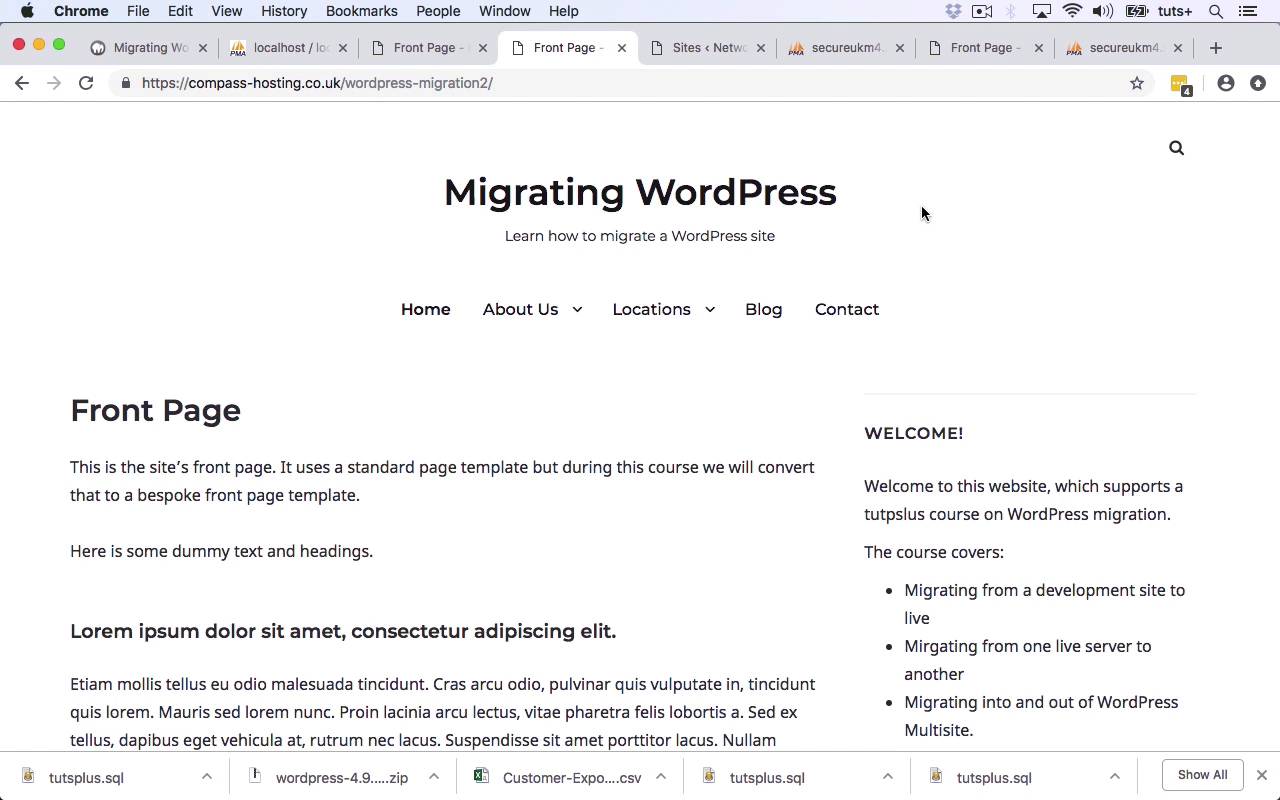
- Overview
- Transcript
6.1 Conclusion
Well done! We've covered a lot of ground on migrating WordPress sites. Thanks for watching, and from all of us here at Envato Tuts+, see you next time.
1.Introduction
1.1Introduction00:40
2.Migrating From Development to Live
2.1FTP Access and PHPMyAdmin05:12
2.2Export and Edit the Database04:22
2.3Import the Database and Upload Files06:22
3.Migrating From One Remote Server to Another
3.1Migrating From One Remote Server to Another07:14
4.Migrating a Site Into a Multisite Network
4.1Overview of Multisite Migration05:44
4.2Export and Edit the Database and Download Files05:54
4.3Import the Database, Upload Files, and Migrate Users06:13
5.Migrating a Site Out of a Multisite Network
5.1Exporting and Editing the Database06:26
6.Conclusion
6.1Conclusion02:39
6.1 Conclusion
Hello, and welcome back to this Tuts+ course on migrating WordPress. In this final part of the course, I'm going to sum up what you've learned as we've gone through the course. And what we've covered is how to migrate a WordPress site between various locations. So we started with a local WordPress site that you might have used to develop your new site before you wanted it to go live and I showed you how to migrate it to a live site on a remote server. So we started off by using phpMyAdmin provided by MAMP to export the database tables. We then went into Coda and edited those. So we found the domain name for the local site and we replaced it with the domain name for the remote site. We save that as a new file and then we copy the files from the wp-content directory over from the local site to remote site. Having done that, we imported the database to the new remote site and that gave us a carbon copy of the old site. We then did the same thing between two different remote sites. So we used the same techniques to migrate from this new remote site to another one that you can see looks exactly identical but it's on a different place online. Now in my case, I've put it on the same server in a different place but you might be migrating between hosts and you'd use the exact same techniques. But then moved on to looking at multisite and how you can migrate a site in and out of multisite. So we started by migrating a single site into a WordPress multisite installation. So we created an empty site in our WordPress network and then we went back to our original site. We exported all of the tables except the wp_users and the wp_usermeta tables because those are network wide in WordPress. And then once again, we edited the SQL file that was created and we replaced the instances of wp_ with wp_2_ because that's the database prefix used for that site in the network. Once we've done that, we saved our file. We went back into phpMyAdmin on the network and we imported those database tables. Having done that, we used the plug-in to export our users from the original site and import them into the site in the WordPress multisite network. And then finally, we completed this process in reverse, migrating a site out of WordPress multisite network and creating a new stand-alone site with it. So now you know how to migrate WordPress between a variety of locations. I hope you found this course useful. Thanks for watching.





