
 Lessons: 10Length: 51 minutes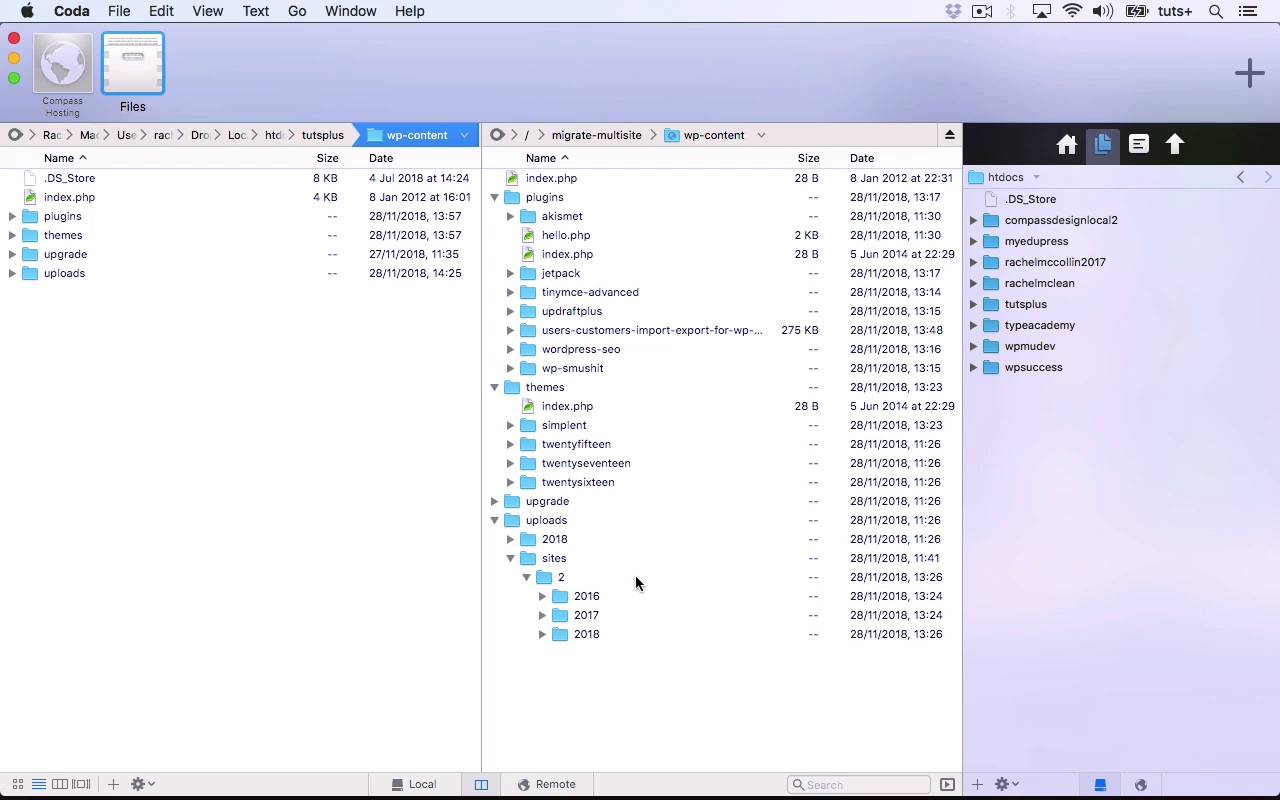
- Overview
- Transcript
5.1 Exporting and Editing the Database
In this lesson, you'll learn how to export the correct database tables from the network installation. Then you'll see how to import tables, files and users to a new single-site WordPress installation.
Related Links
1.Introduction
1.1Introduction00:40
2.Migrating From Development to Live
2.1FTP Access and PHPMyAdmin05:12
2.2Export and Edit the Database04:22
2.3Import the Database and Upload Files06:22
3.Migrating From One Remote Server to Another
3.1Migrating From One Remote Server to Another07:14
4.Migrating a Site Into a Multisite Network
4.1Overview of Multisite Migration05:44
4.2Export and Edit the Database and Download Files05:54
4.3Import the Database, Upload Files, and Migrate Users06:13
5.Migrating a Site Out of a Multisite Network
5.1Exporting and Editing the Database06:26
6.Conclusion
6.1Conclusion02:39
5.1 Exporting and Editing the Database
Hello, and welcome back to this Tuts+ course on migrating WordPress. In this part of the course, we're going to work on migrating a site out of a WordPress multisite network into its own standalone site. So this is my site in the multisite network. And I'll need to export the tables, I'll need to move the plugins and themes over, as well as any uploaded media, and I'll also need to install WordPress in the new location. So I'm going to assume that you already have a fresh installation of WordPress in the location where you want to export your site to. So we'll work first on the database. And here are my database tables for my multisite installation. So as you'll remember from the earlier parts of the course, we have these wp_2 tables for site number two, which is the one we're going to be exporting. And then we have wp_ ones for the rest of the site, as well as the wp_usermeta and wp_users that affects the whole site. So we are going to export all of the tables that begin with wp_2. So I've selected all of those, and then I'll go down and I'll click on Export. I'll check Custom here to make sure I'm saving it to a file, and then I'll click Go. And that will download a file to my computer. So I now have a file that's downloaded to my computer. And I'm gonna put that in my working documents file, and I'm going to add old to it. And then I will duplicate that, And call it new. So now let's open that in Coda or any text editor. And what I want to do is the reverse of what I did last time. So let's take, wp_2, see if we can find an instance of that, so here you are. And if you haven't got that ready to paste from your replace box up here, just select wp_2_, making sure you select that opening quotation mark. So I want to replace that with wp, and then I'll click on All, and it's replaced 257 instances. And then the next step is to update the domain, so let's find the site URL and copy that. And now let's check what we want for our local site, which is localhost/tutsplus, in this case. And then we do a Replace All on that, And that's replaced 220 instances. So we save that and close it down. So I've now got my new database edited and ready to upload to the new site. But before we do that, we need to upload any files. So this time we're doing it in the other direction. So we have the plugins and themes from the multisite site, as well as the uploads from site number two. Now, bear in mind, you only need to download any plugins and themes that are used in this particular site in your multisite network. So before you do this download, check the site's admin screens and check which plugins are activated on that site. So I'm downloading plugins and themes, And then I'm going to minimize those. And then with uploads, we need to find the folder within sites in the uploads directory for the specific site that we're migrating. And then we take the contents of that folder called 2, and we migrate those, we copy those across to uploads. And the software will prompt me whether I want to replace the existing empty 2018 folder that's been put there by WordPress, and I do. So I'll wait for all those files to download, and then it will be time to import the database. Now, I'm going to import this into a local site. And this is a clean WordPress installation that I've overwritten my old local site with so that I can import the content of that site from the multisite network into it. So the next step is to import the database tables to our new site. But the first thing you do is drop the existing tables. So I'm gonna check them all, but then I'll uncheck wp_usermeta and wp_users. Because we don't be importing those because we didn't export them from the multisite installation. So it's really important that you uncheck those. You don't want to drop those tables because if you do, your site won't work. So having done that, you click With selected > Drop, and then Yes to drop the tables. And you just got those two tables left. So the next thing to do is to import our tables from the edited SQL file. So I'll select my file, and this will be coming from to you now. Select the new file, and then I simply scroll down and press Go. And that will import my database and create the tables from it. So here's my structure. So you can see I've got all these tables with wp_. Now, bear in mind, I haven't imported anything to the users' table because I didn't want to import all of the users from the network to this new site. And the reason for that is because it's not appropriate, if people have joined that network in order to have access to different sites on the network. It's not appropriate to be exporting their data and adding it to a new standalone site. In fact, it might actually breach data regulation laws. So I would recommend instead using the plugin that we used last time, Import Export WordPress Users, to export the users from that site within multisite and to import them into the new standalone site. And you can see how to do that in part 4.2 of this course. So now I go to my local site or single site that I've imported to, and you can see we have a duplicate of the site that was in the WordPress multisite network. So that's how you migrate your site out of WordPress multisite network and into a standalone site. In the next part of the course, I'll conclude by summing up what you've learned as you've been following through this course. See you next time, and thanks for watching.





