
 Lessons: 18Length: 1.6 hours
- Overview
- Transcript
2.4 Previewing Variable Fonts
Once you’ve found a variable font you’re interested in, you’ll really need to preview it and see the available axis settings and named instances before you decide if you want to deploy it in your site. In this lesson, we’ll check out ways in which you can do this.
Related Links
1.Introduction
1.1Welcome to the Course00:36
1.2Variable Fonts for Fast Loading04:33
1.3Variable Fonts for Freedom and Creativity04:12
2.Understanding Variable Fonts
2.1Font Axes (Settings)03:44
2.2Named Instances03:57
2.3Finding Variable Fonts03:07
2.4Previewing Variable Fonts02:48
2.5UI Mockup With Adobe Software04:51
2.6Browser Support03:08
3.Let’s Get Coding
3.1Deploying Variable Fonts08:38
3.2High-Level and Low-Level CSS Properties06:39
3.3Font Weight08:15
3.4Font Stretch (Width)07:54
3.5Font Style (Slant/Italic)07:42
3.6Font Optical Sizing04:18
3.7Custom Axes06:37
3.8Fallbacks08:13
4.Conclusion
4.1Wrapping Up04:59
2.4 Previewing Variable Fonts
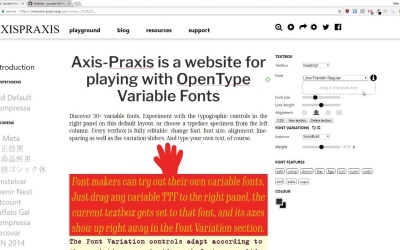
Hey, welcome back to Up and Running with Variable Fonts. So you've found a variable font that you like. You've downloaded the file. And now you wanna preview it, see what happens when you change its access settings around. And make sure it's something that is actually worth putting more time into working with. When you download a font, you might be lucky and get documentation that tells you about the different settings that it has available. Or you might get absolutely nothing, and that's where you really need a preview tool. And that's why, yet again, we're back at Axis-Praxis because it provides that functionality. And this is probably the easiest preview tool that's available right now because it's online, meaning you can access it anywhere. If you look up in this section here, you can see, this little place says drag and drop fonts here. And really, that's all you have to do. So I have this Libre Franklin font that I've downloaded from GitHub. This is the variable font version. So now, all I need to do to preview it is to grab the file, drag and drop. There you go, you can see that it picked up Libre Franklin Regular. I can select this text here. And now, it gives me access to all the different named instances. So we can see which instances give us the best kind of look. We can play around with the sliders. And we can ensure this is actually the font that we wanna use. You can drag and drop any font file that you want onto this little box, and instantly get access to see what named instances it includes, and what access it includes. If you don't have a tool like this, it's almost impossible to actually find out what those named instances are, cuz all that information is buried inside the font files, and you need a way to get it out. So there is another option for a font preview tool. If you really don't want to work online, then you can use this open source tool named Font View. This tool will also let you see what named instances font has. What axes it has, and let you mess around a little bit with the settings for those axes. However, you're gonna need to be a little bit technical to work with this so you can built it yourself. It can be built on Mac or on Linux. You might need to work through some build errors as you're putting it together. But if you're comfortable with doing command line building of software, then this might be a great option for you. Unfortunately, it's not available to work on Windows. So in that case, you are gonna need to stick with Axis-Praxis for now. And there is one more option for previewing fonts that I wanna show you, and that actually takes us into our next lesson. Because that option also gives you a means to start creating mock-ups to fill in the foundation of your designs. And that is working with Photoshop. As you know, Adobe is part of the development of these fonts. So it's no surprise that we see Photoshop being one of the first pieces of software to support variable fonts. So in the next lesson, I'm gonna show you how to work with variable fonts inside of Photoshop, either for previewing purposes or for creating mock-ups. And I'm gonna give you a little overview of what the landscape looks like for variable font support in other mock-up software. So I will see you in the next lesson.





