
 Lessons: 12Length: 1.1 hours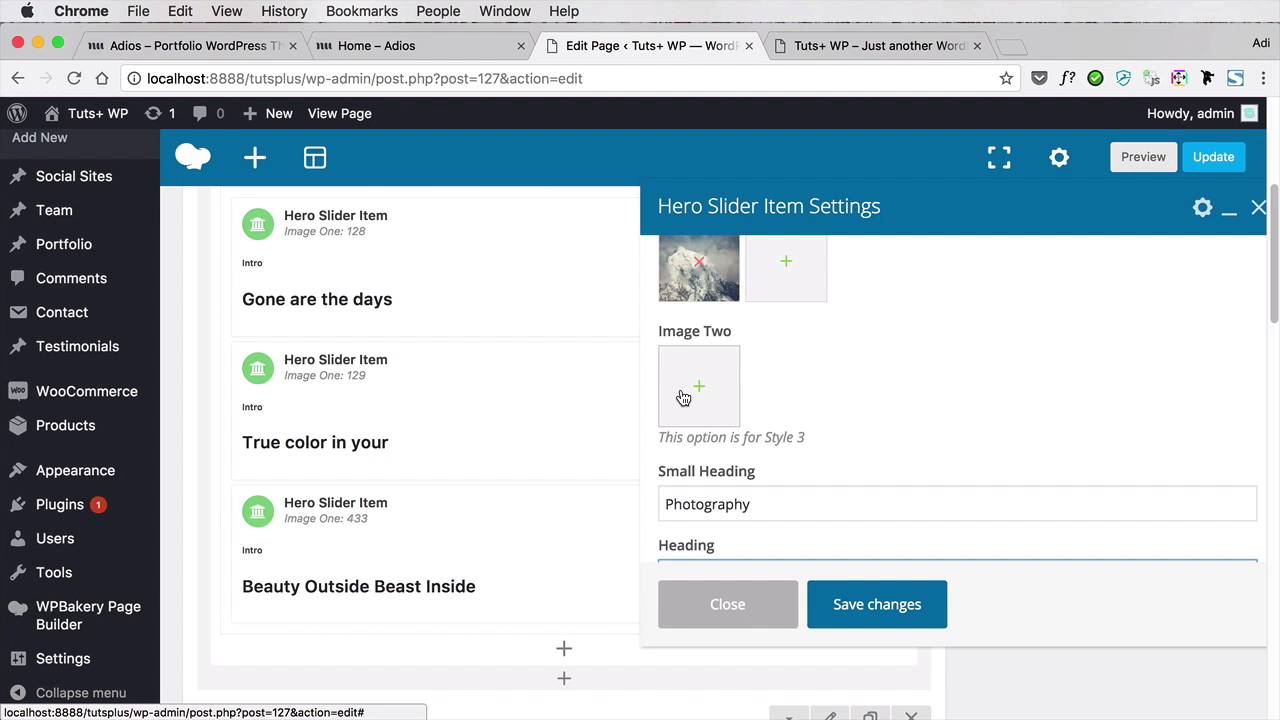
- Overview
- Transcript
3.3 Customizing the Homepage Slider
The homepage slider is the very first thing we’ll change, and because we’re building our portfolio we’ll use this area to display some of our most important projects. Let’s begin.
Related Links
1.Introduction
1.1Welcome to the Course00:43
2.Getting Started
2.1Setting Up the Local WordPress Environment08:41
2.2Installing the Adios Portfolio Theme05:17
2.3Loading the Demo Content02:47
3.Customizing the Portfolio
3.1Creating the Navigation08:14
3.2Editing the Homepage Structure04:17
3.3Customizing the Homepage Slider05:14
3.4Customizing the Rest of the Homepage12:57
3.5Customizing the Portfolio Page04:51
3.6Customizing the Blog Page03:59
3.7Customizing the Contact Page07:11
4.Conclusion
4.1What’s Next?01:43
3.3 Customizing the Homepage Slider
The homepage slider is the very first thing we'll customize. And because this a portfolio, we'll be using this area to show our most important projects. Now, for this particular demo, I assumed that the person building the portfolio is interested in photography, he occasionally does backgrounds, and he also dabbles with mobile design. So the portfolio will revolve around these three main categories. I went ahead and grabbed some assets from Envato elements just to use as demo images, basically. And I uploaded those images in the media library right here. If you don't know how to do that, well, you go to Media > Library and Add New. And then, you can upload whatever image you want to use in your portfolio. So starting from here, we have 13 images that I added, and these are the ones we'll be using for our portfolio. So coming back to our slider, the slider currently has three slides. Of course, you can add more if that's what you want. But since our portfolio has three main categories, that's what I'm going to be using for this slide. So we're gonna go back to our Pages. And I'm gonna open my Home page. And the page builder shows me three hero slider items. Now, I can go to each one and edit that slider. I can choose the image, simply going to select a file from my media library. Let's say I'm going to put the photography first, and I'm quite fond of this winter background. So I'm gonna set that. And then, the Smart Heading is this one right here where it says Intro. I'm going to say Photography. And then, the Heading, I'm simply gonna say Winter Landscape. And depending on style for this hero slider, you can have the option to add two images or to set a Button Text. But in my case, all I can change here are the Images or the Image, the Small Heading and the actual Heading. So I'm gonna save the changes, and then I'm gonna Update this page. And then, if I do a refresh, you'll see the first slide being replaced by the one that I just added. So let's go ahead and add edit the next two slides. I'm gonna hover over the second slider item. I'm gonna hit Edit, I'm gonna use a different image from my media library. Let's say this one, I want it to be about the background. So I'm gonna use this nice galaxy background. I'm gonna say Background, I'm simply gonna say Galaxy. And then, for the third one, I'm going to be using one of these slides from Mobile Design, maybe this one. I'm going to say Mobile Design and Demo Mobile App. Save changes, and then I'm going to update this page, and then do a refresh on the front end. And now, we'll be able to see Our finished slider. Now, of course maybe these are not the best images to display here. But again, this is a demo, so I just wanted to show you the technical part of how to edit this slider. Now, the slider itself has a few more options. If you were gonna click on this little icon here that says Hero Slider settings, you can choose which style to use, and you can see those styles in the official demo. You can choose whether or not to autoplay it, you can choose the speed, the pagination style. So it's quite configurable. In my case, I'm gonna be sticking with this one right here because it looks very, very good. Now that the slider is done, let's move on to the rest of the Home page. That's coming up in the next lesson.





