
 Lessons: 12Length: 1.1 hours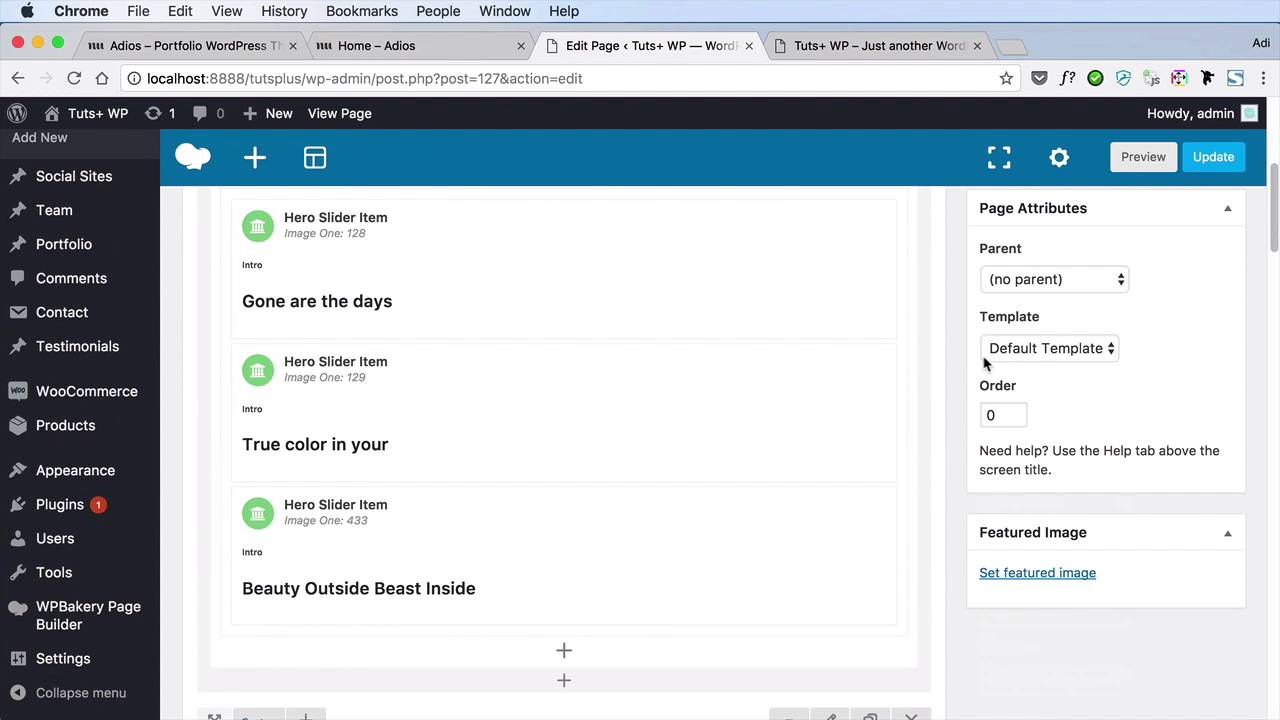
- Overview
- Transcript
3.2 Editing the Homepage Structure
In this lesson we’ll be editing the homepage structure. Thankfully, the Adios theme uses Visual Composer, which is a plugin that allows us to build WordPress pages in a more visual way. Let me show you what I mean.
1.Introduction
1.1Welcome to the Course00:43
2.Getting Started
2.1Setting Up the Local WordPress Environment08:41
2.2Installing the Adios Portfolio Theme05:17
2.3Loading the Demo Content02:47
3.Customizing the Portfolio
3.1Creating the Navigation08:14
3.2Editing the Homepage Structure04:17
3.3Customizing the Homepage Slider05:14
3.4Customizing the Rest of the Homepage12:57
3.5Customizing the Portfolio Page04:51
3.6Customizing the Blog Page03:59
3.7Customizing the Contact Page07:11
4.Conclusion
4.1What’s Next?01:43
3.2 Editing the Homepage Structure
In this lesson we'll be editing the homepage structure. Now thankfully, the audio string that we're using here includes the WPBakery Page Builder which is a plugin that allows us to visually edit a WordPress page very quickly and very easily. It's formerly known as Visual Composer. I'm sure a lot of you know about it. So if we take a look at our print homepage, let's see what we're gonna keep actually. So we're gonna keep the slider. We're gonna keep this section, although we're gonna be editing the contents. The services, I don't really need the services here for a portfolio. We're going to go back to our dashboard and we're going to go to pages. We'll open our homepage. And then inside we're gonna see all of the elements that have been added to that page using the page builder. So we're gonna scroll down. This is the second section right below our slider. Yeah, so this row right here with the services and the block quotes, I don't really need this. So I'm just gonna delete it. I'm gonna hit this x, and then okay. And let's see what else. These content boxes I don't need them either. So I'm gonna delete that entire row as well, and I'm gonna hit Update. And then, when I do a simple refresh, you're gonna see that that section has disappeared entirely. Now this is the case study we are going to be using this for our actual portfolio, so we will keep that. I will go back here, then the team. This is a portfolio for an individual so I don't really need the team section. And then stories, this is for blog entires, I'm gonna keep them. Pricing table, no, I don't need these so I'm gonna delete them. The pricing table, yeah, delete these as well. And then what else is after let's see those pricing tables. We have these clients and then we have these section with the statistics which I don't need and I also do not want this tract here. So we're aiming for a very simple home page. We're gonna delete this row And then, this row with the testimonials, and then, this one with the counter box, and also this one, okay? So all we're left with in our homepage, is the hero slider, and then, we have that section, which can be used as an about section. And then we have portfolio entries then blog entries. And that's about it. We'll have the footer at the very end. So we'll hit Update. And then we'll do a refresh. And you'll see we're only left with the stuff that we need. Currently, the portfolio and blog section does not work. We need to tweak things a little bit there. Then we have the footer, that's the final structure of our home page. The next step is now to change the content on the site's home page and on the rest of the pages with our. And we'll start in the next lesson with the content for the home page slider, see you there.





