
 Lessons: 7Length: 30 minutes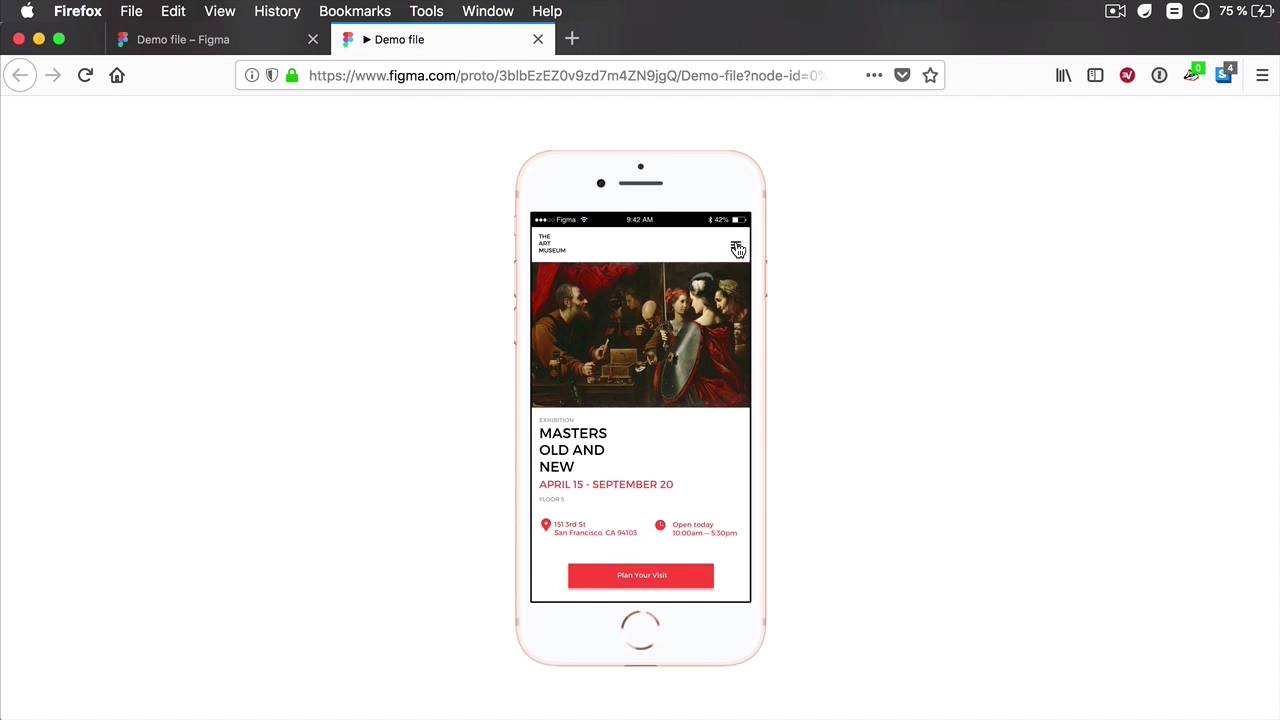
- Overview
- Transcript
2.3 Hotspots to the Previous Frame
In the lesson about basics, you saw how to link various frames to one another to create a working prototype. One of the most common actions in mobile app design is to go back to the previous screen. This is possible by linking the back button to the previous frame, but Figma offers a faster solution. Let’s check it out.
2.3 Hotspots to the Previous Frame
In the lesson about basics, you saw how to link different elements to different frames to create a working prototype. Now, one of the most common actions in app design is going back to the previous screen. And in Figma you can do that very easily by linking, let's say, back button to the previous frame, right? But Figma gives us a much faster way of doing this so let's check it out. Let's take, for example, these two frames right here, right? So Clicking on this button will take us to this screen, but what if I want to go back? Well, I can select, for example, this button here to take me back to the screen. So inside the destination, I can simply choose Home or I can select the element and drag an arrow like this, but also I can simply select Back to previous screen. So from the destination drop down choose back to previous screen and now let's do a presentation. I click here, it takes me to that screen and when I click here it takes me back. A very simple feature but a very handy one. And this is really handy, for example, when you have a lot of frames and a lot of connections between them, right? And you make those initial sets of connections, but then you change things up. And that might mess up the prototype but when you're using this feature, all we have to make sure is you have the frame that you wanna go back to in the right position. So you have the frame a and then frame b, and then you go back to from frame b to frame a. And that's it, you don't need to remember any names. You don't need to drag any lines. The option is there for you. It's very simple, yet, very handy option. And it's just one of those tiny details that eventually add up to a great user experience when it comes to prototyping. Now, coming up in the next lesson, we'll talk about two awesome features in prototyping, fixed objects and scrollable areas. See you in the next lesson.





