
 Lessons: 7Length: 41 minutes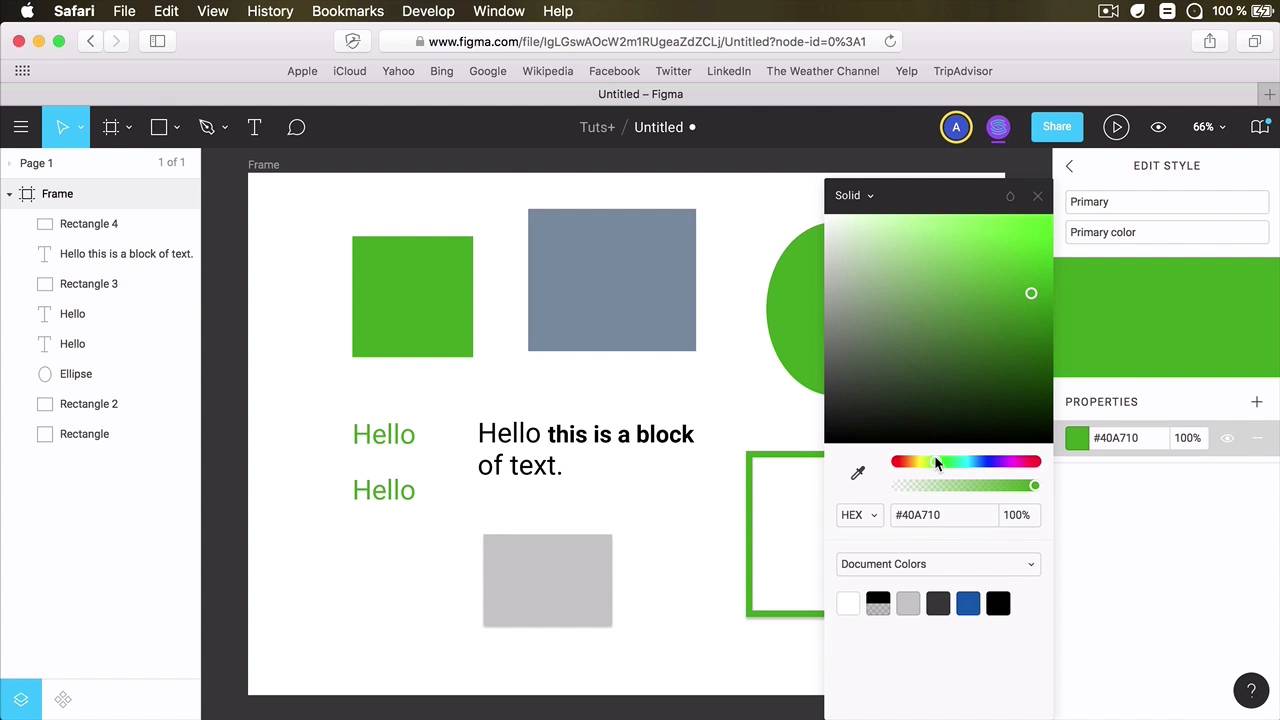
- Overview
- Transcript
2.6 Team Library
A team library allows you to share components and styles with your team. It’s also great for keeping styles and components synchronized. So if you have multiple people working on a project, you can use a central location for all your assets. That way, your team members will be able to reference the latest version of those assets.
In this, the final lesson of this short course, we’ll take a look at how that works.
2.6 Team Library
A team library allows you to share components and styles with other people, with your team members but it also helps you to keep your components and styles synchronized across your design files. So if for example, you have a team of people working on a specific project, it might be helpful to basically how the central location with all of your design assets and people can be connected to that and always have access to the latest updated version of the elements and styles, of course. Now, Figma has this feature called team library so let's have a look at what it does. I'm gonna use an example from the previous video where I created this just demo file that has some text style, some color styles, and effects styles in a column grid. Now in order to get this up and running on the team library you need to go up here and say publish styles and components, right? So we're gonna publish the library, I can say here's a final version of the library. And you get a preview of what styles and components will be included. I'm not covering components here. I'm just focusing on the styles. So we have an H1, H2, these are text styles, then we have two color styles, an effect style and a grid style here. So I'm gonna publish these styles. And now I'm gonna switch back to my other account that's on my Team Adi in Figma, and I'm gonna open my demo file. And when I open the team library from up here, yeah I can see the current file has this library it's called untitled for now. It says it's published and up to date and when I click on it I can see all of my files and I can always use them. Now if i'm gonna go back to my original file. Now once I'm in here, I can make basically any change to that team library and I can upload the changes. So for example, I can go to my color styles right here under Primary, and I can edit this. Let's say I wanna make it a green, so I'm gonna change this color to green. And now Figma is gonna ask me if I want to publish my changes to the team library. So I'm gonna select Publish, give it a description and then I'm gonna to select Publish Styles. And now Figma tells me, published a version to the Team Library. So now I can close this and coming back here, you'll see the changes are already affected. And when I open my Team library, it's already up to date. I can see my updated styles right here. And if at some point I decide I don't want this to be public, I can unpublish it using this button right here. And you can do the same for components. But for that check out the introduction course I did on Figma a while back. Where I also covered how to create components and how to share them. Now Team library, definitely a very handy feature for collaboration, but unfortunately, it does come at a cost. In the free version of Figma, which is for individuals, you don't really have access to the Team Library. That's only available starting in Professional. So it's a feature that you have to pay $12 per month per editor. But chances are if you have a team of people that will benefit from working with a team library, then you are part of a small company, or an organization, or a large company that can most likely afford paying a couple of Figma subscriptions each month. For now, this is about it for the more advanced functionality in Figma. I strongly encourage you to go ahead and check this out. As you saw, Figma has a free plan that you can use indefinitely. And for most people it's more than enough unless you are using a work n a team and you need certain specifics feature like features like a team library. Then your more the simple plan is more than enough for you. And figma has a lot to offer. You can check out our introductory course on Figma to learn the basics. And after watching this one, I hope you have a more complete picture of what Figma is and what you can do with it. With that said, I would like to thank you for watching this short course. I'm until next time, take care.





