
 Lessons: 7Length: 41 minutes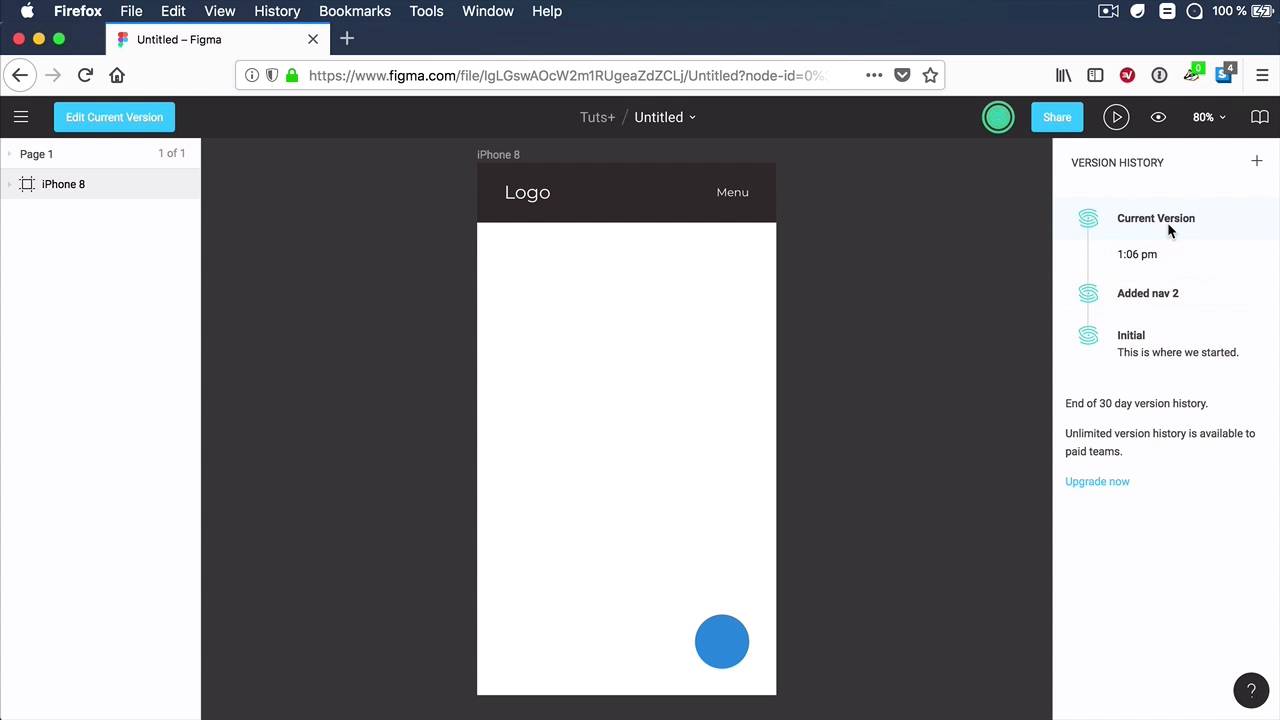
- Overview
- Transcript
2.4 Version History
When working on a project, you will always end up with multiple iterations. It doesn’t matter if we’re talking about web design, icon design, wireframing—whatever you’re doing, no matter how organized you think you’re being, you’ll usually end up with a tangle of files with various names and numbers, right? Figma has a really neat feature that will help solve the chaos of version control: its own “version history”.
Let me show you what I’m talking about.
2.4 Version History
When working on a project, you will always have multiple versions of it, regardless of what that project is. Icon design, website design, whatever it is, going from A to Z means you have to go through all of the other letters, right. Now, Figma has a really neat feature that allows you to take better control of this process, and it's call Version History. Here is the cool thing, because Figma is a web-based or a browser-based app, your files are constantly being saved. So you'll end up with this stream of versions that you can go back to, you can restore, you can duplicate. And also in Figma, you can name and you give a description to each one of these versions. So let me show you what I'm on about. For example, I'm gonna use the test page that I made in the previous lesson. And to access versions, you'd go to the Menu, and you would simply type versions, or you can go to File > Show Version History. And it takes you to this right side panel where it tells you the current version, and you also have two autosave versions. So the autosave versions, you can see the time of day they were saved at. Clicking on one of them will take you to that version, and you can inspect it. Let's click on the 12:58 PM, this is the one where I added the navigation, and here is the current version. That is really cool. Now, clicking, right-clicking on any of the version gives you the option to name, restore, or duplicate that version. So let's name this, let's call this initial, and a description, and click Save, right? So you can see that name and description right here. Let's rename this to Added nav 2, and here is the current version. Now, let's go ahead and switch back to our initial version. Now, doing this doesn't mean that all of your other versions are lost. In fact, you can simply go back to your File > Show Version History. And this initial version is now the current version, but it can also have access to be other ones, That you saw right here. So if you wanna make this the initial version, well, we can simply click this little button, and you can say, Restore This Cersion. Or if you don't want it, you can delete it altogether. So let's go ahead and restore that. Now, one cool thing about Figma is that versions are per page. So if you have multiple pages with elements in all of those pages, the Version History will show up differently for each page. So if you made one change in one page and if you're editing elements on another, you're not gonna see the changes from both pages. You're only gonna see the Version History for that particular page that you're working on. I think this is great, it's a really good addition and a good method of organization. Now, there is also a handy keyboard shortcut for saving a new version. So let's say that you're gonna add some text here, And you quickly want to save a new version of this. Well, the keyboard shortcut is this one, option Cmd+S, where it says Save to Version History. Say added text, a description, and you click Save. And now, when you go to view your Version History, yeah, you're gonna see the new version saved right here. Now, what is this thing about 30 Day Version History? Well, Figma, in its free plan, only saves the Version History for 30 days. So if you were working on a project longer than that, you will always be able to only see the last 30 days. But there is also an option for unlimited Version History for paid teams. So if you have a different plan that's different from the free one that I have right here, you will have the option to view the entire history of your document, and not be limited to 30 days. And that's it for Version History. Next up, let's talk about styles. This is a recently added feature that allows you to create reusable styles for color, topography, effects, and more. We'll talk about that in the next lesson.





