

- Overview
- Transcript
2.3 Using Blend Modes for Cutouts
In the previous lesson, we used blend modes to display an image and a gradient inside a piece of text. You can also use blend modes to create cutouts in a larger image so that the image will appear differently inside the text than outside of it.
Let me show you what I mean.
Related Links
1.Introduction
1.1Welcome00:50
2.Text Masking Techniques
2.1Using `background-clip`05:07
2.2Using Blend Modes05:22
2.3Using Blend Modes for Cutouts05:38
2.4Using SVG Text07:06
2.5Using SVG Masks06:47
2.3 Using Blend Modes for Cutouts
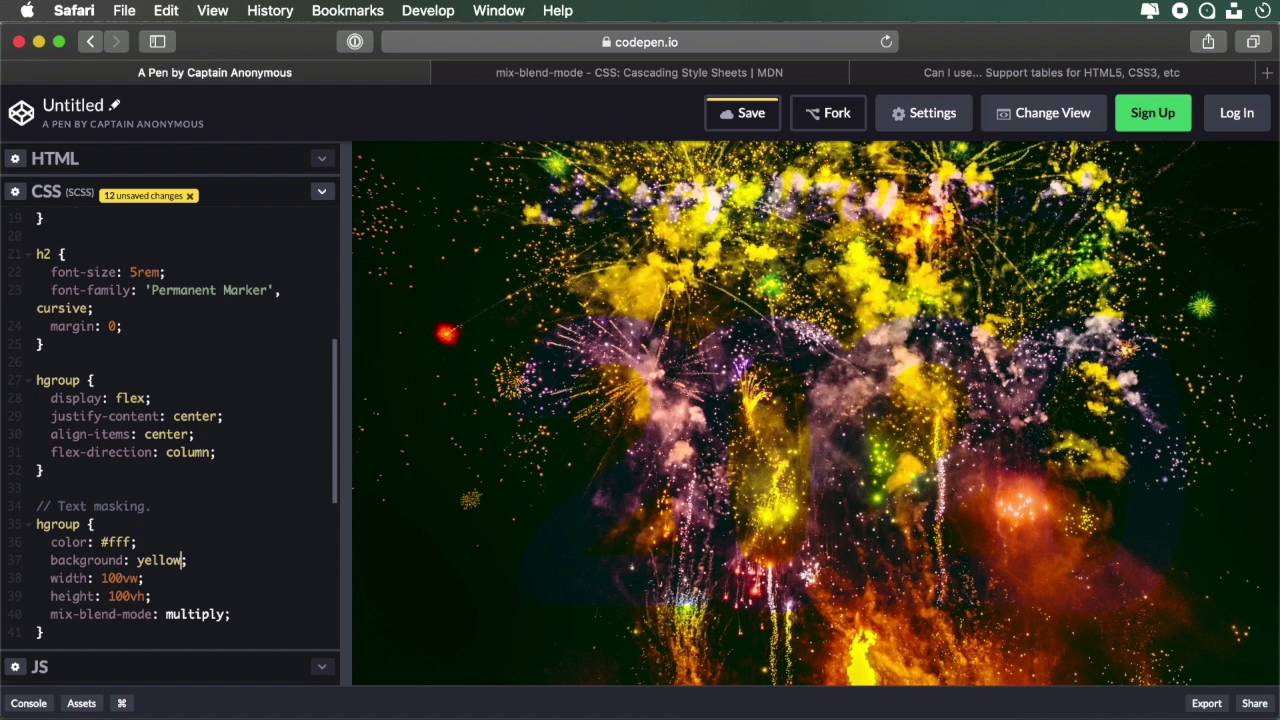
In the previous lesson, we used blend modes to display a background image and a gradient inside a piece of text. Now, you can also use blend modes to create different cutouts in an image. So the image that's inside the text appears differently than how it does outside the text, so let me show you what I mean. I have this demo prepared here, I have two pieces of text, that's an h2 and an h1. So in the background, I have an image, and I wanna keep displaying my image just like it is. But on the insides of the text, I wanna display those portions of the image a little bit differently. And that's something we can do very easily with blend modes. So to walk you through the demo quickly, apart from the regular styling here, I'm setting a height of 100 viewport height to the container. And setting the background to this firework image that you see here, here's the HTML. So I have a container, an hgroup, and an h2 and an h1. And then the h1, I'm just setting its font properties, h2, doing the same thing. And finally, on the hgroup, I'm setting a flex container just to align these elements a little bit better. All right, so for text masking, we'll start with the hgroup. So I'm not targeting my text individually now, I'm just targeting the entire hgroup. And to begin with, I'm gonna set our color to white, there we go. And then let's set a background color, let's say 1c456d, okay, it's that bluish color right there. Let's set a proper width and a proper height, so that it completely fills our image. And then the magic happens here, mix-blend mode: multiply;. Okay, so now we have a very, very interesting effect. Inside the text, our image is displayed in its original form. But outside the text, it's actually blended with this blue background. And by changing this background, I can change the actual color, to create a more dramatic effect. I can do yellow, all right, and it's gonna blend in. Now, be careful not to use colors that are too light, because you won't be able to distinguish the text,. In that case, this blue color that I used looks just fine. So again, the multiply blend mode keeps dark colors dark, and the light colors let through what's behind them. And because we have the color of the text set to white, everything that's white in the image will be let through. The rest will actually be blended with this background color. And if I set this background color to white, look what happens. I get the image, 100% just like it was, but without the text. In reality, the text is still there, I can still select it. But we cannot see it because it's completely transparent, the image just shines through the text. If I use a background color, then only the white parts will be visible, will let parts of the image through, so I hope that that makes sense. Now, I can go the other way, and use screen blend modes, all right, so screen is the opposite of multiply. Instead of light colors letting through what's behind, with the screen blend mode, dark colors will let through what's behind, okay, and the light colors will block it. So we can do this, you can copy that and actually comment it, and I can say color: black, and I can set the blend mode to screen, okay? And I have a slightly different effect now, and instead of this background, I can actually use a linear gradient that looks like this. So now I have a gradient going over the image, and I'm just displaying the original image through my text. I think this is a very, very interesting and very eye-catching effect. We've seen blend modes being used in, you know, Photoshop or other image editing software. But in CSS, it's still a relatively new thing, but as you can see, it really creates some catchy, catchy effects. Now, in the next lesson, we're gonna explore technique number four, which uses something called SVG Text, that's coming up next.





