

- Overview
- Transcript
2.5 Using SVG Masks
In the final lesson of this short course, we’ll have a look at another technique that uses SVGs, this time with SVG masks. We’ll use them to display a video inside a text element.
Let’s begin.
Related Links
1.Introduction
1.1Welcome00:50
2.Text Masking Techniques
2.1Using `background-clip`05:07
2.2Using Blend Modes05:22
2.3Using Blend Modes for Cutouts05:38
2.4Using SVG Text07:06
2.5Using SVG Masks06:47
2.5 Using SVG Masks
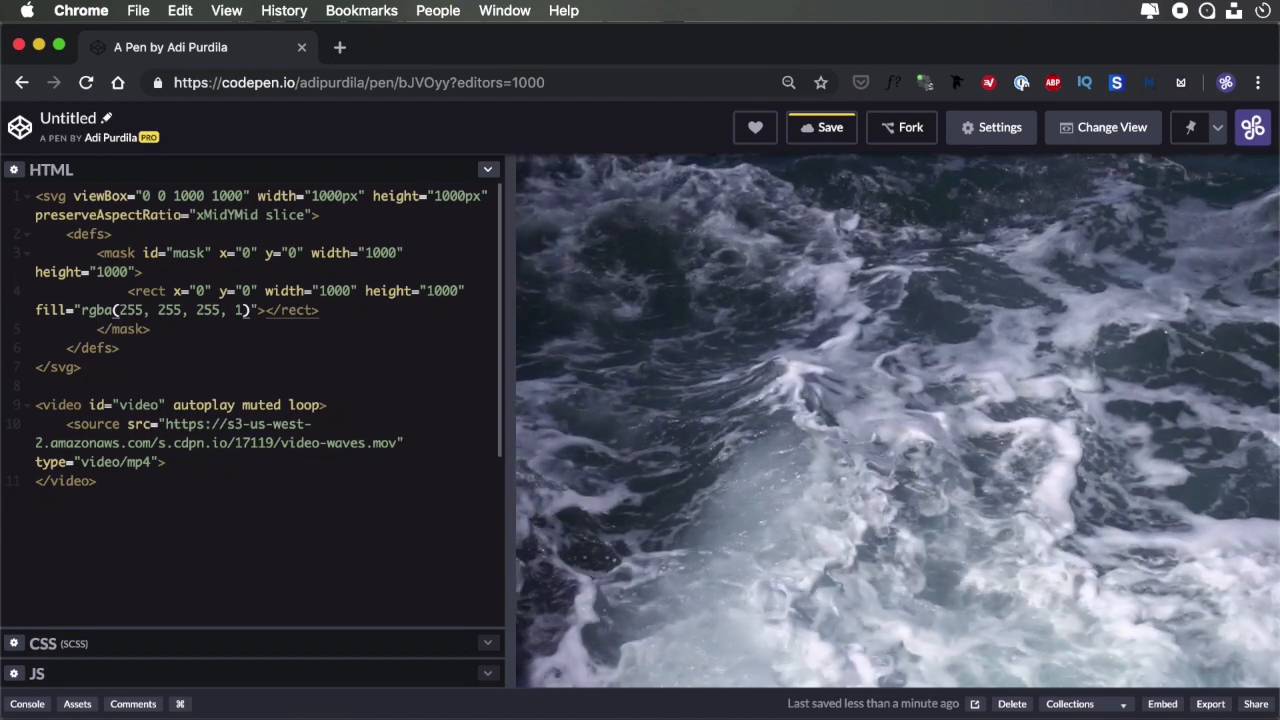
And the final lesson of this short course, we'll have a look at another technique that uses SVGs. But this time, SVG masks, and we'll use these to display or to show a video playing inside a text element. So, let's begin. We start with a simple SVG in which we're gonna define our mask. And then, we're gonna overlay that on top of a video. So actually, let's go ahead and load the video first. So I'm gonna create a video element. And I'm going to give us an idea of video. And I'm also going to add certain attributes. autoplay, muted and loop. And these are pretty self explanatory. Autoplay just automatically plays a video on page load. Muted mutes the sound and loop just loops the video over and over and over. And then for source I'm just going to load a video that I uploaded to the code and assets and I'm gonna type video/ampifour. All right so now if we comment this we're gonna see our video. Show up right here. And as you can see it's a very short video. I just got this as a demo from a valuable elements. And I trimmed it down to about one and half seconds. To keep the file size low, but it should be more than enough to demonstrate the technique I'm about to show you. And let's actually write some CSS. We're gonna start by setting some properties for the SVG element. We're gonna make it as wide and as tall as our view port. So width, height, and let's also set a position, absolute. And then for our video, we're also gonna set a position absolute, we'll say top 0, left 0. All right. Now, let's go and create our mask. So inside our SVG we're gonna create a definition mask. We're gonna give it the idea of mask. This can be any name of course. And let's start with this. We'll give the coordinates, starting coordinates of x and y equal to zero and we'll make it as wide and as tall as my main SPG which is 1000 pixels right? So, 1000 here, height 1,000. Then inside the mask, I'm gonna do the following, I'm gonna create a rectangle that starts at the exact same coordinates and it has the same dimensions as my SVG, so with 1000 height. And then I'm gonna fill this with white and i'm gonna use RGBA. I'm gonna show you why in just a little bit, but this is basically just pure white. And then the actual text that we wanna use a mask will be text, x, let's do 50%. So it's kind of positioned in the middle. Y equals, let's do about 15%. And then let's not forget text anchor middle. And for the actual text, well I'm just gonna put a w here. And then finally inside the SVG I'm gonna create a rectangle that also starts from zero, y equals zero. Width is also 1,000 pixels, height is the same, and I'm gonna fill it with white. And this is going to eventually fill this entire review port. And to make that happen let's actually set a z-index of -1 on the video element. So it's now pushed behind my SVG. Okay so all that's left to do now is to go into the SVG Element, and we need to target this rectangle here, so the direct descendant, and apply a mask. So we'll say direct descendant rectangle, mask, url, #mask. Okay, so that will reference the mask that we defined right here. It's gonna get the text, a W. It's gonna display it like this, and then the video inside. Now, I mentioned this fill color with the rgba value. Watch what happens if I change this to, for example, point eight. Right? So you can actually see part of that video background. It's very opaque outside of my letter, but it's there. So, essentially we have two rectangles here, we have this one, which covers like the entire view port and its part of the mask and then we have this rectangle here which also covers the entire view port but this will be masked with these two. So that's how this whole thing works and now I'm just gonna leave it at one. And we're organizing video animation inside a piece of text. And that's the fifth and last method we're gonna cover in this course. The range as I was saying in the beginning, from really easy to kind of advanced. And also from techniques that have good browser coverage or good browser support to ones that don't really have that. For example the blend modes don't really work in a lot of browsers, but the SVG approach that's really good. It works in a lot of browsers, same goes for the background clip technique. So that was it for this short course. Hope you found it useful. Thank you very much for watching. I'm Adi Purdila and until next time, take care.





