
 Lessons: 4Length: 20 minutes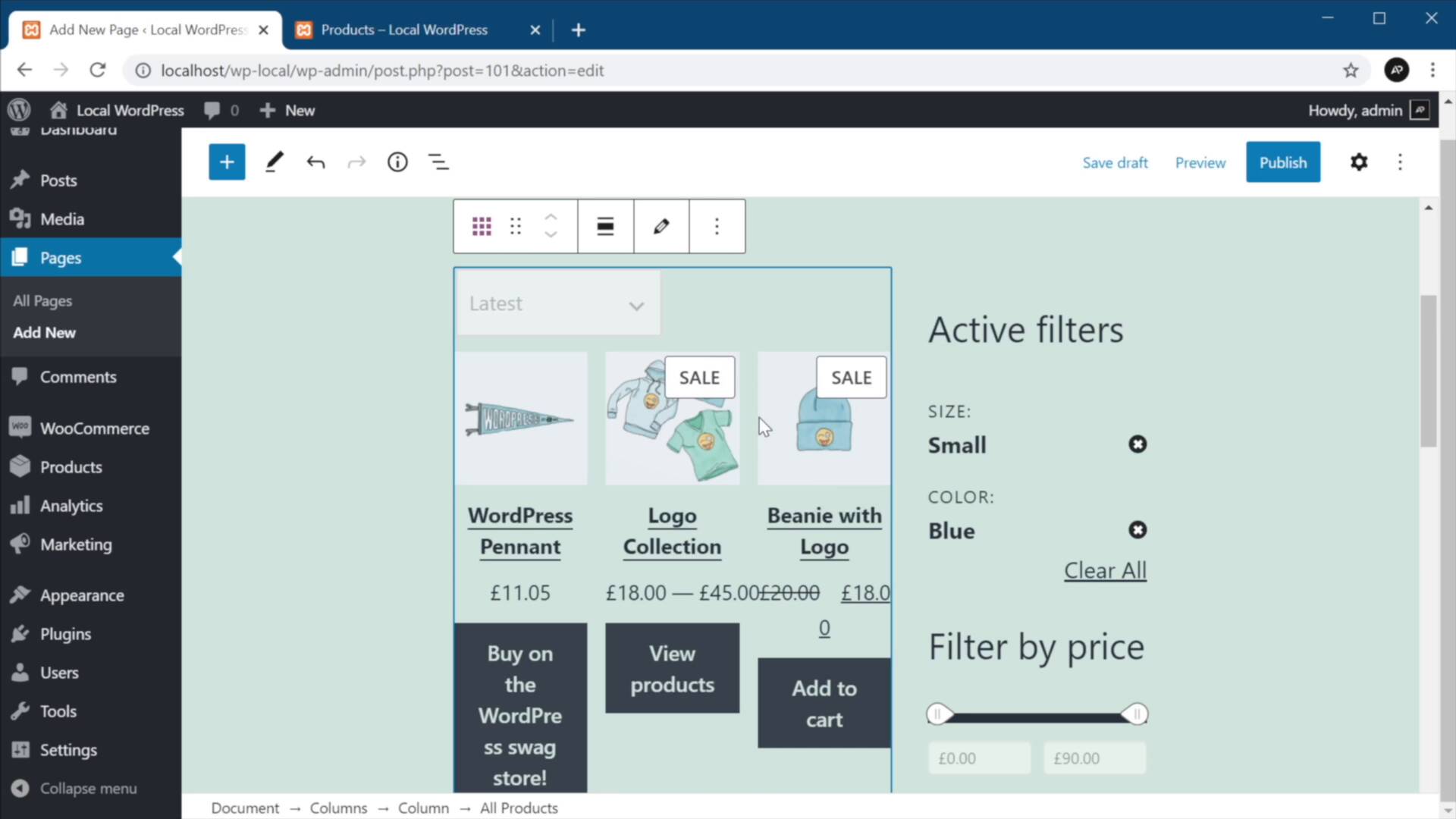
- Overview
- Transcript
2.2 Creating a Custom Shop Page
In this lesson, you’ll learn how to create a custom shop page in WooCommerce by using the new blocks. It’s super simple to do, so let’s begin.
1.Introduction
1.1Welcome to the Course01:04
2.Introduction to WooCommerce Blocks
2.1Getting Started With the New WooCommerce Blocks07:32
2.2Creating a Custom Shop Page04:33
2.3Creating a New Cart and Checkout Page06:38
2.2 Creating a Custom Shop Page
Welcome back to the course, in this lesson, you'll learn how to create a custom shop page in WooCommerce by using the new blocks I showed you previously. This is super simple to do. So let's begin. Now by default, WooCommerce creates this shop page that you can see here. And that looks something like this, in here you basically get a list of all the products with pagination and also some sorting options. But what if you want to make this look different and use your own custom templates in doing that? Well, let's go ahead and create our own custom shop page using the new blocks. So I'm gonna click add new, I'm gonna name it Custom shop. And I'm gonna create a two column layout in here. So, I'm gonna select Columns. And I'm gonna do let's say a 70, 30 split, which means one large column here and one smaller column here. So let's go ahead and add a block to this. We'll browse, To the WooCommerce blocks and we'll select active product filters. Let's add a new one. Let's search for filter, filter products by price, and let's add the new one, filter products by attributes, and we'll select and we'll hit done right here. And actually this was not placed in the correct place, sorry about that. Let's do that again, let's add the block right here. So filter by attributes. Attribute, select color here and hit Done. Okay, so that is our sidebar in here. Let's go ahead and add all products. And that's gonna display all my WooCommerce products along with a drop down for sorting the products as well as a pagination. So, let's go ahead and publish this and let's view it. Now this is now our Custom shop page. This might look a little bit too crammed in here because the page template that I use just allows for this tiny container here in the middle for the content. But when you're working with your own theme then you can quickly create a page template that will accommodate this much better. But as you can see, the functionality is exactly the same as you would expect on your normal shop page. You can filter these. You can clear filters, you can filter these by color. Super simple and you can open them up, just like so. Now if you would like to use this page as the default shop page, you will need to go back into your WordPress Admin, go to WooCommerce, settings and under the products where it says Shop page, you will select Custom shop. Save changes, and now whenever you'll be opening up the shop page, this one will be opened instead of the default one created by WooCommerce. All right and that's how we can create a Custom shop page using the new WooCommerce blocks. Now there are a few more blocks I haven't showed you because they are not yet included in the WooCommerce core. Those are available separately as a plugin, and you can use them to create a custom cart and checkout page. And I'll show you how to do that in the next lesson. So I'll see you there.





