
 Lessons: 4Length: 20 minutes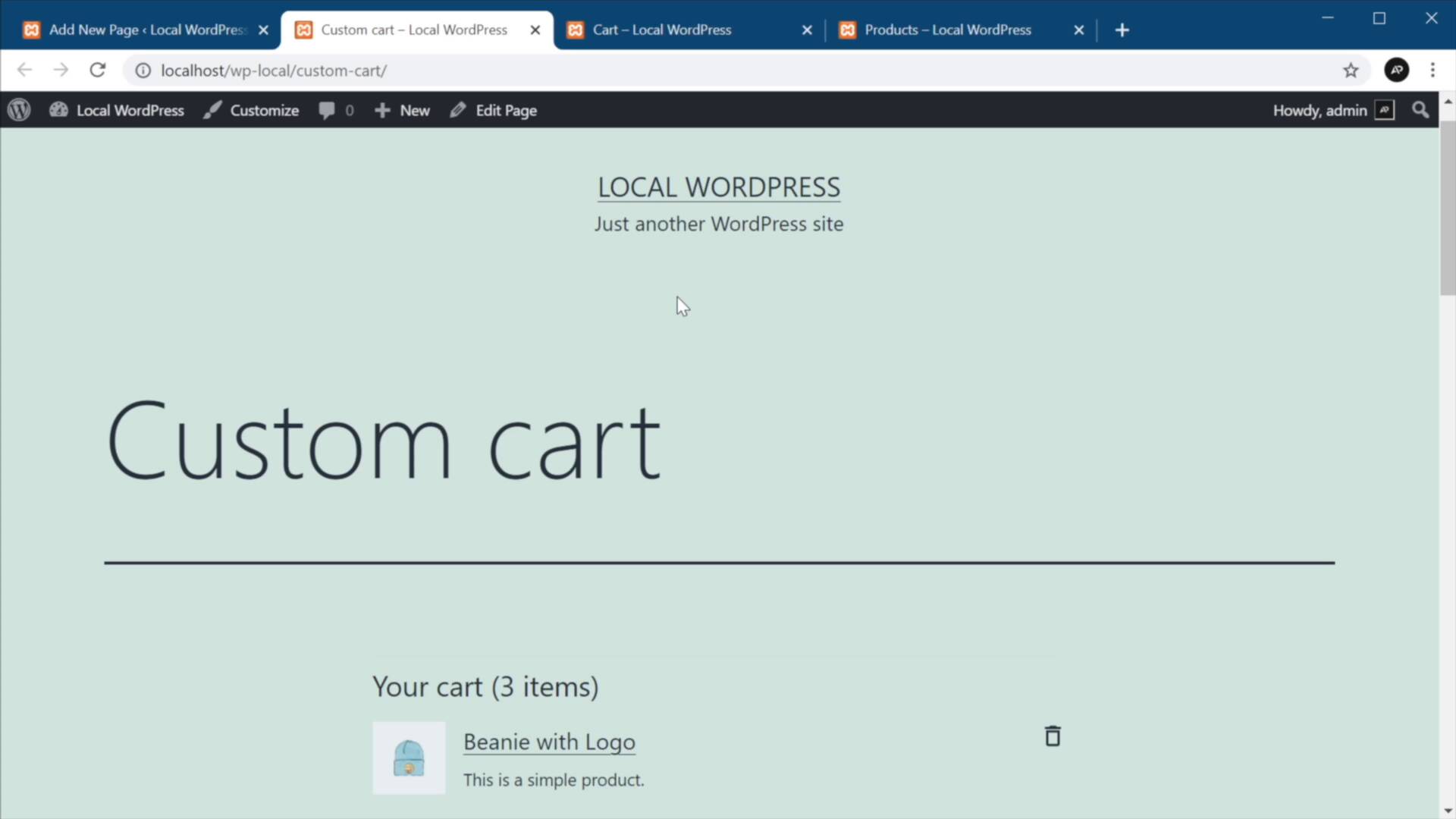
- Overview
- Transcript
2.3 Creating a New Cart and Checkout Page
In this, the last lesson, you’re going to learn how to create custom cart and checkout pages using the new blocks available in WooCommerce.
Related Links
1.Introduction
1.1Welcome to the Course01:04
2.Introduction to WooCommerce Blocks
2.1Getting Started With the New WooCommerce Blocks07:32
2.2Creating a Custom Shop Page04:33
2.3Creating a New Cart and Checkout Page06:38
2.3 Creating a New Cart and Checkout Page
Welcome back to the course. In this lesson, you'll learn how to create custom cart and checkout pages using the new blocks available in WooCommerce. So, let's begin. The first thing you'll want to do is install the blocks plugin. So, let's go to plugins. Add new, search for Blocks and find the one that's called WooCommerce Blocks. So, let's go ahead and install that. And once it's installed, let's activate it. And now we can go to our pages, add the new one. Let's call this Custom cart. And all you have to do is browse the new plugins. And we'll scroll all the way down and right here, you will see two new Blocks that weren't there before. These were added by the plugin we just installed. So, this is a new cart page. Let's add the cart Block. This is gonna give you a preview of how it looks like. When it's both empty and full, So, let's go ahead and publish this page. So, now this is our custom cart. Now, let's go ahead and add some products to our cart, let's say this beanie with logo, let's add it. And what else maybe this T shirt, and maybe this one. All right, so now we can open up our custom cart. And we can see what it looks like, right? We can easily adjust the quantities from here, we can delete a product from the cart. And we can add a coupon code if we have one, and we can also proceed to Checkout. Now how does this compare to the old Cart page? Well, the old one was just called cart. And it looks something like this. A bit more, let's call it old school. So, this is the old one. And this is the new one. I think this looks much better. But please keep in mind that these two Blocks that you saw the cart and the checkout, because they are in the plugin instead of the core means that they are still under testing. They're still being developed, they're still being fine tuned. So, what I show you here today might not be the final form of these Blocks. But they are very, very close to their to their final forms, so you probably won't see much change from this may be just some small tweaks here and there. But essentially, this is how you can create a Custom cart page by using the new cart Block. Now you can also set this page as the default card page by going to Woocommerce settings, advanced. And under cart page, you can set custom cart and save changes. Now what about the checkout page? Well, it's exactly the same process, right? So, we're gonna actually leave this custom cart open here. And I'm gonna add a new page. We're gonna call this custom checkout. And here, we can simply search for checkout, select this one. And we're good to go. Hit publish. And this is now the custom checkout page. Now to compare it, here is the old checkout page. And this is the new one. It's definitely improved. It has a much smaller footprint than the old one which is always a good thing. And just like with the cart page, you can set this one as the default by going to settings. And under checkout page, select the custom Checkout, you would actually have to do a refresh here. Custom checkout just like that. So, save changes. And now, you'll see that, if I'm in my new custom cart page, and I proceed the checkout, this actually opens up the custom checkout page, that you see right here. Now, in terms of customizability he can't really do much right now, in terms of how these elements are rendered on the page. He can do a bit of styling work by writing custom CSS for them and overwriting the existing styles. But in terms of how they're laid out in the page, you don't really have any control over this, and this goes for all of the WooCommerce Blocks. Maybe you will have that option in the future. But for now, in terms of customizability, you can only touch the styling a little bit by overwriting the default, one that's provided by the WooCommerce core. All right, and that's it for this course. I hope you understood what the WooCommerce Blocks were all about and how you can use them. Personally, I think they're a great addition to the WooCommerce plugin and they will make your WordPress store a lot more flexible. Well, that said, thank you very much for watching I'm Adi and until next time. Take care.





