

- Overview
- Transcript
2.3 Installing Bootstrap
Welcome back to the course. In this lesson, we’re going to install Bootstrap the easy way, and we’ll also explore some other options including CDNs and package managers. Let’s go.
Related Links
2.3 Installing Bootstrap
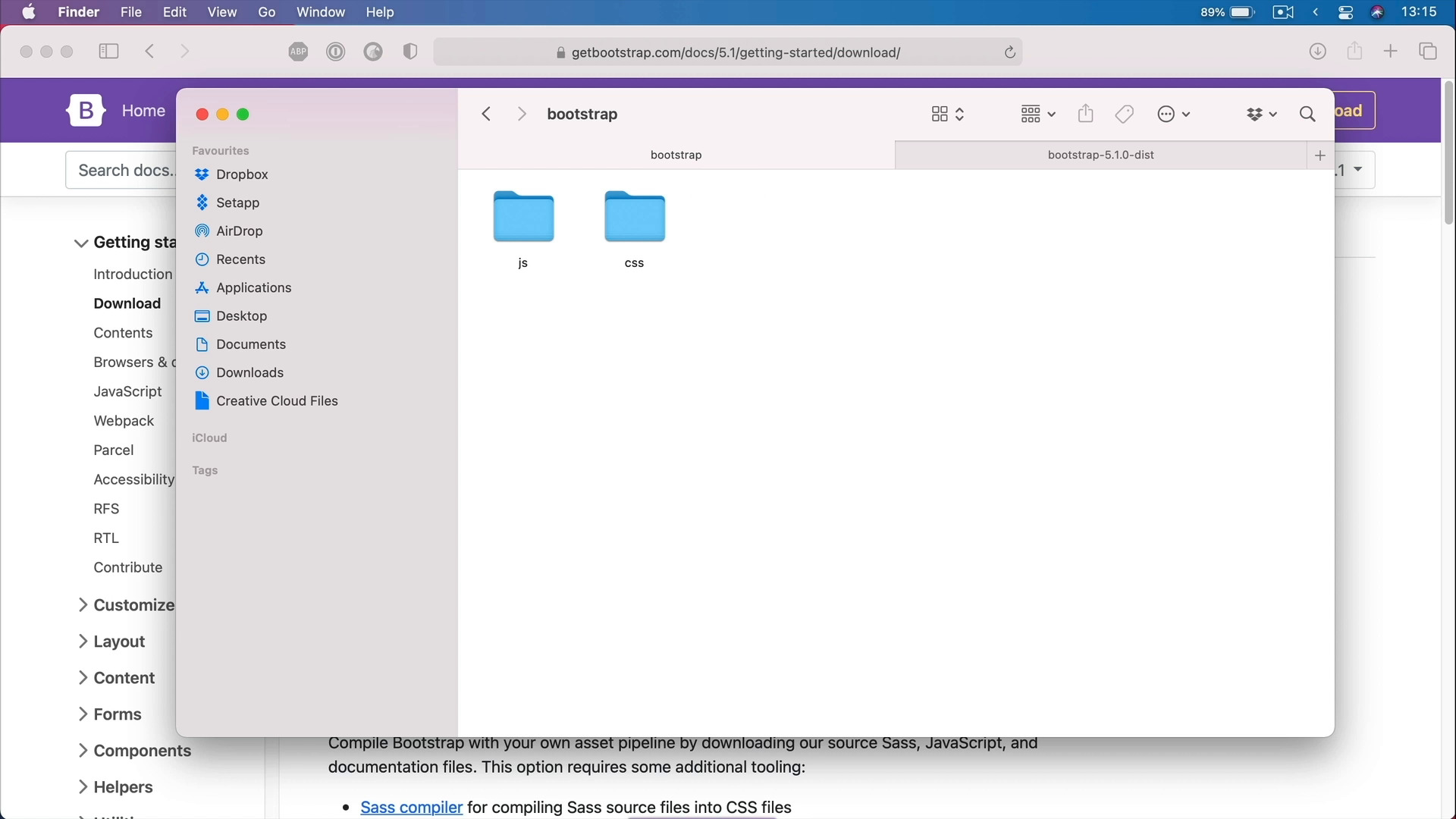
[MUSIC] Welcome back to the course. In this lesson we're gonna install Bootstrap the easy way. And we'll also explore some other options for doing that including CDN and package managers. Let's go. To get started you would need to open up the official Bootstrap website, which is getbootstrap.com. Then you would click on Download, and here you'll be presented with a variety of options for downloading the framework files. The first one, the one that we're gonna use involves downloading the compiled CSS and JavaScript files. But you also have the option of downloading the Source Files, which you can compile yourself using your own workflow. You can also get Bootstrap via CDN. And if you don't know, CDN stands for Content Delivery Network. It's basically a service that hosts these files. And it's also a very easy way to install the framework. You just load up these two files and you're good to go. You also have the option to install Bootstrap via package managers npm, yarn, Ruby, and a few others. So, if you're into that kind of thing, if you have projects that require the use of package managers then this is also a great way. As I was saying for this course, we're gonna Download the compiled CSS and JavaScript. So, let's go ahead and click that button. Now this downloaded archive called bootstrap-5.1.0-dist. From inside the archive we'll just copy the js and css folders. And we'll paste those in our own working directory. Here, I just have a folder on my desktop called bootstrap. Next I'm gonna open up this folder in my code editor. I'm using Visual Studio code here. And just to make sure everything works properly, let's go ahead and create a new html file. Let's call this bootstrap. And let's load the necessary bootstrap files, first is the css. So, we'll add a link tag. And we'll go to css/bootstrap.min.css">. It's the file that can be found right here in the css folder. We also have to load the JavaScript for the framework. We'll do that right here before the end of the body tag. We'll say, script js/bootstrap.bundle.main.js">. Save that. And let's go ahead and open this in a browser. And let's actually open the documentation again. We'll go to docs, and let's go to Components. Let's select the Accordion, for example. The Bootstrap documentation is really good. It has code examples for every single one of its components. So you can simply see a preview here, and you can copy the code directly and paste it in your project. It's super, super fast. So we're gonna do the same, just to make sure everything was loaded properly. So, I just pasted that in. Now, if I just do a refresh here, you'll see that we have a nice accordion. It's fully functional. It's already styled for us. And that took, what? A couple of minutes. Well, that's the benefit of using a framework. All right, so with Bootstrap installed, you can get to work right away. And whenever you're working with Bootstrap there are two fundamental aspects you need to know, the grid system and components. Once you know those, is gonna be super easy for you to create any project you want with Bootstrap. So, in the next lesson, I'm gonna give you a quick introduction to the Bootstrap grid system. I'll see you there.





