

- Overview
- Transcript
2.3 Calculating the Difference
In this lesson, you will dig a little deeper into Moment.js as you finish out the functionality for your countdown timer.
Useful Resources
1.Introduction
1.13 JavaScript Projects for Beginners00:52
2.Project 1: Create a JavaScript Countdown Timer
2.1Creating a Countdown Timer04:18
2.2Coding the Countdown Timer03:54
2.3Calculating the Difference10:04
3.Project 2: Create a Scroll Animation
3.1Animate on Scroll19:02
4.Project 3: Create a JavaScript Calculator
4.1The Calculator Starter File09:20
4.2Calculating Totals07:16
4.3Programming the Number Buttons13:15
4.4Finishing the Calculator13:44
5.Conclusion
5.1Final Thoughts00:42
2.3 Calculating the Difference
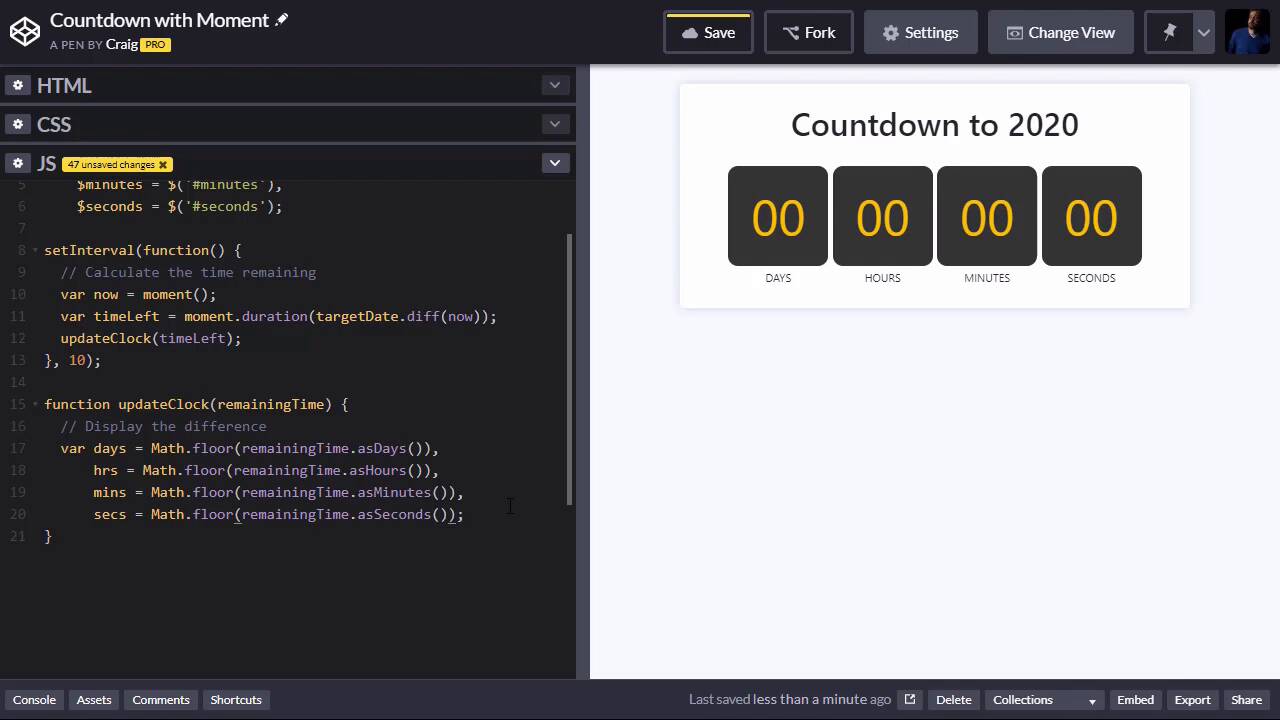
Now that we've got the basic skeleton of our code in place, in this lesson, we're going to fill out all the logic. So if you remember we created this setInterval function, which is going to run every 10 milliseconds. So every 10 milliseconds, we wanna check the current time, compare it to our target date and see how much time we have left. We're gonna get that time left in milliseconds and we're gonna pass it into this update clock function, which is then going to turn those milliseconds into days, hours, minutes, and seconds, and then update the text on the screen. So before we get started, we need to take what we've got and create a new forked copy of it. So you can find the URL for our starting code pen here in the course notes for this lesson. And once you open that up, we'll click on Fork to create a new version. And we'll get started with this new version. So we're gonna calculate the time remaining in the setInterval function. So what we need to do, is to figure out what time it is now, what's the current date and time and then compare it to the target date. And the moment library has some really handy functions for making this easy to do. So first of all, I wanna figure out what time it is right now. So I'm gonna create a variable called now, and I'm simply gonna say moment, open and close parentheses, semicolon, end our statement. Now remember, before we used the same moment constructor and we passed into it a string representing a date. So it created a date object using the date we passed in, but if we leave it empty, then we'll just assume that we're talking about the current date and time, and it will store that new date object in this variable. So again, we've got the current date and time stored in this variable called now. And now I want to figure out the difference between now and then. Well, the moment framework has a method called diff. So what we can do is we can take our target date. Which is again the variable that's stored up here with our target date in it. And I'm gonna say .diff, which is a moment method. And we're gonna pass into it the date that we want to compare it with and we want to compare it with the current date which we stored in a variable called now. So this will give us the difference between then and now. And let's store this in a variable called timeleft. Now this is actually going to return a moment object. And what we need is the duration of the difference between our targetDate and right now in milliseconds. So we're gonna use another moment method called duration to convert this object here into milliseconds. So the way that works is we point to the moment framework, by typing moment, and then, .duration, and then we'll wrap the rest of that in parentheses. So this will give us the length of time between now, and our target date In milliseconds. So we can take those milliseconds and pass it into our updateClock function and we'll let the updateClock function take care of the rest of the functionality. So we're gonna call updateClock and we're gonna pass into it the value stored in our timeleft variable. So we're gonna run all of this over and over again every 10 milliseconds. So let's fill out the functionality for updateClock method. Our updateClock method is gonna take the remaining time, which is again in milliseconds and we need to convert that into days, hours, minutes, and seconds. And again, moment.js has some really handy functions for making that easy to do. So for the days left, let's say var days, we'll create a variable called days. And we're gonna set this equal to the remaining time it's been passed in, dot, and then moment has a method called asDays. So what this is gonna do is it's going to turn our remaining time which is in milliseconds into a certain number of days. And remember this is gonna be a decimal. So let's say, that there are ten and a half days left. Let's say there are ten days and 12 hours left. Then this right here would return 10.5. It's not just gonna return a whole number, and we don't want 10.5 stored up here in the days block. So we need to round that down. We're going to use math.floor to round that down. So we're gonna surround this code here with Math, capital M, .floor. And then we'll put parentheses around this calculation here. And now that'll round it down to, let's say there's ten days left, that'll run it down to the number 10. So let's do the same thing for our hours to hrs for hours. In fact, let's just copy everything we have up here and we'll paste it a few times. So we have hours, minutes and seconds, and then we'll change our methods here instead of asDays we'll do asHours, excuse me, asMinutes and asSeconds. Now these are not gonna give us the right values. Let's get rid of that extra comma there. These are not gonna give us the right values that we need, because if we say remainingTime.asHours, that's gonna give us the total number of hours between now and our target date, which is gonna be a lot of hours. Let's say that there's just ten days left, this method here is going to return 240 hours. If there were, let's say there were 10.25 days left, I'm just gonna type this out as an example. If there were 10.25 days left, that would be the same as 10 days and 6 hours. And if we take Math.floor(remainingTime.asHours, if there are 10.25 days left, that's gonna return 246 hours. We don't want 246 right here, we just want the six hours that's left over. So the way we can do that, I'm gonna type it out and then I'll explain what I'm doing here. I'm gonna type the percent sign and then 24. This percent sign is also known as a modulus operator. And the way a modulus operator works is you take the first number divided by the second number, and then the value that's returned is not the result of that division, but it's the remainder after you do that division. So let's say we have 246 hours, let's get rid of everything else in this line to reduce confusion. Let's say we have 246 hours, we do 246 modulus 24. So we're dividing it by 24 because there are 24 hours in a day. That's gonna give us 10 days with a remainder of 6 leftover. And since we used the modulus operator instead of division, its just gonna return this remainder. So after we account for those 10 days, there are 6 hours left over in the day. So that's why this is going to work, and we can do the same thing for our minutes and seconds. Except for our minutes, we're going to do modulus 60, and for seconds, we're also going to do modulus 60. You divide minutes by 60, that will give you how many hours there are. And we just want how many minutes are left over after we account for the hours. Same thing for seconds. We divide that by 60, because there are 60 seconds in a minute. So we divide the total number of seconds by 60. And then just throw away what comes at the beginning of that division and then just keep the remainder, and that's the number we need. So I hope that made sense. The next thing we're gonna do is we're gonna take these values that are stored in days, hours, minutes and seconds. And we're going to apply them to the text fields up here. So each text field, remember the first text field here has a ID of days. Second one has an ID of hours, etc, etc. So the way we point to that in J query is we put a dollar sign, and then inside parentheses and quotation marks, we're gonna type in pound days, because this text field has an ID of days. So pound days dot, and then if we want to change the text, we will type dot text, and then inside the parentheses we'll type in the text that we want. And the text that we want is the value stored in this variable days. So we'll just put that there. So then we want the same thing for hours, minutes and seconds, we will just copy and paste that. And update it here, hours, minutes, if we spell it right, and seconds. And then we need to change our variable names too, hrs for hours, mins, and seconds. Everything looks good but watch the seconds over here, watch what happens when that number drops under 10. You'll see it goes down to one digit. And what I wanna do is I wanna add a zero to the begin of any number that's less than 10. And I'm gonna do that using a function. I'm just gonna copy this function and paste it over cuz we're running a little short on time. I'll paste that here. I'm gonna call it padNumber, and we're gonna pass into it a number. What we're gonna do is we're simply gonna check and see if that number is less than 10, then we're going to throw a zero on the beginning of it and treat it like a string. And then we'll return that new string. So if it's less than 10, we're just gonna say, if it's 8, for example, we're gonna put a 0 in front of it so it says 08 instead of just 8. And now that we've created this padNumber function, let's just wrap all of our calculations here or all of our numbers in this padNumber function so that we can format our text a little bit better. Okay, so paste that one more time. Make sure you have two closing parentheses there. When everything refreshes, there we go. We saw just before it jumped back up to 59 seconds. We saw that it did have two digits there. So once it gets under 10, it is properly adding a 0 to the beginning of it. So that's how you can create your own countdown timer using jQuery and moment.js. Thank you for watching, and I'll see you in the next lesson.





