

- Overview
- Transcript
4.2 Calculating Totals
In this lesson, you will fill out the calcTotal function in order to get the meat of the calculator functionality working.
Useful Resources
1.Introduction
1.13 JavaScript Projects for Beginners00:52
2.Project 1: Create a JavaScript Countdown Timer
2.1Creating a Countdown Timer04:18
2.2Coding the Countdown Timer03:54
2.3Calculating the Difference10:04
3.Project 2: Create a Scroll Animation
3.1Animate on Scroll19:02
4.Project 3: Create a JavaScript Calculator
4.1The Calculator Starter File09:20
4.2Calculating Totals07:16
4.3Programming the Number Buttons13:15
4.4Finishing the Calculator13:44
5.Conclusion
5.1Final Thoughts00:42
4.2 Calculating Totals
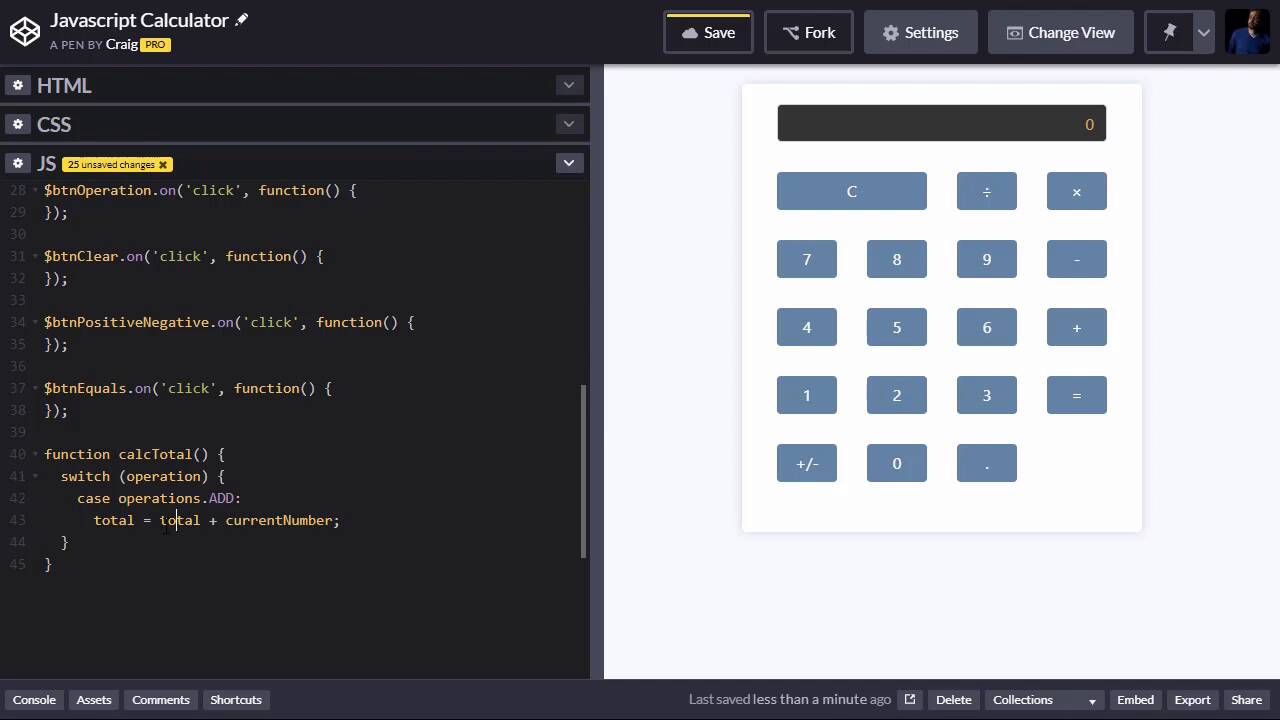
Before we get started on all of the buttons and the functionality that's gonna go with them, I want to get this calcTotal function started. And this calcTotal function is gonna be kind of the meat of the functionality. There will still be a lot of functionality in addition to it, but this will at least get us started. So the calcTotal method is going to make use of a few things. First of all, we're gonna have a few variables that we're gonna be keeping track of. We have our total, our current number, and the operation we're running. Those are gonna be the three variables that we need to keep track of whenever we're running this calcTotal method. And I'll explain that more in just a moment. So again, we're starting with the same file, we started with in the last lesson. You can find the URL for that in the course notes for this lesson. And once you open up that starting file, go ahead and click on Fork to create a new copy, and then our new copy will get started. So in order to really test this calcTotal method, first we need to create some values for our variable. So let's say, we wanna do something simple. Let's say, I'm gonna put these in quotation marks here. Let's say, we wanna do 10 plus 20, okay? So our operation is going to be operations.PLUS. Remember, that's something we set out up here, I'm sorry, it's not PLUS, it's ADD, operations.ADD. And so I'm sorry, our total should be 10, so that's gonna be the first number we entered. And then the second number we entered is gonna be, let's do 25 instead. So our starting total is 10, so that would be the first number we entered in. And then we hit + which would store operations.ADD into our operation variable. And then we enter 25, which would be stored in our currentNumber. So we want to take a look at these three values here, and use them in our calcTotal method in order to get it to work. So everything in our calcTotal method is going to depend on which operation was selected, whether we hit plus, minus, times, or divided by. So let's go ahead and create a switch statement, and we're gonna pass into that switch statement the variable operation. So there are four possible values for this operation variable, add, subtract, multiply, or divide. So we'll do our first case statement here which would be operations.ADD. And if we're adding these two numbers together, then our new total, remember, we have this total variable here. Our new total is going to change its value. Right now, we have 10 stored in the total variable. But after we perform this operation, that total variable is gonna have a new value. So if we're adding, it's simply gonna be, total + our currentNumber. Now, it's not actually gonna be as simple as this because remember, total and currentNumber are strings to start off with. Notice, we saved them as strings. The reason I saved them as strings is because they're going to be pulled from this input field here. And because of the way we're using decimal points and things like that, we need it to be a string until we get to the point where we're actually performing the operation. So since these are both strings, we need to convert them to floating point numbers before we perform the calculations. So what we're gonna do is we're gonna run the parseFloat method on that string to convert it to a floating point number. And we'll do the same thing with currentNumber. So now we're adding these two numbers together, and the new value is gonna be stored in this total variable. And then since that's the end of this first case, we can do a break. And so it's really gonna be as simple as that. Based on whatever operation we hit plus, minus, times, or divided by, we're going to perform a different calculation. So we can actually highlight this entire case statement, jump down to the next line, and paste it. And we'll go ahead and paste it, so that we have four total cases here, and we're gonna change each one. So we have ADD, we're gonna have SUBTRACT, we're gonna have MULTIPLY, and we're gonna have DIVIDE. If we're subtracting, and we're gonna take the total, minus the current number. If we're multiplying, we're gonna have the total times the current number. And if we're dividing, we're gonna have total divided by the current number, it's as easy as that. Now, if you wanna go through and add more logic to round it to a certain number of decimal places, you're welcome to do that. We're gonna keep it pretty simple for this particular course, so we'll just leave it at that. So now that we've got values stored in total and currentNumber, and operation, we can run this calcTotal method. And hopefully it will give us, since we're doing 10 plus 25, hopefully it will give us 35. And so once we perform this, we are going to set our txtDisplay.val, or the value of that input field. We're gonna set that equal to the new total that we just calculated. So another thing we need to keep in mind here, we've got a new value for total. And since we've calculated the total, we know that our current number, whatever the next number is we're going to enter should be undefined at this point. So instead of keeping that number stored there, I'm gonna change currentNumber. And just basically unset it, we're gonna set it back to undefined, and then we'll display the total in our text field. So when everything loads, once we call in this calcTotal method, we should see the number 35 appear up here. So let's see if that works. Down here at the very bottom outside of everything else, I'm gonna call calcTotal(); and their statement. And when it refreshes, sure enough we see 35, so we know that that's working right. So if we try it out some different operations, let's do operations.SUBTRACT, and see what happens. And when it reloads, we have -15 and that's right cuz we have 10 minus 25, that should be -15. Let's do operations.MULTIPLY, and we should see 250, very good, and we'll do operations.DIVIDE, and that gives us 0.4. Okay, so we know that our calcTotal method is working now. So now we can work back through the rest of our code which is gonna be all of our click events for our buttons, and we can start making those work. So let's unset our total, we'll set that back to undefined, and then we'll set our currentNumber back to undefined. Now that we've tested our calcTotal method, and found that it's working, I will just unset those. And in the next lesson, we'll get started making our buttons work. Thank you for watching, and I'll see you then.





