

- Overview
- Transcript
4.4 Finishing the Calculator
In this lesson, you will finish up your calculator by adding functionality to the operations buttons, the equals button, the plus/minus button, and the clear button.
Useful Resources
1.Introduction
1.13 JavaScript Projects for Beginners00:52
2.Project 1: Create a JavaScript Countdown Timer
2.1Creating a Countdown Timer04:18
2.2Coding the Countdown Timer03:54
2.3Calculating the Difference10:04
3.Project 2: Create a Scroll Animation
3.1Animate on Scroll19:02
4.Project 3: Create a JavaScript Calculator
4.1The Calculator Starter File09:20
4.2Calculating Totals07:16
4.3Programming the Number Buttons13:15
4.4Finishing the Calculator13:44
5.Conclusion
5.1Final Thoughts00:42
4.4 Finishing the Calculator
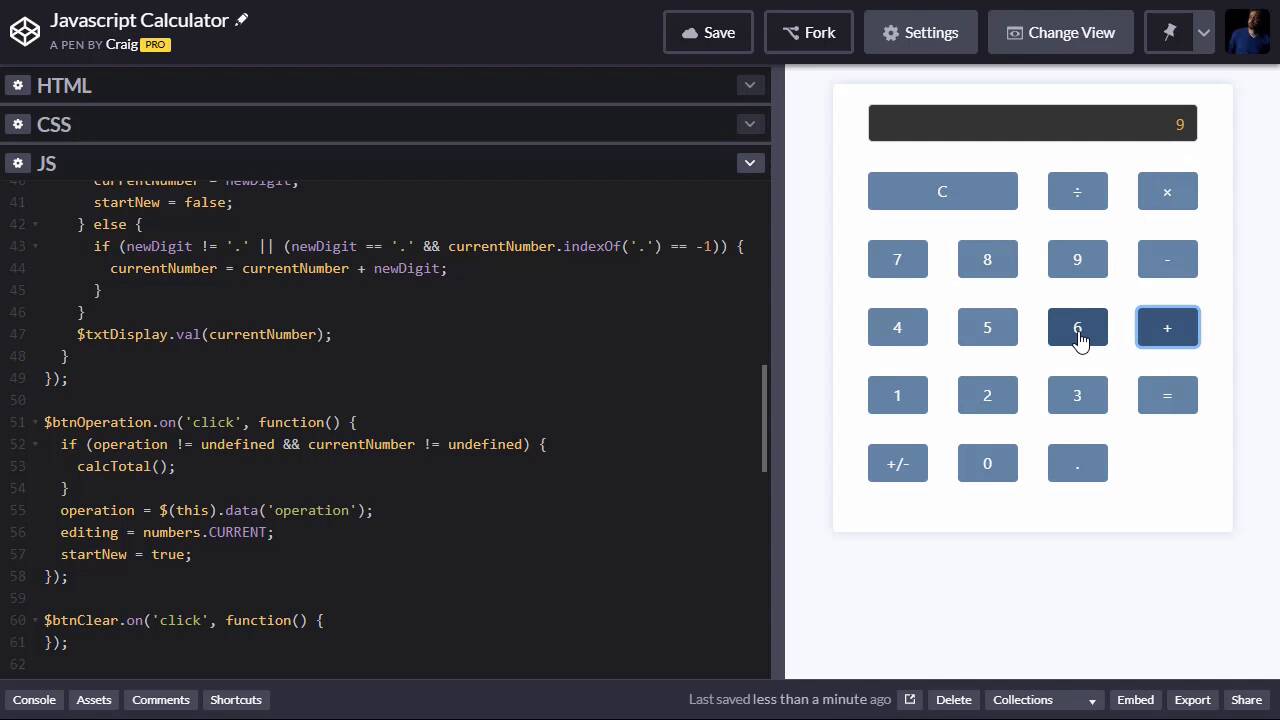
Now that we've gotten our number buttons working, let's see if we can get our calcTotal method working by adding some functionality to our operation buttons. So remember, our operation buttons are the plus, minus, times and divided by. And remember, in order to get the calcTotal function to work, we need three things. We need the current running total which is the first number we enter. We need the currentNumber variable which is the second number we enter or any number after that. And then we need the operation whether we click on plus, minus, multiply or divide. So we've already created the click event for the number buttons which figure out our total variable and our currentNumber variable. Now, let's do the operations button which will give us the third elements to get that function working right. So really our doing here is we're taking the operation variable that we have and setting it equal to whatever operation we just clicked on. And if you remember in our HTML, for some of our buttons we have this data operation attribute, which is set to divide, multiply, add or subtract, which are the same values that are applied here, add, subtract, multiply, divide. So make sure that these are spelled the same as those data attributes. Make sure that that those are all spelled identically or we're gonna have problems, because we're gonna be using this variable here to determine which one we've clicked on and to perform the right operations. So we're gonna go back down to our button operation, click event and we're gonna set operation equal to whatever the value is of the data operation attribute that we just clicked on. So we're gonna point to this which will point to the button we clicked on, .data. And then in parenthesis and quotes, we're gonna put operation. So this is jQuery's way of accessing these data attributes. Anything that starts with data- something else, such as data operation, we would access it in jQuery with data and then operation inside parentheses and quotation marks. So if we clicked on the divide button, the data operation is set to the string divide, and that's what would be stored in our operation variable here, if that's the one we clicked on. And then remember, if we were to click, for example, let's say we wanted to do 10 plus 5, we would enter in 10, we would hit plus, which would store the operation in that variable. And then remember, we need to change the button we're currently editing now or the number that we're currently editing excuse me, because when we initially type in our first number, we're editing the total. But when we hit plus or minus or whatever, and then start typing in another number, that new number is going to go in a different variable, it's gonna go in the currentNumber variable. So not only are we setting the operation equal to a certain value, we're also changing the reference to the number that we're currently editing. So we're gonna set editing = numbers.CURRENT. That way, our code will now know that we're editing the currentNumber, we're no longer editing the total number. But then also remember, we need to set the startNew value equal to true again, so that the next time we click on one of these buttons, it will replace whatever is currently in that input field with whatever new number we click on. So that will get as part of the way there. Remember, we're trying to get to the point where we're actually running our calcTotal method. That will get us part of the way there. But then we'll either need to click on equals to finish off that calculation. Or if you wanted to add for example three numbers together, you would say 4, click on plus, click on 5, click on plus, click on 6. And so the second time we click on the plus button, it would actually run that calcTotal method, because what we need to do is, again, let's run through that. Again, we click on 4 plus 5, then when we hit plus again, before we add it to whatever our third number is gonna be, we need to run the total on the first two numbers and whatever operation we had clicked on. So when we hit plus that second time, we need to run calcTotal so that it will add 4 and 5 together before we add it to whatever the third number is gonna be. So the first time we click on a plus or a minus, or any of the operations button. The first time we click on any of those buttons, we don't need to run calcTotal because there's nothing to total up yet, we've just entered in a number. But the second time we click on one of these buttons, we do need to run calcTotal before we move forward with the next calculation. So the way we can check for that inside our button operation click event is we can check to see if the operation variable we have is set to undefined, if it's not set to undefined. And I'll explain this in a second and if the currentNumber is not undefined, then we want to run calcTotal before we do the rest of this, before we change the value that is stored in that operation variable. So in other words, if operation does already have a value, and currentNumber already has a value, then when we click on an operation, we want it to run calcTotal. So again, we wanna make sure not only that the operation exists, that operation has some kind of value stored in it. We need to make sure the currentNumber also has some value stored in it, otherwise we won't be able to perform that calculation. So if those two things are true, if both of those variables have a value, then we're gonna calcTotal. And after we calcTotal, we're going to change the value of operation, we're gonna change the value of editing and startNew, we're going to set it equal to true. And remember, calcTotal will do all the work for us in performing that calculation and displaying that calculation, the result of that calculation in our text field, so let's see if that works. Now, I'm gonna click on, we'll do what we just talked about, let's do 4 + 5 + 6. So we'll do 4 + 5, and then when I hit plus, sure enough, it calculates the total for us and gives us a 9, and then if we do 6, we're going to do it'll end up being 9 + 6, which should be 15. Now the equals button doesn't work yet, so I'll just have plus again, and sure enough 15 is there. So that takes care of the operation buttons. We still have three more to do. Let's go ahead and do the BT and equals because that one's gonna be pretty easy. All we need to do when we click on equals is we need to run calcTotal, and then set startNew equal to true. So let's see if that works, we'll do 1 + 2, and lets add a 3 to it as well, plus 3 and then if we hit equals, it gives us 6, very good. So then for the clear button, that one is also pretty straightforward. So I'm just gonna paste some code here, and I'll walk you through it. So when we click the Clear button, we're basically just resetting everything. So we're setting startNew equal to true because we're starting over completely. We're setting total and currentNumber to evaluate of undefined. We're changing our editing value to point to numbers.total cuz we'll be editing the total variable when we start entering a new number now since we're starting over. And we're setting operation to undefined as well, then we're just setting the text display to a value of zero. So that should be easy enough. Let's click on 45 + 96. And instead of hitting equal, I'm just gonna hit Clear, and then we can start over again. 45 + 96 and this time, we hit equals and it will give us a value. We can hit Clear, and it will clear everything out. All right, so one more button, and then we're done. We have this positive, negative button. Now, as I mentioned before, don't expect this code that we have here to be absolutely perfect. I'm not expecting this to be completely bug free. This is a very short time span that we have to to teach you all of these concepts. So, you might want to go through and try to break your code. Try everything possible to break your code and then if you do break it, find a way to fix it, figure out a way to fix it. But again, this is not intended to be a fully comprehensive program here. So let's go into the click event for the positive, negative button. This positive, negative button, as we start entering a number in, if we click on it, and it's currently positive, we just want to make it negative. If it's currently negative, we just want to make it positive. In other words, we want to multiply it by -1, and that will just give it the negative of its current value. So just like with our number buttons, we're gonna need to check and see what number we're currently editing whenever we're clicking on the positive, negative button. Because if we're editing the total and we click on positive, negative, we wanna make sure that it's the total that we're multiplying by -1. And if we're editing a currentNumber, we wanna make sure currentNumber is multiplied by -1. So, we're gonna check to see if editing = numbers.TOTAL, and then we'll have an else as well. And then the else statement, I'll just put a comment here, editing numbers.CURRENT, just to be a little bit of a reminder for us of what this section is doing. So the first thing we wanna do, let's do this top section here for editing numbers.TOTAL. We wanna make sure that total is not undefined because you can't multiply undefined by -1. So let's just do that first. So if total is not equal to undefined, then we can do whatever it is we want to do, otherwise we are just going to leave it alone. If it's not equal to undefined, then we are going to say, total equal to and remember, total is currently a string, we need to treat it like a number for a second. So we're gonna say, parseFloat(total), and then we're gonna multiply it by a -1. So, if total is not undefined, then we're gonna treat it like a number and we're gonna say total times -1. And hopefully, that'll get us what we need and then we need to make sure after multiplying it by -1, that we display the new value in the text field. So $txtDisplay.val and we're gonna set that equal to our new total, so then we're gonna do all the same stuff. We'll just copy that and paste it down here, except instead of total, we're looking at currentNumber. So if currentNumber is not undefined, then we're gonna set currentNumber equal to and then parseFloat(currentNumber) times- 1. And then the value we're gonna display in the text field is currentNumber. So let's try this out, let's see if it works, we are gonna hit 45, and if we hit plus, minus, sure enough it turns it to negative. So if we say plus 90, that should give us a positive 45, we'll hit equals, sure enough it does. So let's clear everything and hit plus, minus and it doesn't do anything because the current value is zero. And actually, the current total is not set to zero yet. Current total is still set to undefined. So, since it is undefined, where it's not even gonna run that particular bit of code. But again, I would encourage you to experiment with that a lot. And then just jump into your calculator here and start trying everything conceivable. So we can do 90 divided by 9 equals that gives us 10, let's do plus 65 equals 75 times 100 equals 7500. So keep playing around with different numbers. Again, like I mentioned before, try everything you can to break this. And when you do break it, that gives you more work to do. You can go through and debug it and try to figure out what's going on with it. Another thing I might challenge you to do is to also create a CE button. We have our C button or Clear button which basically clears everything, but a lot of calculators also have a CE or clear error button. And the way that one works is if we do for example, 7 times 8, but what we meant to do was 7 times 9, instead of starting over from scratch, you can click on the CE button and it will only clear that second number you entered. So then you can enter the right number and hit equals, and it will give you the calculation you are going for. So maybe as little bonus exercise, I would encourage you to add a CE button to your calculator as well, and see if you can get that working. But that wraps it up for our JavaScript calculator, I hope you've learned a lot from this, not just about specifically how to create a calculator, but how to think through a complex JavaScript application and figure out how to code it in a way that makes sense. So thank you for watching, and we'll see you in the next video.





