

- Overview
- Transcript
3.4 Styling the Pagination
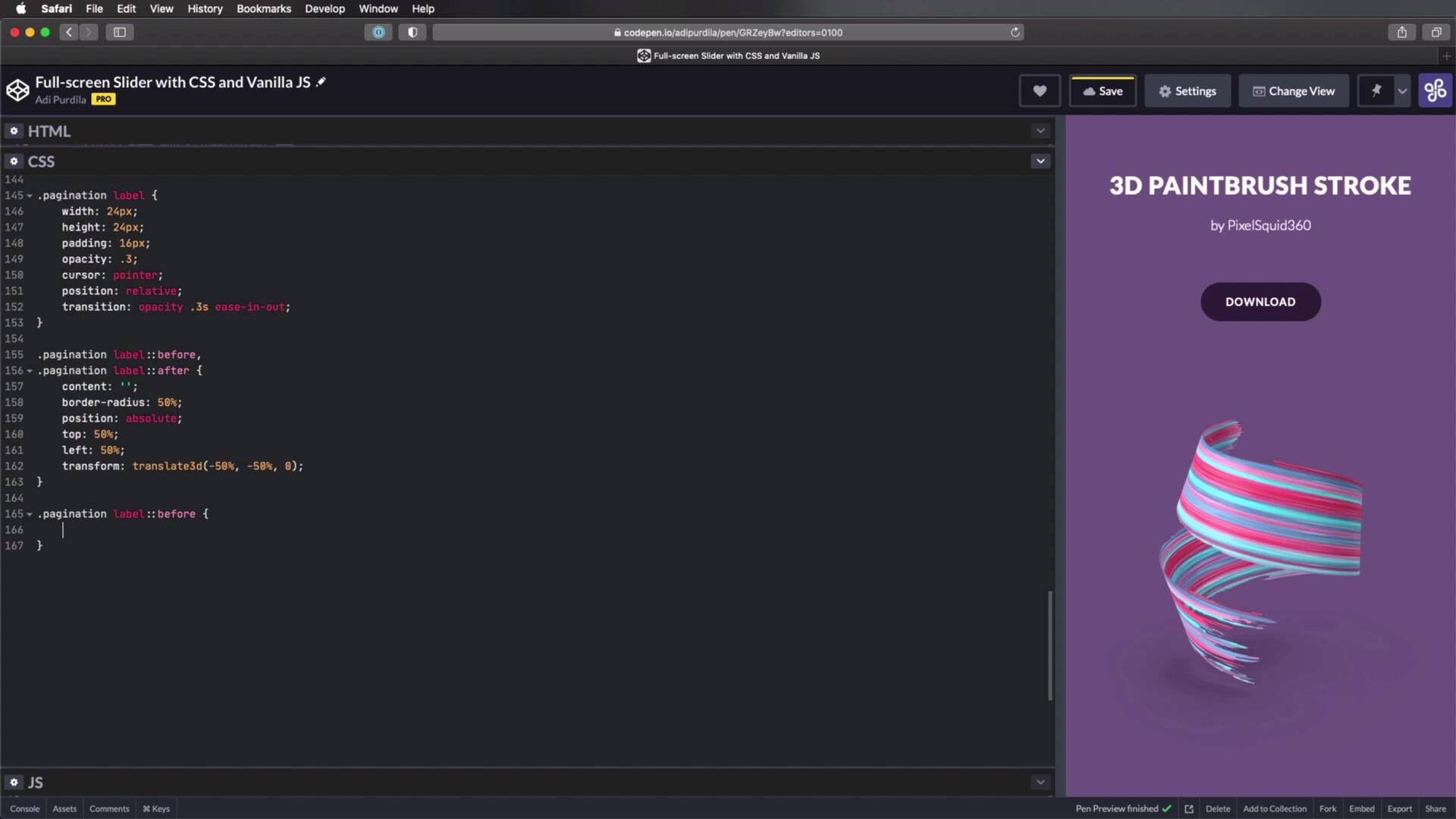
In this final lesson, we’ll style the pagination so that it matches the rest of the slider content. That’s quite an easy task, so let’s begin.
Related Links
1.Introduction
1.1Welcome to the Course01:27
2.Let’s Create a Simple Slider
2.1Writing the Markup07:11
2.2Writing the Basic CSS13:43
3.Let’s Add Some Advanced Functionality
3.1Simplifying the Markup With JavaScript13:16
3.2Adding an Automatic Slide Change12:35
3.3Adding Better Styling to the Slides08:31
3.4Styling the Pagination06:03
3.4 Styling the Pagination
Welcome back to the course in this final lesson we'll style the pagination so that it matches the rest of our slider content. And that's quite an easy task. So let's get started. For this, the first thing that we'll actually do is remove the numbers from the pagination. I just left these here so that we have a quick way of changing the slides. But in the final design, we don't actually need these. So I'm just gonna go back to JavaScript, and I'm gonna comment this line here. Where I'm setting the inner HTML of each label. Okay, so now back to the CSS. Under pagination, I'm gonna set a display to flex so that items are displayed in a row. And then I'm gonna target the pagination label and I'm gonna do the following. With 24 pixels, height, same thing and padding 16 pixels. I'm gonna set a point 3% or 30% opacity. I'm gonna set the cursor to pointer. I'm gonna set a position to relative because we are going to position some pseudo elements inside it and I'm also gonna add a nice transition for the opacity. 0.3 seconds ease-in-out should do the trick just fine. Now, my idea with these pagination labels is that I want to make them look like one of these radio buttons just inverted. So, let's see how easy we can do that. I'm gonna start by setting pagination label before and after, these will have roughly the same styling. So content is gonna be blank. I'm gonna set a border radius of 50% because I want these to be circles. I'm gonna set a position to absolute and I'm gonna set top and left to 50% so that they're exactly in the middle of the actual parent label. And I'm also gonna do the little translate trick to position them exactly in the middle. All right, so now that we have the general styling for both of these, let's target them individually. And I'm gonna say the following, with 8 pixels, height 8 pixels, and background color, white, okay? So the before pseudo element is the small circle. Now to create the large circle, I'm gonna use the after pseudo element and that will be as wide and as tall as the actual labels. So 24 pixels, but I'm gonna set a border, 1 pixel solid white, just like that. And I'm also gonna transition the opacity 0.3 seconds ease-in-out. Notice that currently, we can see the white border on all of these elements and we don't want that. We only wanna show the border and the active elements. So I'm gonna set the opacity to 0 here, and then down here, I'm gonna do the following. I'm gonna use the same general sibling's combinator to select all the labels that are preceding the checked radio button and also all the after pseudo elements. So by doing this, I'm only showing the pseudo element on the item that's currently active. And finally, I just need to add a hover state to the label. And I'm gonna do that, let's say here, pagination. Label, hover, I'm just gonna set opacity to .8. So now, when I hover, I get that nice change in opacity. And with that, our slider is now complete. Now, obviously you can style this however you want, you can add animations to the individual elements, to the h1, to the h2, to the image itself, right? They can have delays and they can be animated in a different speeds. It's really up to you how you style this, you can add different colors, different typefaces. The essential part that you need to remember from this course is the general principle behind a slider, right? How does it work? How does the actual slide change happen. Once you understand and remember that it's gonna be really easy for you to create sliders like this in the future. With that said, thank you very much for watching this course I hope it was useful. I'm Andy Padilla and until next time, take care.





