

- Overview
- Transcript
2.2 Writing the Basic CSS
In this lesson, we’ll write the basic CSS that will allow our slider to function properly. Let’s begin.
1.Introduction
1.1Welcome to the Course01:27
2.Let’s Create a Simple Slider
2.1Writing the Markup07:11
2.2Writing the Basic CSS13:43
3.Let’s Add Some Advanced Functionality
3.1Simplifying the Markup With JavaScript13:16
3.2Adding an Automatic Slide Change12:35
3.3Adding Better Styling to the Slides08:31
3.4Styling the Pagination06:03
2.2 Writing the Basic CSS
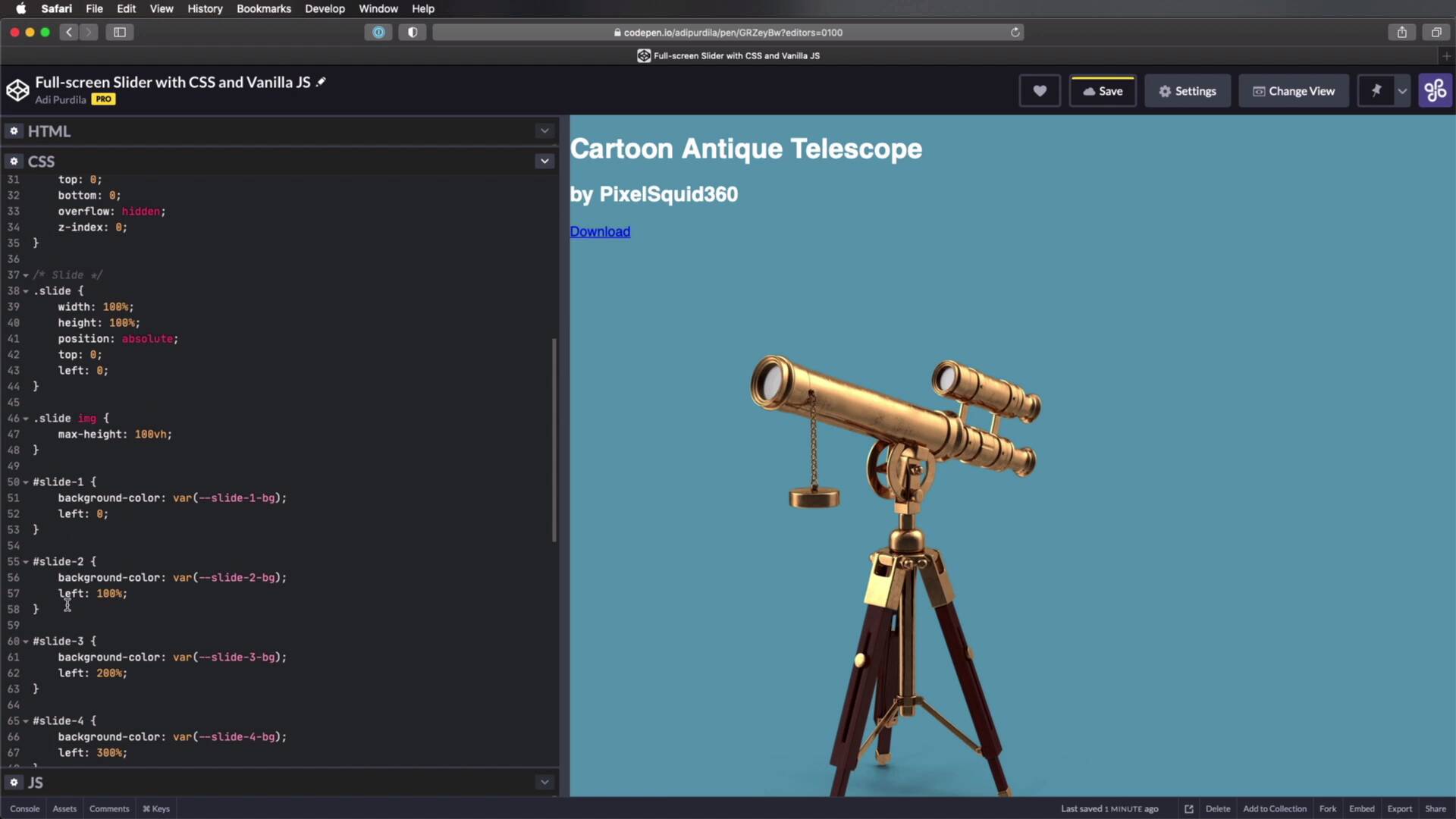
Welcome back to the course. In this lesson, we're gonna write the basic CSS that's gonna allow our slider to function properly. So let's begin, let's open up the CSS tab here. And I'm going to start by defining some CSS custom properties or you might also call them CSS variables. So I'm gonna say root and I'm basically gonna define these eight variables, and these are for backgrounds and link colors. Obviously you can put whatever you want in here. These are the ones that I'm going to be using. So, next up, let's do a little bit of a reset and I'm simply going to set box sizing to border box. You should always do this when you're starting a new project if you're not using a reset file like normalise, modern normalise and so on. Then let's target the body and I'm just gonna write some very simple styles to begin with nothing very fancy. I'm gonna set a font family, a font size, and a color. All right. So let's begin with the slider. I'm gonna target the main slider container and I'm gonna set its position to absolute. And I'm doing that because we're we are creating a full screen slider and I want to position this so it's starts at the top left and it spans the width and the height at the viewport. Now to achieve this, all I have to do is set the left, right top and bottom values to 0. I'm also gonna set an overflow to hidden because I wanna hide everything that overflows my slider container and as you saw there, the scroll bars are now gone and I'm also gonna set the Z and Index to. Because if I want to add something else on top of the slider, I can just set the Z index to 1 on that and it's gonna show up above it. Like for example, logo navigation, stuff like that. All right, now, let's move on to the actual slides. So I'm gonna target the slide class and actually, the only thing that I'm gonna do here is target slide IMG. I'm gonna set a max height of 100 viewport height just so that we can see the images more clearly. Next, I'm gonna target each slide individually by using the ID, so I'm gonna say slide one. I'm going to set a background color to the CSS variables that we defined var slide one BG that's the first one and also I'm gonna set the left property to 0 and then I'm gonna do the same for the other three slides. I'm gonna change the background color and I'm also gonna change their left the value. So on slide two, I'm gonna set left to 100%, slide three is gonna be 200%, slide four is gonna be 300%. So, what this is doing is it's lining up my slides horizontally. So I have this slide right here, and to the right of that is slide two, and to the right of slide two, slide three and so on. They're basically positioned In the same row, from left to right, slide 123 and 4. And we're doing this because when we change the slide, we just change their position here. And speaking of changing position, why don't we go and do just that. Here's how that works, I'm gonna do slide radio one, so that's the radio button. Yes, checked and then I'm gonna use this selector. This is called a general sibling combinator and it works something like this line of CSS here will basically select all the elements with the class of slide that are positioned after this bit. And not only that, they are siblings, right so all the slide siblings that follow slide radio one checked so if we take a look at the HTML in order to understand this better, it's basically gonna select all of the elements that you see here. And inside, I'm gonna do a transform translate 3D because I wanna benefit from that hardware acceleration 000. All right, so now let me do the same for the other three slides. And I'm gonna try and explain in more depth, what this is doing once we see it in action. On this one it's gonna be minus 100% minus 200% minus 300%. All right, so let's see if this works when I click on these items on one of these radio buttons, the slide should change. But right now it doesn't so I'm guessing we have a little problem here. I think we need to add some more styling to these slides. So let's also add the proper width of 100% and the proper height of 100%. And also these slides should be positioned absolutely. And also I'm gonna say top 0, left 0, just as a reset for all of these even though I'm placing the left value, to something else later on I'm starting with all of them from top left, 0. So now if we're gonna change to a different radio button, we should be able to see a slight change, but let's actually bring up the pagination. So I'm going to say, oops, pagination, I'm gonna set a z index of one and a position of absolute and let's move this to the bottom. Let's say six RAMs, and let's put it in the center left 50% and we'll do a transform, translate 3d minus 50% 00. All right, so now it's right in the middle. Okay, so now if I change to slide two, there it is slide two, slide three, slide four, so it is working. Now if you've never used this technique before, it might be a little bit too confusing for you, so let me try and explain this a little bit better. First of all, let's talk about the slide positioning, right? The slides are all positioned absolutely and they're all 100% width and height of their parent element, which is currently the size of my viewport. Okay, so each slide will fill up the entire viewport. Now because these slides are positioned absolutely and each one has the left value offset by 100% or It's actual width. They are positioned in a row, one after the other, so this is slide one, to the right of it is slide two, then slide three and so on. We cannot see them currently because I have set an overflow to hidden on my main slider but if I comment this bit, this is how the slides are displayed. See one after another. Okay, so now what are we doing here, we're basically targeting the checked state of each of these radio buttons. So, when the first radio button is checked, we're selecting all the sibling slides that follow it in our case, that's all of the slides and we do translate 3d 000. That means everything stays in place when we do radio to checked, so when the second radio button is checked. Again, we're selecting all of the slides that follow it, but this time we're moving them to the left by the width of one slide. See? Now I have a missing slide here because that is currently outside of the viewpoint it's moved somewhere in this area and I do the same for three and four. When I select radio button three, I move the entire thing to the left by 200% or by the width of two slides. And now you'll see that I have two slides worth of empty space right here. Now obviously you wouldn't see this because the overflow is set to hidden, but I unchecked this for clarity. And the same thing goes for slide four, so When I'm selecting or when I'm checking one of these radio buttons, all the slides move to the left by a certain amount. And that's all there is to it, now we can make this more visual. We can show this actual transition, by setting a transition element on the actual slide, so I'm gonna go right here and I'm gonna say, transition, transform, let's say 1000 milliseconds, let's say ease in out. So now we'll have a nice transition when, changing the slide. That's pretty cool, right, very nice. And of course we can play around with this a little bit if we want different easing, we can do cubic Bezier. And this is the one that I chose to use because it has a kind of a slow start and slow finish and looks something like this. And by the way, if you want to grab a custom easing, you can go to easings.net. And you can see a preview of that easing here, you can click on a particular one and you can grab the entire transition here or just the actual values of the Basie it's very simple. So with that, we now have a functioning slider. As you can see, this is a very simple concept, right? If you're happy with this, you can stop here, you can add your content, you can style that content, and you'll be good to go. You'll have a CSS only slider that works with minimal code. However, there are a lot of things we can do to this to improve it. And we can also add some JavaScript to it to make it more easy or easier to use. One of those things is to generate some of the markup from JavaScript instead of writing it ourselves. So we'll do that in the next lesson, I'll see you there.





