
 Lessons: 7Length: 36 minutes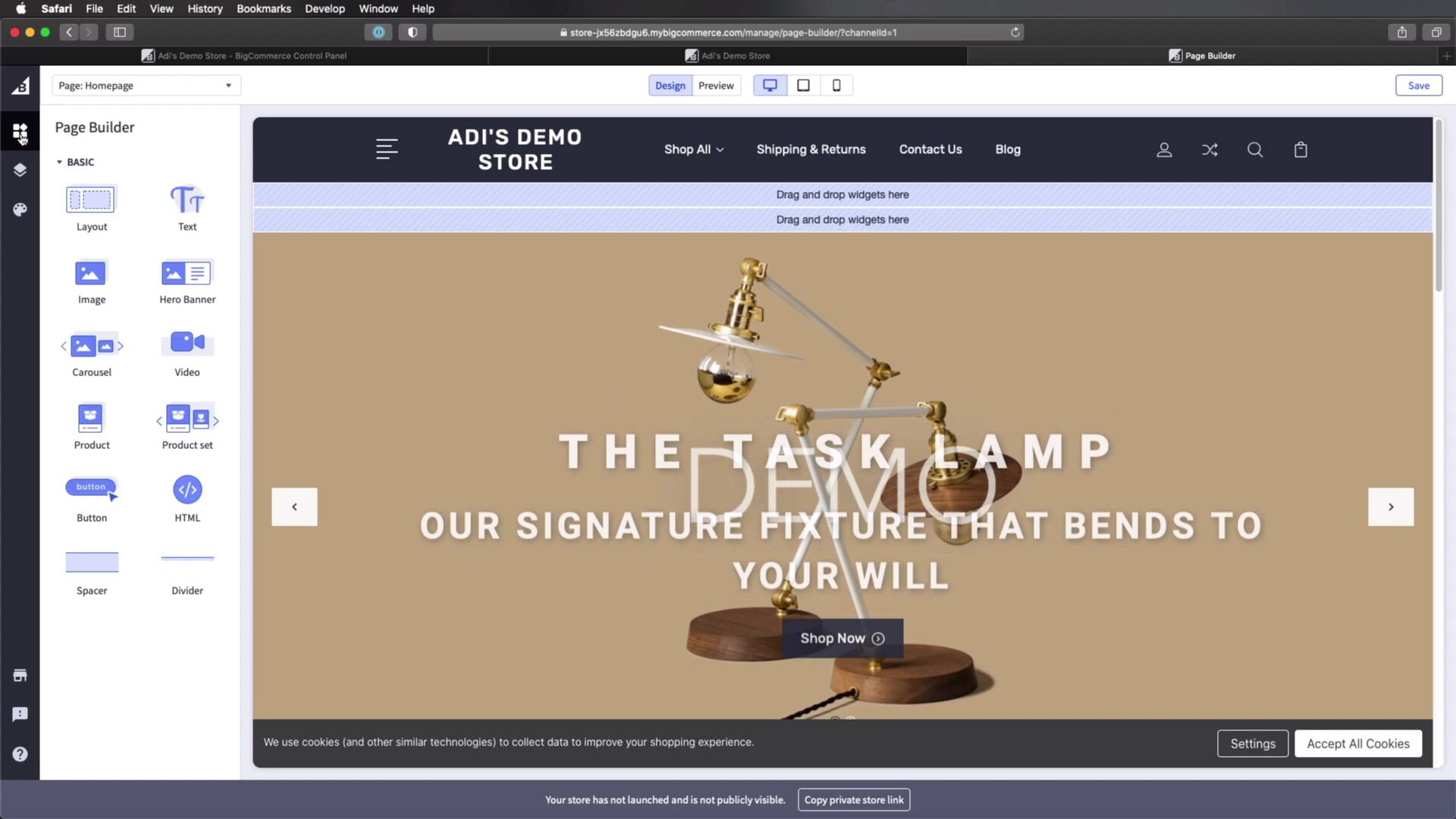
- Overview
- Transcript
2.5 Adding and Customizing a New Storefront Theme
In this lesson, you’ll learn how to add a new storefront theme and customize its essential aspects. Let’s begin.
Related Links
1.Introduction
1.1Welcome to the Course01:07
2.Getting Started With BigCommerce
2.1What Is BigCommerce?03:22
2.2Creating a BigCommerce Account06:22
2.3Adding Products to BigCommerce07:55
2.4Managing Products, Categories, and Brands05:43
2.5Adding and Customizing a New Storefront Theme08:34
2.6Selling on Different Channels02:37
2.5 Adding and Customizing a New Storefront Theme
Welcome back to the course. In this lesson, you'll learn how to add a new storefront theme, and also how to customize its essential aspects, so let's begin. We are back here in the admin interface. And this is what our frontend or our storefront looks like. We are using a default theme from the BigCommerce category. But if we wanna change that, we can go back to the admin interface and under Storefront, we can see that we are currently using Cornerstone Light. And if we want to get a new one, we would click Browse Themes. And that will take us to the theme store, where we can filter themes by free, paid. And also by a couple of parameters that we can find on this left sidebar, like do we want a theme with a grid layout or large images? Or what about the industry? Maybe I want a theme for food and beverage. So let's actually select Fashion & Jewelry because that's the last product that I added. And I'm gonna choose Free, and we can sort by featured, price, ascending or descending and if we were browsing paid themes. So you can look for a theme that you like. Here is the one that we're currently using. And I think I'm gonna select maybe this first one, Lifestyle Default. Let's click that. Here we can find more information about it. We can also see a preview of the theme on large screens and on mobile. We can see all of its features here. We can see what it's optimized for. And if we like this, we can go ahead and get it. We can preview with our store or we can see a demo. So View Demo will just open up the theme in a new window and we can see it. So that looks pretty good, but let's go ahead and click Get This Theme. And this is gonna ask us to log in to our store, so let's do that. And once we're logged in, it's gonna open that theme in our backend. You can see that we are now on the theme marketplace. So we can go ahead and add our theme. Now if we want, we can apply the theme right away or later. Let's do that now, and let's confirm. So now you'll see that under My Themes, we can see the current one is the one we just added. And if we open the frontend, this is the old theme. And if we do a refresh, this is the new theme. And it's really that easy to install new themes on BigCommerce. Now, if we want to customize this theme, which we'll most likely be doing every single time, we can click this Customize button right here. And that's gonna open our frontend, our storefront into this live preview. And we can use this interface to add new content using the page builder. And we can also access the theme styles. And here, we can change the colors for a lot of the elements. We can change the various properties for pages. For example, if we wanna hide breadcrumbs, we would check this. And that's gonna refresh the preview, so we can see the changes live. So that's pretty cool. Now let's quickly do a demo of this. Let's see, maybe I wanna add, I don't know, another piece of text here. How would I do that? Well, I would select it from here, click and drag. And then I would just enter the new text. And with it selected, I can change the font family, the font weight, size, the text color, the alignment, margin, padding. So I have access to controls that allow me to customize the look of this widget as it's called here in the page builder. Maybe I wanna add an image, so click and drag. Maybe I'm gonna drag it under this new text. And now I have an image in. And again, with the image selected, I can choose to upload my own image. And then choose the image dimensions, how the fit, the opacity, the alignment, margin, padding. And some additional options that we haven't seen before, like the border. Maybe we wanna add a link to that image. And also the Alt text for that image. All of this is configurable from this visual interface. So this is currently the homepage, as you can see here, but you can select other pages. So you will go ahead and save this one. And if you have other pages created on your store, then you would select it from here, Shipping & Returns, for example. And you would customize the contents of this page in exactly the same way. Now, if you want to customize the look and feel of the entire website, well, you can go to Theme Styles. So here, you can change the theme primary color, how the background looks like, how the lines look like. And, of course, this depends from theme to theme, but the idea is you have access to all the colors that are being used and it's really easy to choose a new one. You can also select the typefaces that are being used. So for headings, we are currently using Rubik, but you can change this to something else. And there you go, the live preview updated automatically. You can change the color of the headings and a lot of other very cool options for customizing here. For example, hide breadcrumbs will get rid of these breadcrumbs on the pages, and that's gone. You can hide the page heading and a lot of other customizations. You can really tune this in to match the exact style that you want. And once you're done, you will just hit Save, and now any change that you made will be visible in the storefront. So here on the homepage, we added this new text and also this image. All right, and that's a brief look at how to add a new storefront theme and also how to customize it. Now, after you've spent all this time adding the products and tweaking the categories, the brands, the storefront appearance, you're pretty much ready to go live with your online store. And as I mentioned in the previous lesson, one of the very nice parts of headless eCommerce is that you can have multiple storefronts connected to a single backend, to a single database. So you can sell your products on multiple channels. Let's briefly talk about that in the next lesson, see you there.





