
 Lessons: 7Length: 36 minutes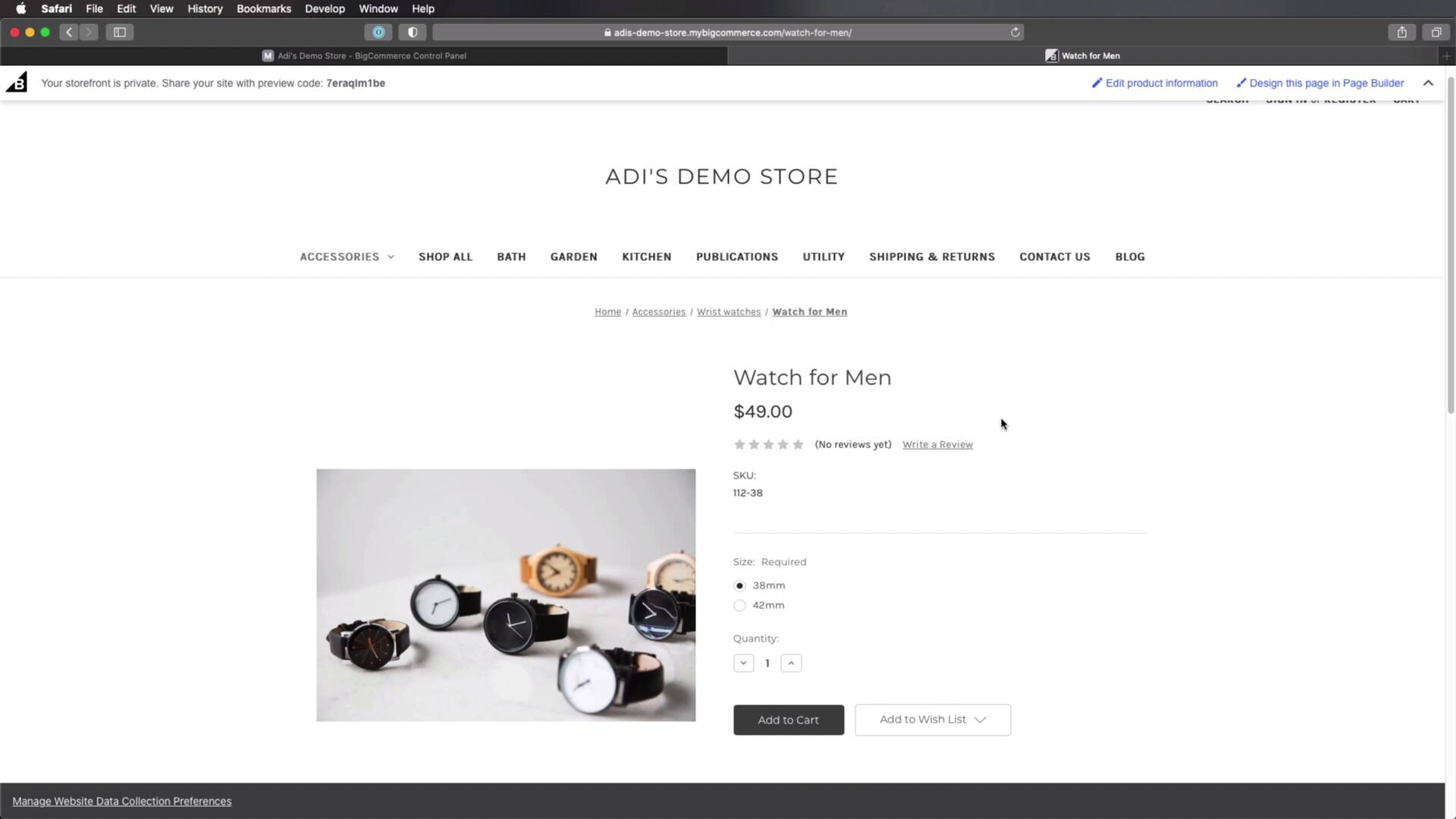
- Overview
- Transcript
2.4 Managing Products, Categories, and Brands
In the previous lesson we added some products, but we didn’t really talk about categorizing these products or managing them after being added. So let’s do that right now.
1.Introduction
1.1Welcome to the Course01:07
2.Getting Started With BigCommerce
2.1What Is BigCommerce?03:22
2.2Creating a BigCommerce Account06:22
2.3Adding Products to BigCommerce07:55
2.4Managing Products, Categories, and Brands05:43
2.5Adding and Customizing a New Storefront Theme08:34
2.6Selling on Different Channels02:37
2.4 Managing Products, Categories, and Brands
Welcome back to the course. In the previous lesson, we added some products, but we didn't really talk about categorizing them or managing them after they were added. So let's go ahead and do that right now. In BigCommerce, products can be organized in two categories. So if we go to Products, and we go to Product Categories right here, we can see the existing categories. And if we want, we can create a new one right here. So let's do that, and let's call this Accessories. Here we can define the URL that's gonna be used in the front end. We can set a description, and we can set a parent category. In my case, I'm gonna select no parent category. We can set a category image if we want that, so let's actually choose a file, I chose a JPEG image. Here on the SEO section you can set an optional page title, meta keywords, description or search keywords. So then I'm gonna click Save & Exit. And now you'll see that I have a new category called Accessories. But what if I wanna add another category within this one? Well, I do the exact same thing. Click this button, let's call this wristwatches, and under parent category, I'm gonna select Accessories. And let's choose Save & Exit. So now, I have a little plus sign here, and when I click it, I can view my sub categories. All right, so now I'm gonna go back to my products, and I'm gonna select the product that I added earlier in the previous lesson. And I'm gonna change its category, I'm gonna unselect shop all, and I'm gonna select wrist watches. And then I'm gonna click Save. So now if I go back to my front end, you'll see that the new category that I added and subcategory was added to my menu. And this is by the way, optional, we can select not to do that. But now if I go to Wrist watches, I can see the product that I added previously. Pretty easy, right? Now, products can also be categorized by brand. So if we go back to the back end, or the admin interface, you can see this drop down menu here called brand. And we have three brands that are defined, but we can add more. So in the sidebar, we can go to Brands, we can see the existing ones, and we can add our own. So let's say Adi's Time Pieces, this is a fictional brand, and we're gonna save that. So now I'll go back to my products, I'm gonna select the one that I created, and under Brand, I'm gonna select the new brand that I created. So I'm gonna click Save, and now going back, you'll see that my brand name now shows up right above the title of my product. And here, we also have this new addition that we can click, and that's gonna show us all the products that belong to a specific brand. Now what if you want to edit or delete a category or a brand? Well, it's really easy. Let's say you want to delete a category, you go to Product Categories, you select the one that you want to delete, maybe I don't know this one, utility. You check it, and then you click the trashcan icon. And it gives us a warning and you will hit OK to delete that category. With brands, you would do the exact same thing. You would select the Brand from here, click the trashcan icon. With products, let's say we wanna remove, I don't know, this one, this dustpan and brush. You can do the same, check this and delete from here. And obviously, you can select multiple products, and you can delete them all at the same time. All right, and with that I think you now have a good grasp on things when it comes to adding and managing products. Now it's time to move on to customization, and this is something that you'll always want to do. Because the default theme that comes with your storefront is pretty generic. And you'll probably always want to use your own theme that matches your particular business. So we'll look at how we can do that in the next lesson. I'll see you there.





