


- Overview
- Transcript
2.6 3D Transforms
So far our focus has all been on 2D animations, but it’s also possible to create animations in 3D space using transforms. In this lesson, learn about animation in the third axis of space and how to control it with CSS.
Related Links
2.6 3D Transforms
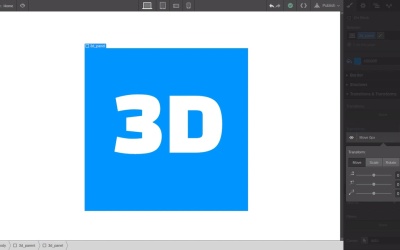
Hey, welcome back to a visual guide to CSS animation. This is actually the last lesson in our course in this we're gonna go through some of the concepts that govern 3D space. And then we're gonna look at how those concepts work within the context of CSS animation. You might be wondering what this interface is that you're looking at here. I'm actually in a program called Brenda which is a 3D program don't worry you don't need to go get this yourself. This is just gonna help to illustrate some of the concepts behind how 3D works. Now what we're looking at right now is a simple 2D shape on the x, y-axis. Down the bottom left corner there you can see the x and the y-axis just like we have been working with so far. And this looks like a flat square and that's because we're only employing that x and y-axis. But, if we had a third axis, the z-axis or z-axis. Now we have a cube. We're still actually dealing with 3D shapes. We have six squares that are all pinned together and we're using that extra axis, the z-axis, to give us depth. So that z-axis is the first important part of how 3D works. There is another really important part too though. You might have noticed that the shape of this cube as we're rotating around, it looks a little bit funny, it looks not quite right. Not how a cube would look in real life. And that's because what we're lacking right now is perspective. Perspective is what makes things that are closer to you look bigger and things further away from you look smaller. And when you're creating 3D digitally that perspective needs to be applied mathematically on to the shapes that you're working with. So this is something that you have to activate and you have to manage. Now if we turn perspective on here all of a sudden now the cube looks a lot more realistic and a lot more natural. So when you start working with 3D, those are the two things you wanna think about. That extra z-axis and if you want a shape to look realistic and have realistic angles on it, then you have to think about perspective also. Okay so now that you know about this z-axis and perspective let's set something up in web flow to work with those things. Now we've actually deleted every element here so I don't have anything in here that you've been using in the previous lessons. Now we're gonna drag in a new div block and we're gonna give this one the class name 3D_parent. We'll give it a width of 100 vw and a height of a 100 vh, so it's full height and full width. And now into that we wanna drag another div block. We give this one the class 3D_panel. We'll set this as 500 width and 500 height and then we'll just set its top margin to push it away from being flush with the top there. Just give us a little bit of breathing space. Now we're gonna drop some text inside this 3D panel, when we start transforming this in 3D space that text is just gonna help make it a bit clear, what transformations are happening and just replace all this text with just 3D and we want something nice and chunky to look at. So we'll change the font to change a one and we'll change the color to what. And then we'll boost that font size up really high. And now we'll kinda center roughly just by adding some top and left margin. This doesn't have to be perfect. This is just so you can more easily see the shape changing as you transform it in 3D space. Now select your 3D panel and lets start adding a transform. We already went through how rotation works. So you know that the rotation goes on around the axis in question. But as I stop applying these rotations here, you can see that it doesn't quite look natural. Like we talked about before, there's no perspective here. So even as you're rotating this around the various axes you're not seeing the edge that's coming closer to you get bigger or the edge that's moving further away from you get smaller. So how do you add perspective like this? So let's just angle this off, so it's rotated a little bit on the x and y-axis. Now the way that we're gonna add perspective to this is by applying it to the parent. So that's why we created this 3D parent, that is full height and full width. So whenever you working with 3D in CSS you have to set up one of these parents and you can think of it as something like a camera or and eye that has the ability to see in 3D. So now if we go down into these transitions and transform section, here you can see we have this perspective slider. Right now there's no perspective being applied to the children of this element, but if we grab this slider and move it up, now all of a sudden it looks like real 3D. So depending on what you set the value of your perspective you're gonna have more extreme angles or less extreme angles. So let's just set this to something that looks pretty cool, that gives us that 3D without overdoing it. Now that we have perspective active on the parent now we can probably transform this shape in 3D space. So for example if we add another transform, we add a move or translate transform. Now when we change the value on the z-axis, we're actually able to move this closer or further away in 3D space. And you can see now that when we using translations on the other axis, they are also working in 3D space as well. All right, so let's create a transition from one 3D angle on our shape into another 3D angle. So we'll switch into the hover state. Now just change up the rotation. You could do this in any way that you like, just do something that you think looks pretty cool. And change up the movement as well. Change up the translations, so that you've got two different 3D angles that this shape can translate in between. And then, just like we did in the last lesson, in the default state add a new transition and just apply it to the transform property. Now if we jump to preview mode and we hover., now you can see we've got this really cool transition as this shape goes from one angle 3D space to another angle. Now you can do all kinds of cool stuff with transitions between these different types of 3D transforms. I'm just gonna show you another quick example from one of the same courses that I mentioned in the last lesson. And this is a full 3D cube with the ability to rotate to any side that you want. So you can make full 3D shapes. Or on the more subtle side you can do things like this, where you create a flip effect, so you can create kind of two sided objects and not having as much depth here just a little bit of depth. But you get the ability to do things like creating flipping effects, which doesn't come across as being full on 3D, but because you are using that depth, you are actually working with 3D and just applying a little bit of it can let you do some really cool stuff. All right, so that wraps up the last lesson in a Visual guide to CSS animation. Join me in the last lesson. We're just gonna have a quick recap of everything that we've gone through and I'm gonna give you some tips on what you should think about learning next to keep expanding on your CSS animation skills. So I'll see you in the final video.





