
 Lessons: 17Length: 1.6 hours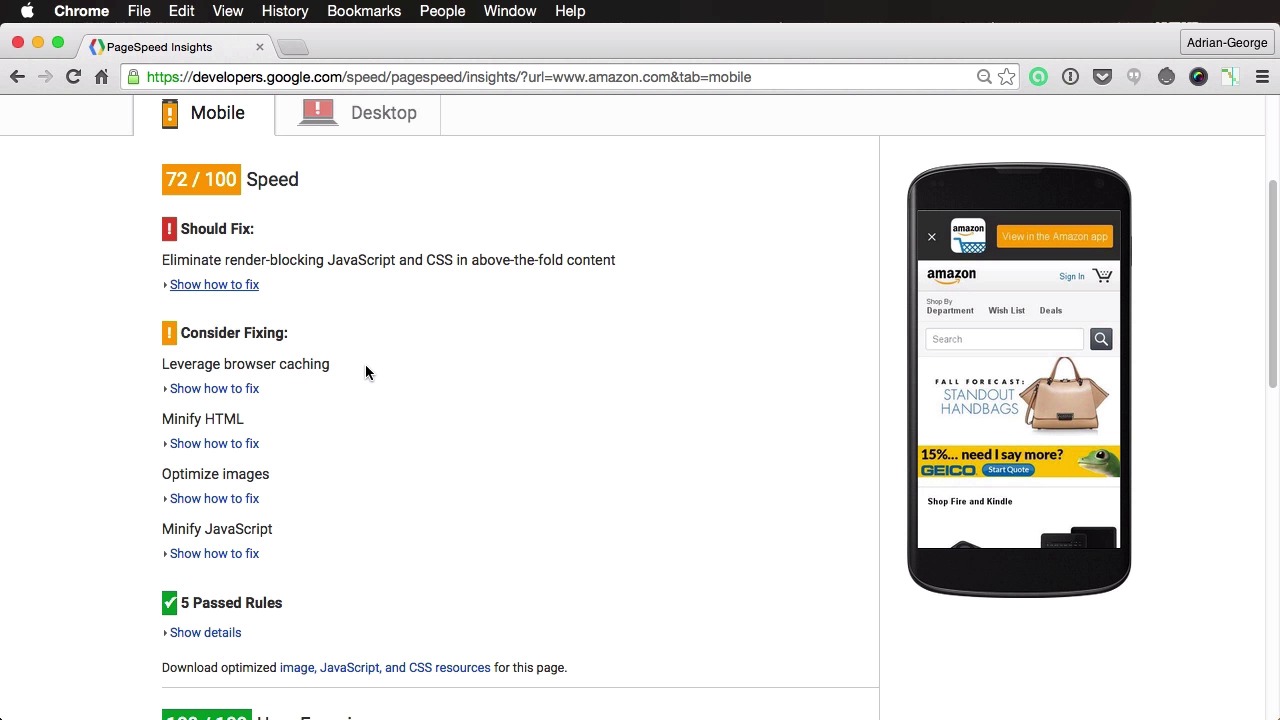
- Overview
- Transcript
2.3 Google’s PageSpeed Insights
As the name implies, Google’s PageSpeed Insights is a tool you can use to find out how fast your pages really are. Let’s see how you can use it to improve your own web page speeds.
Related Links
1.About Website Performance
1.1Welcome00:34
1.2What Is Website Performance?03:42
2.Tools for Measuring Performance
2.1Overall vs. Perceived Performance02:32
2.2Google’s DevTools14:30
2.3Google’s PageSpeed Insights03:22
2.4YSlow and Pingdom Website Speed Test08:51
3.Overall Performance Optimization
3.1Server-Side Optimization05:06
3.2Reducing HTTP Requests03:56
3.3Image and Webfont Optimization07:37
3.4JavaScript and CSS Optimization03:31
3.5Moving Assets Externally03:23
4.Perceived Performance Optimization
4.1About Perceived Performance02:39
4.2Critical Rendering Path03:45
4.3Render Blocking CSS17:20
4.4Render Blocking JavaScript11:44
5.Platform Optimization
5.1Optimizing WordPress Websites02:27
6.Conclusion
6.1Final Words01:00
2.3 Google’s PageSpeed Insights
As the name implies, Google's PageSpeed Insights is a tool you can use to measure just how fast a web page is. So, let's have a look at how you can use it. You can find the Google PageSpeed Insights tool at this address here. Now using it is actually very simple. You just enter your webpage URL, the one that you want to test. For example, let's do Amazon.com. All right, so once it's complete, it actually gives you two scores. One for mobile, and one for desktop, and it also gives you a small preview here on your right. Now on both of these you get a score. So in this case it's 72 out of 100. And also some recommendations, the ones in red are the most important ones or the most urgent ones. So here it says eliminate render-blocking JavaScript and CSS in the above-the-fold content. And it actually gives you indications on how to fix it. It shows you that you need to optimize these two CSS files. And this is actually the same story in the Desktop. Only here, you get a lot more CSS files and an additional JavaScript file. And you can see in the Desktop, we get a much lower score 37 out of 100 and that's not really good. On top of this, let's see what else, consider fixing so these are things that you can do but are not that important. For example to leverage browser caching, modify the HTML, optimize images. And minify JavaScript. And then it also gives you the past rules. So, for example, to avoid page redirects, enable compression, minify CSS, and all that stuff you can do to improve performance. It also gives you a score for user experience and in this case it's 100 out of 100. So that is pretty cool. Now on Desktop it also gives some suggestions here like you should optimize images, you can see it gives you all the images that need optimization, and it also shows you how much weight you could save. So you could reduce their size by 1.6 megabytes here, 96% reduction. So that is very, very cool. Then stuff that's pretty similar to the mobile, so browser caching, minification on HTML, JavaScript and CSS. All right so that's basically how you would Use the PageSpeed Insights tool to verify your website and also to learn what kind of optimization you can do to it. And that's it, a very simple, yet effective tool for getting an insight into your web pages performance. Now there are a few more tools you can use, so we'll discuss about those in the next lesson. I'll see you there.





