
 Lessons: 9Length: 52 minutes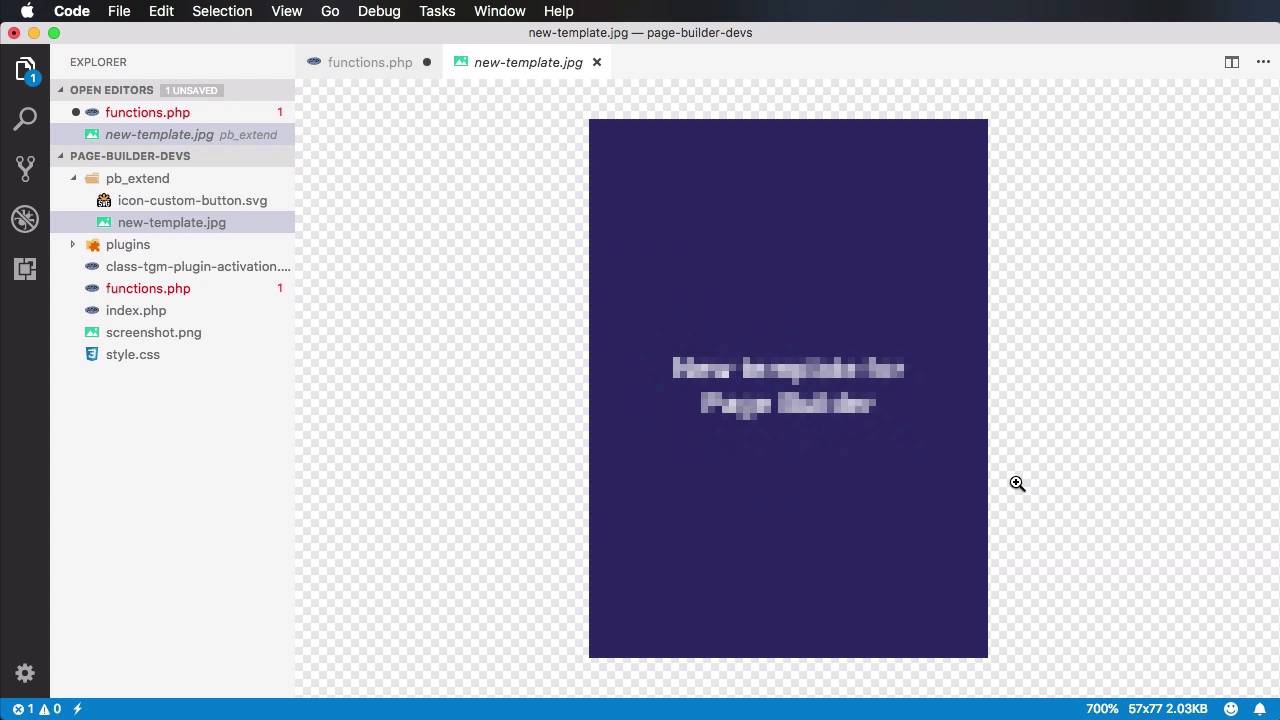
- Overview
- Transcript
2.7 Adding Default Templates
In this lesson you’ll learn how to add default templates. This is a really useful part of WPBakery Page Builder's functionality, and it allows you to ship your theme with pre-built templates. Let’s see how we can work with these.
1.Introduction
1.1Welcome to the Course00:53
2.Working With WPBakery Page Builder as a Theme Developer
2.1Licensing03:04
2.2Loading WPBakery Page Builder With TGM Plugin Activation10:29
2.3Adding a New Element17:58
2.4Removing Existing Elements03:33
2.5Adding Parameters to Elements04:21
2.6Removing Existing Parameters From Elements03:38
2.7Adding Default Templates04:11
2.8Smaller Tweaks and Settings04:18
2.7 Adding Default Templates
Welcome to the 7th lesson of this course, where you'll learn how to add default templates. So this is a very neat, and very useful functionality of the plugin that allows you to basically ship your theme with pre-built templates. Really cool. So let's see we can do that. Going back to our page here, I created a very simple layout just to demo this functionality. We have a message Text Block and one of our custom buttons. The page currently looks like this and let's say that this is amazing. An amazing layout, and I wanna ship it with my theme, right? So I'm gonna switch to classic mode. I'm gonna copy this text. As you can see, it's entirely comprised of short codes. And then I'm gonna go back to my code editor, and I'm gonna do the following. First, I'm gonna tap into one of the Page Builder functions. So add_action. The function is called vc_load_default_templates_action, and I'm gonna execute my own function pb_add_default_templates. Let's go ahead and create that function, and the inside, I'm basically gonna call vc_add_default_templates. And I'm gonna provide an array with all the necessary information. First we start with the name, so, what's the name of our new template? Let's call it Tutsplus template and then we can specify weight, which is the position of the template in the templates list. This is the first one so we'll say 0. Then we can specify an image_path. We can also attach an image to our template. I have an image prepared here. It's called new-template.jpg. Currently it looks something like this. It's a bit smaller actually, this is suppose to be double the size that you see here. For some reason I exported it at half the size but it's fine, we can change it later. So, possibly you're gonna say get_template_directory_uri, pb_extend/new-template.jpg. Then we can specify a custom class. It's there if you need it but we're gonna use it here, and then the content. This is the actual content of the new template. I'm gonna use this format, content. I'm gonna paste this in. I'm gonna end that content block right there, and we're done. All right. Let's give it a test. So we're going to create a new page that's called Test. Switch to back-end editor, we're going to open Templates, Default Templates, and you can see Tutsplus template right here. We're gonna click it and that will automatically add all the necessary content in my page. So, I'm gonna hit Publish. And now, if we take a look at the page you'll see that it has the exact same structure as my original one. And that's it really. That's how easy it is to add new default templates to Page Builder. And as I said, it's really great functionality because it allows you to ship your theme with pre-built templates that user can simply click on and they'll have an entire page just ready for them to customize. A really, really cool functionality. Now for the final lesson of our course, we're gonna take a look at some smaller tweaks and settings we can use to further customize Page Builder for our theme. That's coming up next.





