
 Lessons: 9Length: 52 minutes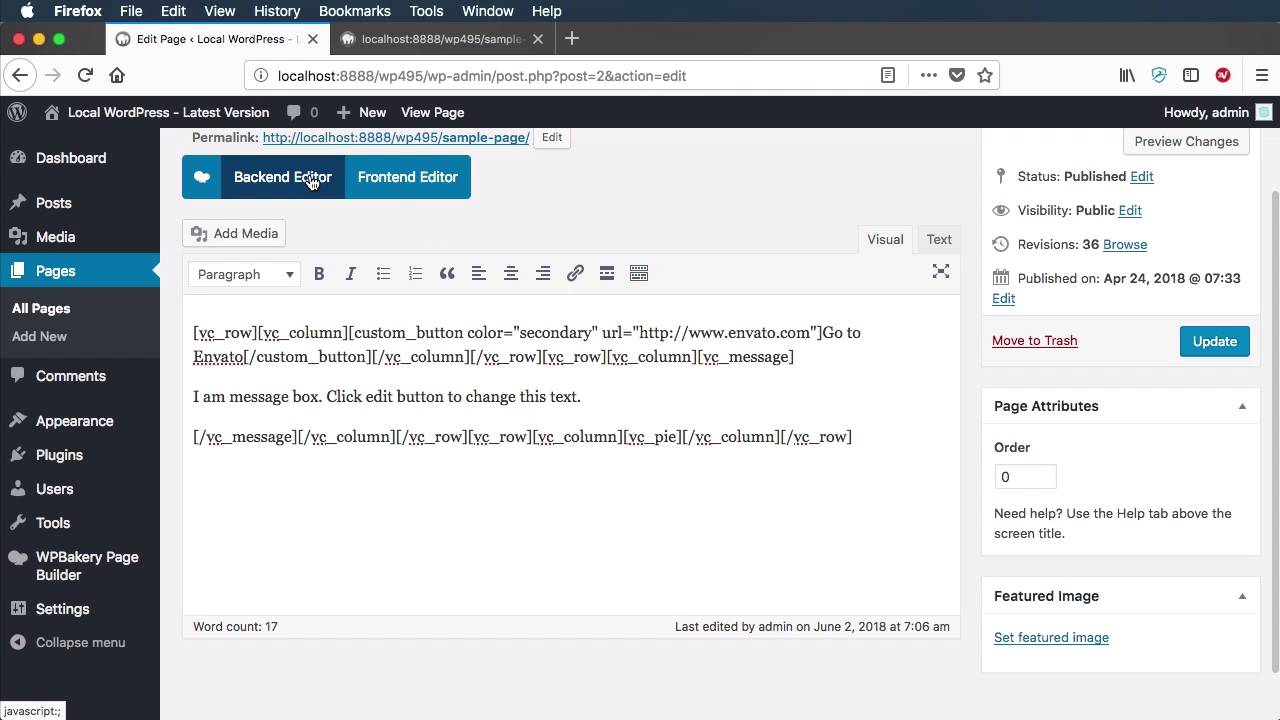
- Overview
- Transcript
2.4 Removing Existing Elements
Let’s now look at how to remove existing elements from WPBakery Page Builder.
1.Introduction
1.1Welcome to the Course00:53
2.Working With WPBakery Page Builder as a Theme Developer
2.1Licensing03:04
2.2Loading WPBakery Page Builder With TGM Plugin Activation10:29
2.3Adding a New Element17:58
2.4Removing Existing Elements03:33
2.5Adding Parameters to Elements04:21
2.6Removing Existing Parameters From Elements03:38
2.7Adding Default Templates04:11
2.8Smaller Tweaks and Settings04:18
2.4 Removing Existing Elements
Welcome to the fourth lesson of this course where you'll learn how to remove some of the existing elements from Page Builder. Now, why you would want to do that? Well, maybe you don't like the elements that are bundled with Page Builder, or maybe you just wanna start from scratch with a clean slate. Whatever the reason, removing elements is really simple by using a single function. And that function is called vc_remove_element(). So for example, let's I want to get rid of this message box, or this pie chart, right? Well, the way to do it is to find the exact name of the shortcode that's being used. So let's create a message box, And let's add a pie chart as well. So we'll close that, we'll hit update. And now if we switch back to classic mode, we can see that the message, or the message box, has the shortcode name of vc_message. And the pie chart has the shortcode of vc_pie. So now if we go back into our codeeEditor, we can simply say vc_remove_element(), and we would provide the name of the shortcode. Vc_message, now let's also get rid of vc_pie. Do a save. Now if we do a refresh, You can see that the content inside the page has not changed, which is, of course, normal. We still have those shortcodes, but if we go to the backend editor, we can see that their preview here is gone. If we check the main page, we can see that they're displayed as plaintext. They are not being interpreted by WordPress because we essentially removed or unregister those shortcodes. And also, we remove them from the list, right? You cannot see them in this list ever again. Now, if at some point you decide, well, maybe I want those back, well, we simply just comment these and do a refresh in the backend. And now those elements are available yet again, both in the backend and of course in the frontend, provided they have proper styling. And of course, they are available once again in the backend so you can add them in your page. And that's it, really. That's how easy it is to remove existing elements. Now, something else you might want to do to further customize and tailor a Page Builder for your particular WordPress theme is tamper with the parameters of these elements. So you can add, modify, and delete parameters from these elements. In the next lesson, we're gonna learn how to add specific parameters to elements. See you there.





