
 Lessons: 9Length: 52 minutes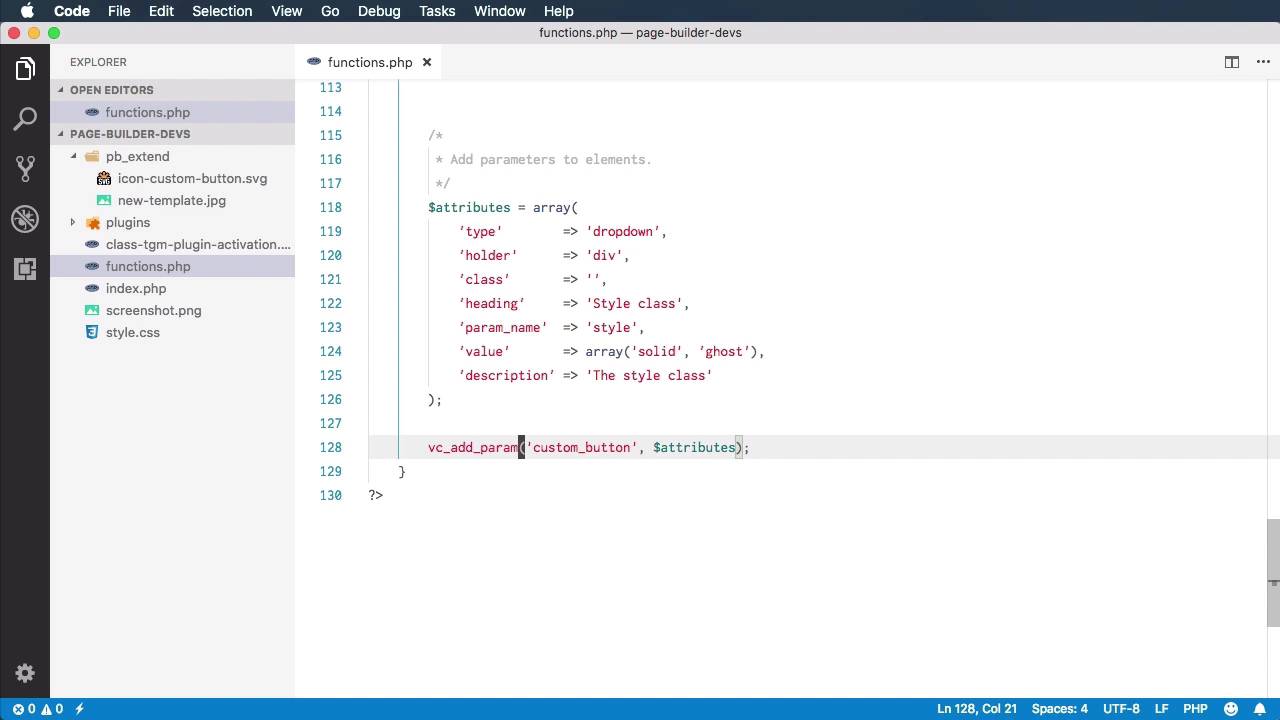
- Overview
- Transcript
2.5 Adding Parameters to Elements
Welcome to the fifth lesson of this course, where you’ll learn how to add new parameters to existing WPBakery Page Builder elements.
1.Introduction
1.1Welcome to the Course00:53
2.Working With WPBakery Page Builder as a Theme Developer
2.1Licensing03:04
2.2Loading WPBakery Page Builder With TGM Plugin Activation10:29
2.3Adding a New Element17:58
2.4Removing Existing Elements03:33
2.5Adding Parameters to Elements04:21
2.6Removing Existing Parameters From Elements03:38
2.7Adding Default Templates04:11
2.8Smaller Tweaks and Settings04:18
2.5 Adding Parameters to Elements
Welcome to the fifth lesson of this course, where you'll learn how to add new parameters to existing elements in Page Builder. So, we're doing that with a function called vc_add_param. It's actually quite simple to do. We say vc_add_param. The first attribute is the name of the short code, or the element that you want to add new parameters to. In our case, let's use our custom_button that we created earlier. So, custom_button. And then, you got to specify what attributes you wanna pass in, right? And you can do that with an array, or you can specify a variable. Let's say attributes, which I'm gonna define right here. So attributes = array. Now inside this array, we must match the structure from one of these arrays. So, remember the params attribute from when we added our element. Well, when we're adding new parameters, we need to preserve the same structure. So I'm simply gonna copy this. Gonna paste it in. So what are we adding? Let's say we wanna add a style attribute, right? It's also gonna be a drop down. Div, headings, let's say style class, param_name is gonna be style, the value, let's specify an array, maybe we have two styles, solid button and a ghost button, and the description, The style class. Okay, so then we're taking those attributes and we're adding them as a new parameter to custom_button. Now, there is another function. It's called vc_add_params with an s. And this allows you to add multiple parameters at the same time. But all that function is doing is a looping through each one of these arrays and calling vc_add_param. So essentially, this is the main function that you're using. If you wanna add multiple attributes at the same time, use the params, or vc_add_params function. If you only want to add a single parameter use this function right here. So let's give it a shot, see if this works. Do a refresh in the back end. And when I go and hit the Edit button we can see the new parameter that was just added, Style class. Now, no matter what we choose here, it's still not going to update my link. And you can see it still has those two classes. So if you're adding a new parameter, you must also modify the short code. So in my case, I would go to my short code definition, which is right here. And I would add that extra parameter which is called style, let's default it to solid. And we're gonna add it as a class here. Save, refresh, and now the style attribute was added to my class list. So that's how you can add our new parameters to existing elements. We'll just do a quick recap. What you do is basically call the vc_ad_param, or params function. You specify which elements you want to change and what attributes you want to add. And make sure these preserve the same style as the ones you added here. That's all there is to it. Now, another way to customize the elements is to remove some of the existing parameters. You'll learn how to do that in the next lesson.





