

- Overview
- Transcript
2.2 Customizing Foundation
Until version 6, if you downloaded Foundation, you would get pretty much everything: all the JavaScript components and all the CSS files. In this version, however, you can customise your download to lighten your project. Let's see how.
1.Introduction
1.1Welcome00:19
1.2What Is Foundation?08:09
1.3What's Changed Since Version 5?02:44
2.Working With Foundation
2.1Using Yeti Launch10:32
2.2Customizing Foundation03:51
3.Foundation's Awesome Components
3.1The Grid20:09
3.2The Navigation09:06
3.3The Containers13:05
3.4The Orbit Slider03:42
3.5Plugins13:24
3.6Libraries09:17
4.Conclusion
4.1Final words00:48
2.2 Customizing Foundation
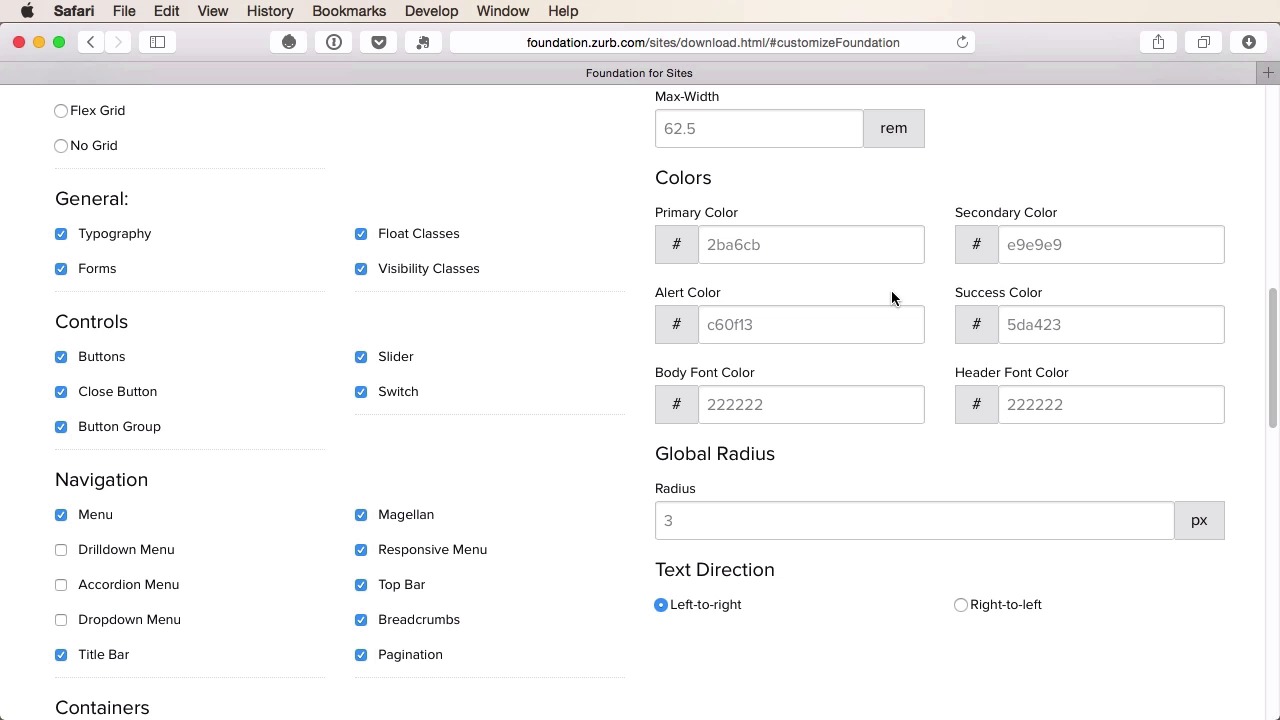
Up until version 6 when you downloaded Foundation you got everything, all the CSS files and all the JavaScript files. In this version, however, you have the ability to customize what you're downloading, so let's see how. If you click on the download Foundation 6 button, it's going to take you to the download page, where you can get a complete version, an essential version, which is just a lighter one with fewer components, and then what we're interested in in this lesson is the custom version. So if you click on this it's gonna just scroll you down to this section right here where you can choose the components that you want to download. You can choose to download the grid or not, and then you have various sections for typography, forms, float and visibility classes then controls or you see buttons, basically, then navigation, what type of navigation do you want, menu, drilldown menu. If you're not using the drilldown menu that we just saw, you can just uncheck this. Accordion menu, not using it, no problem, just uncheck whatever you don't need and just leave the stuff you do need. You have the other components in here, containers, which we're going to talk about in a future lesson, media, plugins and then on the right side, you can set some default values. So for example, how many columns do you want your grid to have, the gutter or the distance between the columns, the maximum width of the grid and then a few colors. So a foundation uses these default colors to style the elements. So for example a primary and secondary colors can be used for buttons, alert colors, success color, also for buttons, or maybe for call outs, or messenger boxes, the body and header font colors. So, you can customize this right from this page. Also, the global radius that applies to the various components on the corners, text direction, left to right or right to left. So this is what you can customize here. And once you're done with these, you can click on this download custom build and Foundation is gonna give you this. It's gonna give you an index HTML with just a demo page basically. The JavaScript that contains all the JavaScript components you selected and the CSS. Now, if you go this route, you will not get the SaaS files, so be careful about this. You will only get the compiled Minified and normal CSS files. If you want the Sass files, then go ahead and choose the Sass version here because even the complete version will give you all the framework files in CSS and JavaScript. But as we saw in the previous lesson, it's much easier to use the new launch app than to manually download files. There you have it, customizing the download is definitely a welcome feature because it allows you to cut down on the weight of the entire Foundation package and also makes your project more manageable by removing unnecessary or unused code. Now, coming up, we'll have a look at some of the awesome components in Foundation and we'll start with the grid.





