


- Overview
- Transcript
3.1 The Grid
Let's have a look at the grid component in Foundation. This allows you to quickly create layouts that adapt nicely to devices of various screen sizes. We'll also learn about flex-grid, which is a Flexbox-powered grid. Let's begin.
Related Links
1.Introduction
1.1Welcome00:19
1.2What Is Foundation?08:09
1.3What's Changed Since Version 5?02:44
2.Working With Foundation
2.1Using Yeti Launch10:32
2.2Customizing Foundation03:51
3.Foundation's Awesome Components
3.1The Grid20:09
3.2The Navigation09:06
3.3The Containers13:05
3.4The Orbit Slider03:42
3.5Plugins13:24
3.6Libraries09:17
4.Conclusion
4.1Final words00:48
3.1 The Grid
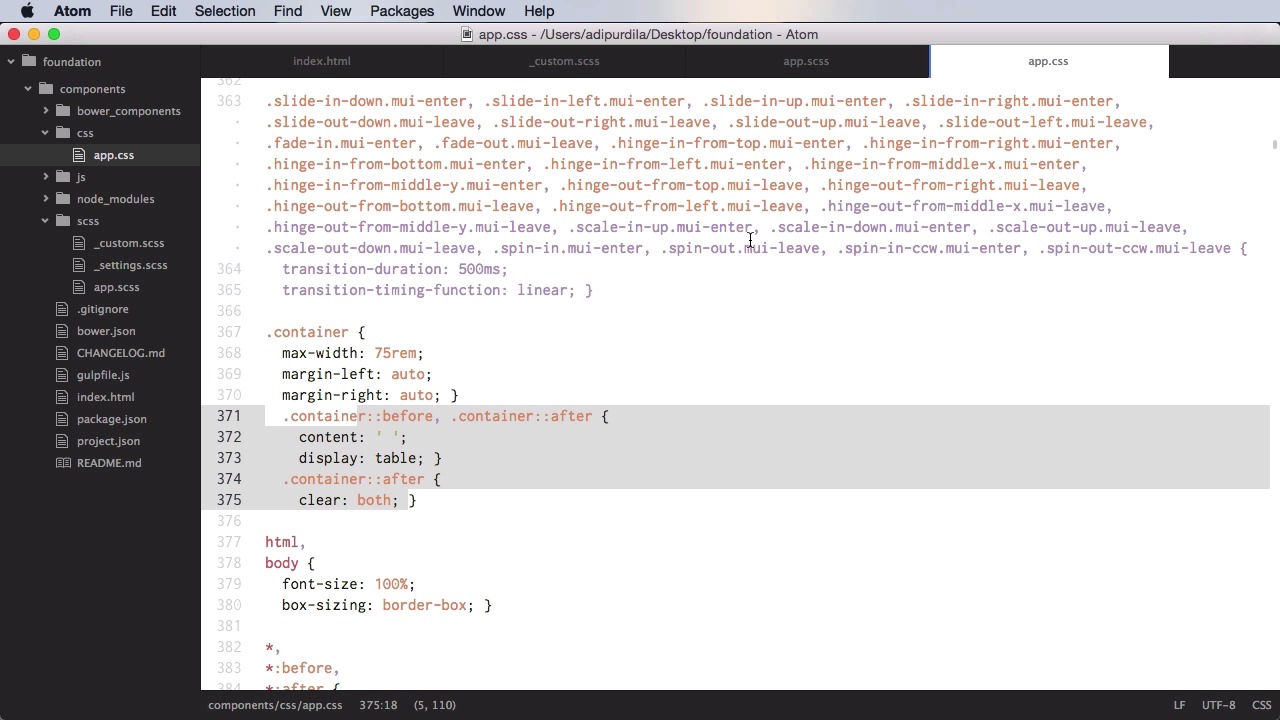
Let's have a look at the grid component in foundation. This allows you to quickly create layouts that adapt nicely to devices with various screen sizes. We'll also have a look at the flex grid, which is a flex box powered grid. So let's begin. Let's start by creating a new project in Yeti Launch here. I'm gonna call this components. I'm gonna use the basic template and this should give us a nice playground for us to try out the new components in Foundation. So I'm just gonna run it. As you can see if opens here the index.html file. Let's delete the stock HTML we have here, and start with the grid. Now, when working with the grid, you need to know two class names, row and column, or columns. So you need first a div with a class of row. To create a horizontal block which will contain vertical columns. And then you specify a div, or multiple divs, with the class of columns. So for example you could do div class columns, and then the content inside the div. Now to size these columns you will use small, medium, or large dash, and then the number of columns that you want to use. So our grid has 12 columns. If I want to have two blocks in my grid that are Half a page each, I will do six and six. So I will do small-6, and then I will copy this, small-6, and then I will have the content on the left and then the content on the right. So now, this is what I get. And if I wanna be able to see those columns, well let's do a style here. And we're gonna target a column, and I'm just gonna say background-color: #ccc. So now you can see exactly how these columns work. Now why did I say small here? Well foundation is mobile first and smaller first to the size of the display, just like medium and large. So small is for smallest place, medium and large are for medium and large displays. Now what I can do that's very interesting here, is I can specify different widths for different screens. So for example, on small screens, I have six, six, so 50, 50. But what if I want, on medium screens to be two columns for the content on the left, and ten columns for the content on the right? Well I can say medium two and medium ten. So now I'm using only two columns here. And ten column here, but if I resize this, to small screen width it goes back to six and six. Now what if I want a large screens to be full width, so large 12? Well I can do that as well, large 12, large 12. So now when I resize to a bigger screen. Yep. So there is the small, there is the medium, and there is the large one. So that's the very basic use of the grid. Now, you can have as many columns in here as you want, as long as their number adds up to 12. Or adds up to whatever number you set in the configuration file. What if you want like a full width column, that you want to use as a container for other elements? Well in this case what you can do, is use the column and row classes in the same element. So you would have a div class, row column, or the other way around. Well, if we also target this class column. Yeah, you would see that is full width. And it is centered on the page. You can also nest grids. So you can have rows inside columns. So, for example. In here. Now, for example, let's actually get rid of, these classes here. So, it's easier for us to follow. In here I can have a div, or a class of row. And inside this div, I can have another div, with a class of, columns let's say small four, small eight. So now I will have small four, and small eight within the small six here. So you can easily nest like this. So for example, let's say I want to move. Let's actually create some new elements here. I have this class of a row. Columns small-4 and small-8 which looks something like this. But what if I wanna move small-4 to right by one column? Or I can do small-3 and then small-offset-1. And this gonna move it to the right by one column. But, notice that I actually decreased the width of my column here, because I used an offset of one. And the offset needs to be added to the width of the column. So if I would have small-4 here, we would get a small error, because a column with the four will be moved to the right. And it will actually exceed the total width of twelve columns. If I want I can also decrease this bit. So small seven instead of small eight, and that's gonna work just as well. The idea here is to have a maximum of 12 columns, including the offsets. Now, a very nice thing about foundation grid, is what's called incomplete rows. So let's take the following example. I'm just gonna do an hr here too. Kind of separate things a little bit. So let's say that we have a row, and then we have small-4, and then another small-4. It looks like this. So the last column is floated automatically to the right, because we don't have a column count that adds up to 12. So, if we want this column to be aligned with the end of this column. All we have to do is put end on the last column there. And that's gonna push it to the left, and it's gonna leave this space empty. So this is Very useful when you have incomplete rows. Basically when you have columns that don't add up to 12. Finally, when dealing with this grid, you might not want this particular Mark up. Right. Maybe have your own markup but you still want to take advantage of the powerful grid features that exist in foundation. In that case you can actually build semantically, which means you can use different mix ins from the foundation grid with your own custom markup. So for example, let's say that you have a div with a class of "container", and then inside we're gonna have a div with a class of maybe "content". And then maybe an aside with a class of "sidebar". So currently, it looks like this. You just have three divs here, three content blocks. Now let's go into scss and we're gonna create a New File called [SOUND] custom.scss. Yes, so we're basically creating a partial file and then we're gonna import this. Right here, custom, and then we're gonna say container. We're going to target this first. And if we want it to behave like a row, we can simply do include grid-row, and by doing this, we're saying use the row styles on the container. So right now if we refresh, nope, let's see if it compiled actually. Okay, now it compiled. So as you can see the container now has it's own styles. And if we take a look in the SCSS file here, right. At the end, probably, or no, it should be somewhere in the beginning. Let's actually search for container, there it is. Our custom container class has now maxed with margins and then some clear fix styles. They're very cool. Now, when it comes to the content, you can do something like. Include grid-column, and let's say we want it to have 8 columns out of 12. So we'll do 8, and then we're gonna target the sidebar, and we're gonna do 4. So that's again, you need to save this. So that will give the content 8 columns, and a sidebar 4 columns. So by doing this, you can actually leverage the power of the foundation grid, but using your own custom markup. Now when it comes to these mix-ins You can use them in a few different ways. If you do, simply include grid-column is going to give you a full width column, 100%. If you're going to use it with a number like this, it will mean 8 out of 12. You can also use percentages. So you can have something like 75% and then 25%. And that's gonna give you three quarters and one quarter. You can also use it like this, 1 of 10 for example. And that's gonna be one tenth. And the other bit is gonna be 9. Of 10. Also, what you can do is, you can access the grid column calculator as a function. So you can do stuff like, width: grid-column, and use any of the above methods, either a number, or a percentage, or a fraction. For example, you can do 10, and that's gonna give you the width of 10 grid columns. And that was the traditional float grid. Now the other grid option is called the flex grid, which uses flexbox, to power it. Now flexbox is a relatively new feature in CSS. It's only supported in Chrome, Firefox, Safari, IE 10+, iOS 7+, and Android 4+. So only the newer versions of browsers support it, but It is really powerful, so let's actually see an example of it. Let's actually copy this index file. Let's duplicate it actually, we'll call this index flex and in here we're gonna load the new grid style. Let's go ahead and close all of these and choose index flex here, and there is one change that you have to make in order for this to work. You need to go to app.css, and you need to comment the traditional foundation grid, and instead, you need to do foundation--flexgrid, so we need to enable this, it's not enabled by default. So now, let's double-check, yep, it finished compiling the sass, so now the flex-grid is loaded. Let's see how to use it. Now, the structure for the flex-grid is pretty much the same as the float one, you use the row and column classes. And then small medium and large to create the various widths. But the first advantage comes when we have no sizing class added to a column. Well if that happens, that column will simply expand to fill whatever is left. This is what's called the expand behavior. So for example, you could have a div with a class of "row", and inside you could have a div with a class of "columns", let's say small-6. And then you could have another div with a class of "columns". And here we'll just say leftover, and that will basically allow you to expand to the rest of the available width. Now you can have multiple, leftover columns, we'll just call them like that and they will actually share the remaining space. It can also shrink a column. That means basically it will only take up the horizontal space it needs as dictated by its content. So this small six doesn't have to be this big if it only has this amount of content. So of course you need to remove the width here. And you could just say shrink. So that will eliminate all that unnecessary space and will equally divide the remaining space between these two leftover columns. So this is a great feature of the flex grid. Now the columns in the flex grid can be horizontally or vertically aligned inside their parent row. So, for example, lets duplicate this row here And let's say that we just have a small-4 column in there, right? And we want it to align. Let's actually see how it looks first, and there it is. And we want it to align in the center. Well, you would need to go to row, and you would need to do align-center. Or we can do align-right. Align-left is enabled by default. You could also have multiple columns in here. So, for example, you would have small-4 and small-4. Well, that's gonna align both columns, for example, in the center. Now, you also have another alignment method called align-justify. So align-justify, Will actually align the first column to the left and the other one to the right. If you have multiple columns, let's say small-2 in here. Let's say you have three of these, the justify alignment will actually equally space out these columns. Finally, there is another alignment method called spaced alignment. So for example, let's duplicate this grid. And we'll do align-spaced. Now align-spaced is a bit different, because the justify alignment will evenly distribute the space between each column. The spaced alignment will evenly distribute the space around each column, not between. So that's why there is space to the left of the first column, to the right of the last column, and in between these two. And if you look closely, this space right here is equal to half of this space right here. Now you can also vertically align columns. So for example, let's say that you have a grid that looks something like this. You have, let's just put two columns in here. You have some text here, and then let's do small-4. And let's do a long text in that one. So that will look something like this. You can see the small is up here on the top and the bigger one will actually expand the entire row to its height. Well, we can do something like align-middle. And that will basically align the smaller one with the bigger column. If you want these columns to have the same height, you would do align-stretch, instead of middle. You can also align columns on the bottom and on the top. So, instead of applying the alignment on the row, we can apply it to different columns. For example, align-bottom. The difference is, you need to change columns into column here to get the desired effect. You can also have another one that for example, is aligned in the middle. And it looks like this. And this is actually something that's really hard to achieve in CSS, but Flexbox makes it really easy. That was it for the grid, or grids actually. The flex grid is indeed easier to use, it has a lot more features, but it has less browser coverage. This, of course, will change in the near future, without a doubt, but for now, if you need to support IE 9 and below, you're probably better off using the traditional grid. Coming up we'll have a look at the navigational components.





