

- Overview
- Transcript
3.2 Collection and Product Page
In this lesson, we’ll customize the collection and product pages. This is quite an easy task, so let’s begin.
1.Introduction
1.1Welcome to the Course00:57
2.Building the Store
2.1A Bit of Planning03:36
2.2Creating the Store01:54
2.3Creating Collections05:45
2.4Adding Products to Our Shopify Store13:03
2.5Adding Pages03:52
2.6Installing a New Shopify Theme04:07
3.Customizing the Store
3.1Homepage18:11
3.2Collection and Product Page03:49
3.3About and Contact Page05:18
3.2 Collection and Product Page
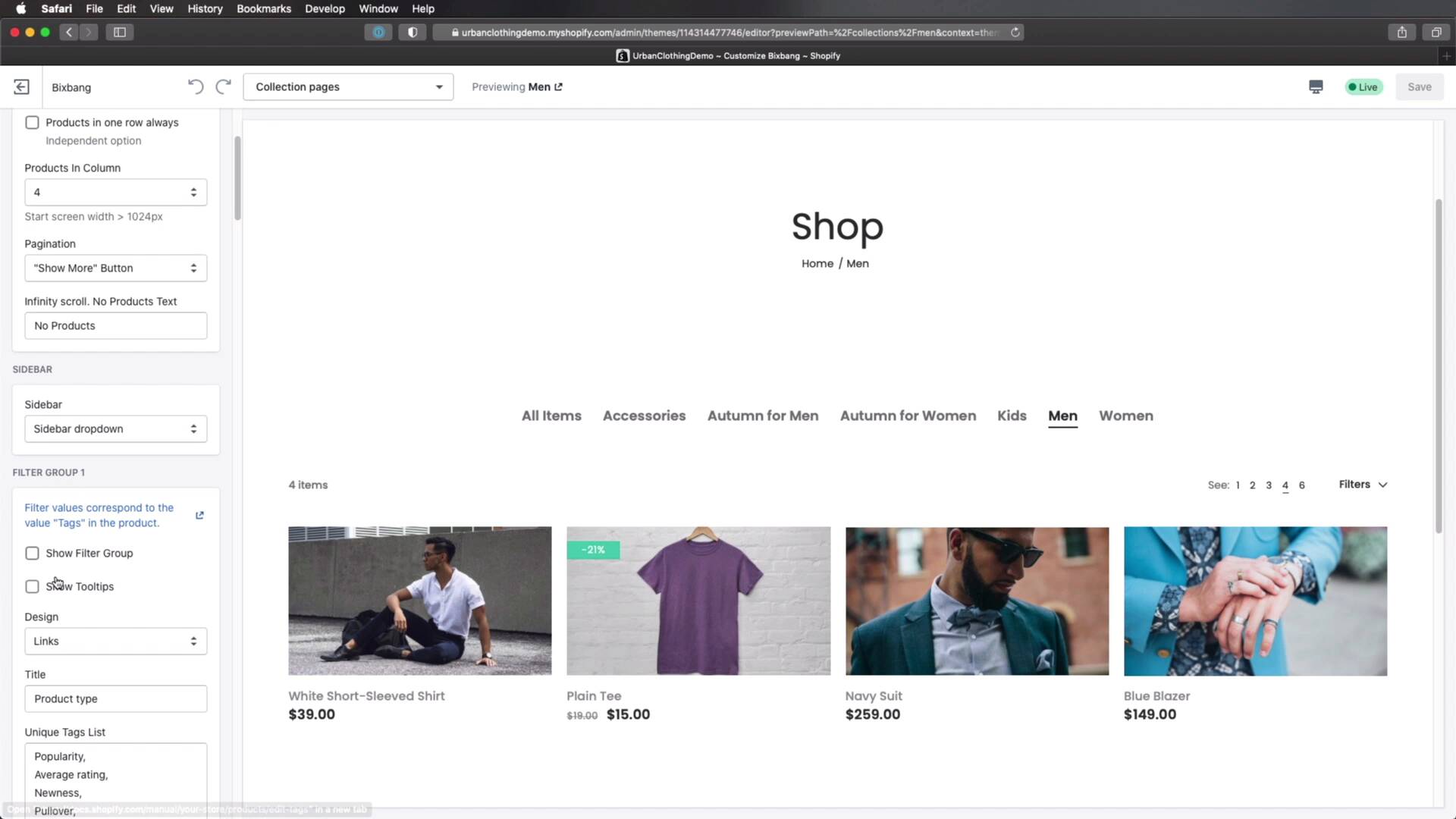
Welcome back to the course. In this lesson, we'll be customizing the collection and product pages. This is quite an easy task. So let's get started. Now to keep this short, I went ahead and customized the collection and product pages and I'm just going to walk you through the changes. That I made. Before we do that though, I just like to mention that during the recording process of this course, shopify actually updated their back end so it looks a little bit different than what you're gonna see in the other videos or in the videos thus far, and they actually made some, some pretty cool changes, the interface seems more responsive. It's a little bit faster with the animations, transitions and everything. And overall I think this is a great change. So now, back to the topic of this lesson the collection and product pages. Let's go ahead and open up. For example the collection for the men's clothing and the only change that I made here, was to remove the filters, and change the title of this newsletter widget. To do this, I just opened up the newsletter, and here you can actually see a very cool feature of the new interface. When you click on one of these widgets, the page will automatically scroll down there which is really cool. So the change of Title I just opened up this, this widget and I changed the heading. And for the filters, I opened up theme settings I went to collection page and I went to every single filter group, and I simply unchecked show filter group. As you can see there are a couple of filters here. I just wanna add to an unchecked show filter group on all of them and now it's just the strap down. So that covers it for the collection page. Now, if we are going to open up a product we'll be able to see the product page and the changes that i made here, i may actually scroll back up,i removed the product type and vendor information from here. And to do that, you would go to product pages, and you will scroll all the way down until you find this product information, and I simply unchecked show product vendor, show product type. And then I also removed an extra tab that says additional information. This was present right here under content. And I simply open that and removed the content, and that's it. So now this is what a product page looks like. And I specifically opened this one. So you can see how it looks like with all our, all the bells and whistles, like all the variants, as you can see here, some of the colors are actually replaced by a sort of a check boxes. Others are simply buttons. The sizes are buttons as well. And you can see how a discounted price looks like. What yeah, that's those are the only changes that I made to these pages. All right, we're almost finished customizing our online store. The only thing left to do is to take care of the about and contact pages and we'll do that in the next lesson. So I'll see you there.





