

- Overview
- Transcript
2.3 Creating Collections
Welcome back to the course. In this lesson, we’ll start defining the store content by creating some collections. These are categories we can use to organize our products. Let’s begin.
1.Introduction
1.1Welcome to the Course00:57
2.Building the Store
2.1A Bit of Planning03:36
2.2Creating the Store01:54
2.3Creating Collections05:45
2.4Adding Products to Our Shopify Store13:03
2.5Adding Pages03:52
2.6Installing a New Shopify Theme04:07
3.Customizing the Store
3.1Homepage18:11
3.2Collection and Product Page03:49
3.3About and Contact Page05:18
2.3 Creating Collections
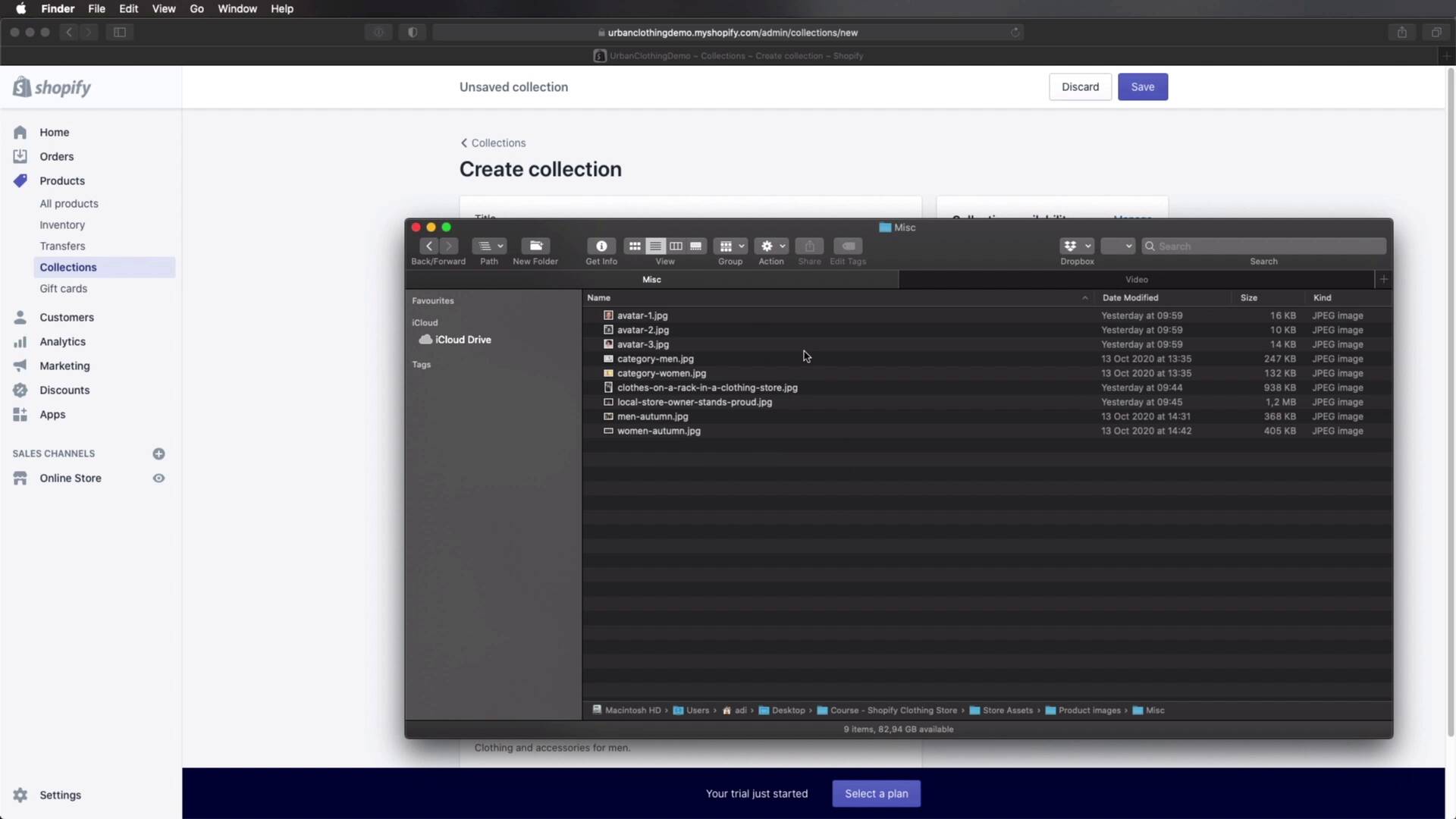
Welcome back to the course. In this lesson we'll start defining our store content by creating some collections. And these are basically categories we can use to organize our products. So let's begin. Now let's quickly switch back to our store details I showed you previously and see what kind of categories we need. So we have categories for men, women, kids accessories, and then two extra categories, or collections, autumn for men, autumn for women. So let's go ahead and create those. To create a collection in Shopify, you would go to Products and Collections. Because this is a brand new store, we just have one default collection that's called Homepage. We can go ahead and delete this. Simply select it from here, click Actions, Delete Selected Collections, okay. So now we can start fresh, hit Create Collection, and let's add the name here. I'll start with the first one on the list, men. We can give this a description which is optional, let's say, clothing and accessories for men. We can set the collection type to either manual, and in here we're basically gonna have to add the products to this collection by hand or automated. Which will automatically add products to this collection based on certain conditions that we can set right here. In my case, I'm gonna be setting this to manual for now. Down here you can see a search engine listing preview. This is what your collection is gonna look like as a result in a search engine. As you can see the category name here, the link and also the description that we just set here. So even though this is optional, I highly recommend you add a description because it's gonna help with SEO. Now on this side we can set the collection availability. So where is this collection available on which sale channels? Currently we just have the online store, so it's available on the online store. And finally, we can add a collection image. Now, in my product images, I have a category called Miscellaneous. And here I have images that can be used throughout the store, but don't belong to a product. So for example, here I have some avatars. We will be using these to add the testimonials, but here I also have images for each category. So, category men, category women, and so on. So, what I'm gonna do is click and drag this right here to set the collection image. And this depending on the theme will be displayed in various places in your website. So once everything is done hit Save. And now we have one collection available. We don't have any products in this collection yet. We will be adding those later on. So now, let's go ahead and create the rest of the collections using the same method. And I'm gonna show you one more, and then I'm just gonna fast forward. So from this menu we can select Create another collection. Let's say women, and we can say, clothes and accessories for women. Collection type I'm going to set this to manual as well. And then for collection image. Just drag and drop that to set the proper image. And then when I'm done hit Save, all right. Now let's add the rest of the collections. All right, so I just added the rest of the collections. So now, if we go to the main page, we can see that we have, one, two, three, four, five, six, collections ready to go. And we can start adding products to add to these collections. As you can see, not all of them have images. Like the collection for kids and accessories don't have a collection image, and that's totally fine. As I was saying depending on the theme you might or might not see this image. So for these, I opted not to give them images. But in a real store, I recommend you set collection images for every single one you have. All right, so now that we've defined our collections, it's time to add products. We'll do that in the next lesson. So I'll see you there.





