

- Overview
- Transcript
2.5 How to Add and Manage Shopify Collections
Having added some products, let's continue our Shopify tutorial by learning how to create collections. These will give us a very straightforward way of organising our products. Let’s begin.
1.Introduction
1.1Welcome to the Course01:57
2.How to Set Up a Shopify Store
2.1Planning the Store06:53
2.2How to Sign Up and Create an Online Store06:40
2.3How to Set Up Shopify04:51
2.4How to Add Products in Shopify09:37
2.5How to Add and Manage Shopify Collections06:12
3.Customizing Your Shopify Store
3.1How to Apply a Custom Theme07:30
3.2How to Edit a Shopify Theme10:39
3.3How to Add New Pages and Blog Posts04:29
3.4How to Set Up the Navigation03:50
3.5How to Add and Edit Theme Languages04:15
3.6How to Add a Custom Domain02:30
2.5 How to Add and Manage Shopify Collections
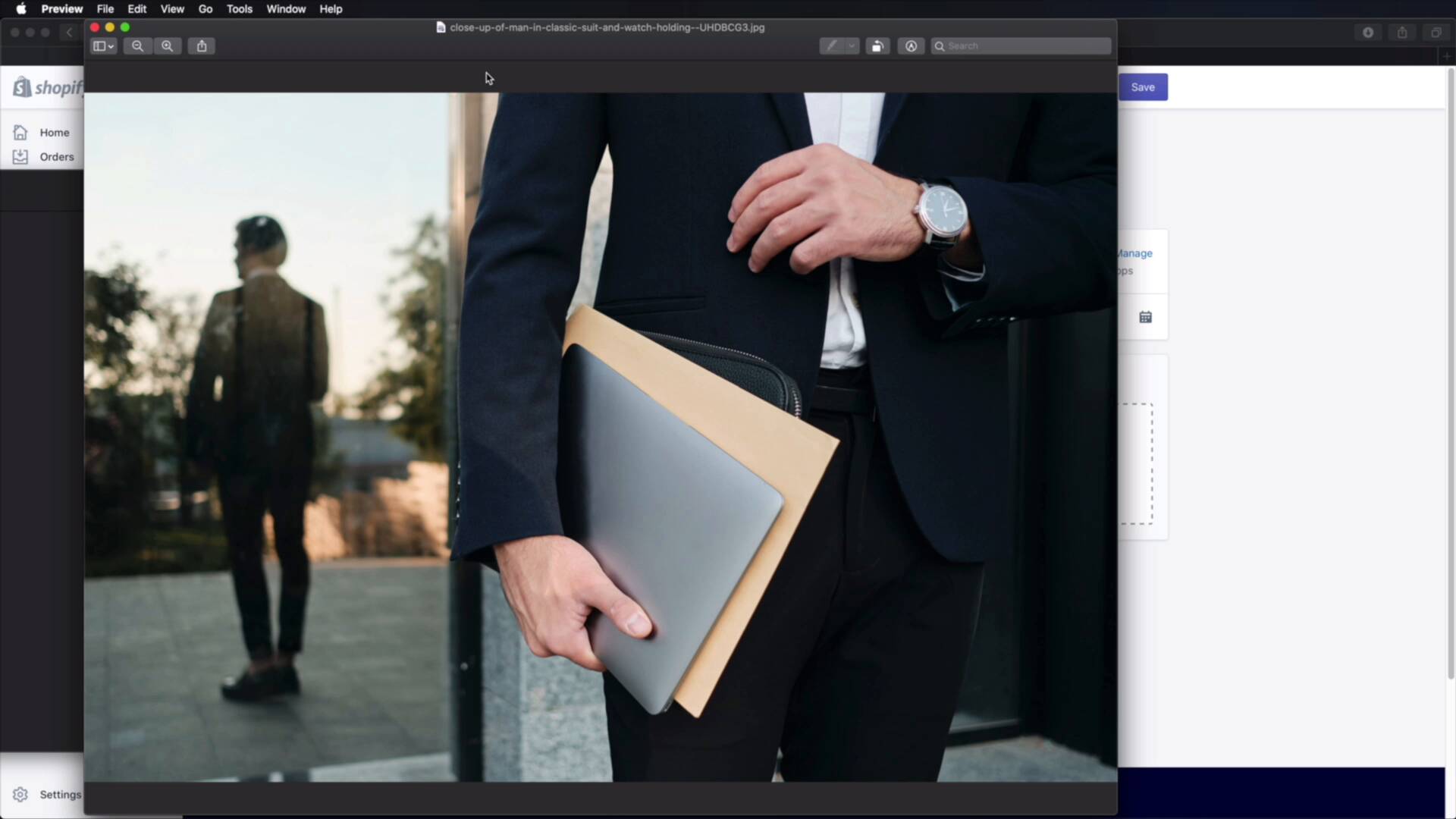
Welcome back to the course, in this lesson, we'll be creating some collections. And this will give us a very straightforward way of organizing our products. So let's begin. Now there are two ways of organizing products in your Shopify store. The first way is with collections which we'll get to in just a little bit, but before we do that, I wanna show you the second way and that's by defining the product type, okay? So, I'm gonna open up this product. And right here under organization, I see product type. So if you have any types defined, they will show up in a drop down list. If you don't, you can define them yourself by simply typing. So let's say watches for women, okay? And I can add watches for women as a product type. So now let's save this, and I'm gonna go back to my products. And as you can see here, now the types as watches for women but I can open this and I can say watches for men. So I'm gonna save that, okay? And now we have two types defined, watches for men, watches for women. So now if I open this diving watch, and I need to set a product type, I can select from my available options. So that's one way of organizing your products. The second way which is a lot more powerful is with collections. So, collections you can find them tight here under the main products category, click that. And let's go ahead and create our own collection. Click that button. Let's give it a title, let's say watches for men. I can give this a optional description and I can specify the collection type, right? So, is it a manual collection? That means I'm gonna add products to this collection one by one, or is it automated? So if it's automated, there are certain conditions that products need to meet in order to be automatically added to the collection. Let's say manual for now. Then I can specify a collection image. So, let's add one here. Let's actually select a stock photo that I downloaded. Let's see if we can find a nice one from Envato Elements. I think I quite like the second one. So, we're gonna use that. Simply I drop it. The same thing applies with the image size. I told you about this in the previous lesson, just make sure you resize it first and don't upload a 10 megabyte image. And actually I'm gonna open this in the preview and adjust its size a little bit cuz it's just too big right now. So let's make this like 1000 by 667. And that's gonna reduce its size tremendously, so hit OK. And go ahead and save it. So now I can. Grab this, upload it, and once that's done, go ahead and hit Save. And your collection is now saved. So what you can do from here is you can start searching for products and you can add them to this collection. Here's how you do that you hit Browse, and you select the products that you want, and then hit Add. And alternatively you can go to all products, you would find the product that you wanna add to the collection. And right here on their organization, you will see the existing collections and you would just hit the one that you wanna add it to. But this product we're actually gonna create another collection for it. So let's go back to collections and create a new one. I'm gonna call this watches for women and this time I'm gonna set it's collection type to automated, okay? So what about the conditions, well products must match, let's say any of these conditions and let's say the product title contains women or woman. And I think this is actually just separate conditions, so let's do that. All right, so let's go ahead and save this. And Shopify automatically added in this collection all the products whose title contained women in this case. So we have this, we have this and the rest of them. So that's pretty cool. So now we can see these collections in the online store. You just click this little link here and there you go, watches for women. And it shows us all the products in that collection. All right, and that is how you can add and manage collections. Now the hard part of this process is done. We've created the store, added products, and categorized them. However, we're still using the default theme. And that's not really what we want. There are so many free and premium themes we can choose from. And I'll show you how to get one of these and apply it to the store in the next lesson. So I'll see you there.





