

- Overview
- Transcript
2.1 Planning the Store
Welcome to the first lesson of this course. Before we learn how to build a Shopify store, we need to plan how we want our store to look. This will make things much easier for us in the long run because it will allow us to know exactly what menu structure we need, what kind of products we’ll be selling, and so on.
For this course, I’ll create an online store with just a handful of products as a demo, so this process will not take very long, but the actual process can be scaled for any size of store you might be making. Let’s begin.
Related Links
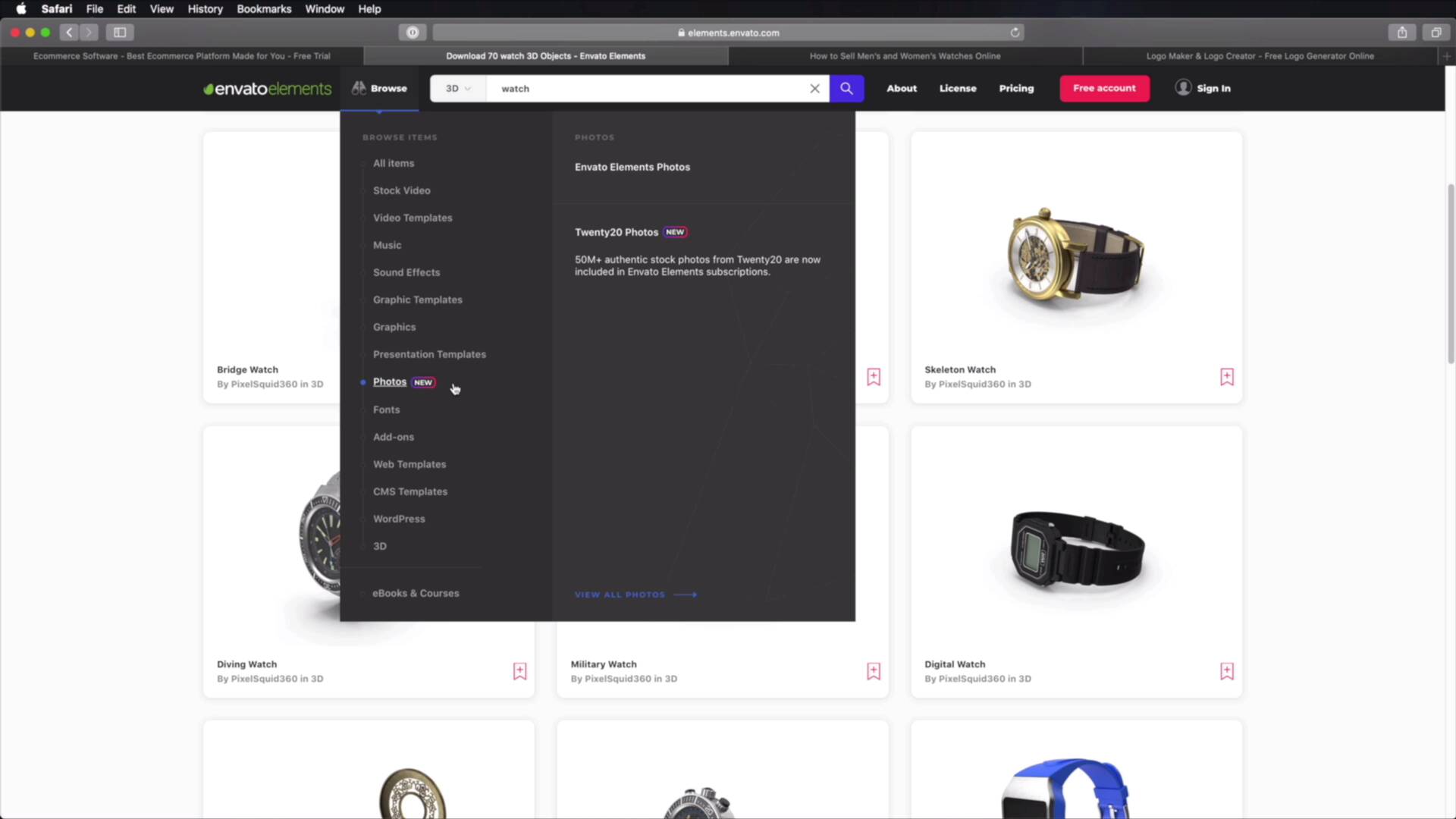
- 3D Watches on Envato Elements
- Shopify Business Ideas
- Hatchfull
- A Man in the City Fashion Shoot
- Woman Waiting at a Cafe
- Maybe We Should Grab a Beer After Work
- Man Waiting for Someone to Come
- Looking for Good Shots
- Shopping Day is Always a Good Day
- Steel Wristwatch on Black Background
- Young Business Woman Checking Time on Wristwatch
- Senior Man Checking Time on Wristwatch Outdoors
- Confident Businessman Speaking on the Phone
- Close Up of Man in Classic Suit and Watch
1.Introduction
1.1Welcome to the Course01:57
2.How to Set Up a Shopify Store
2.1Planning the Store06:53
2.2How to Sign Up and Create an Online Store06:40
2.3How to Set Up Shopify04:51
2.4How to Add Products in Shopify09:37
2.5How to Add and Manage Shopify Collections06:12
3.Customizing Your Shopify Store
3.1How to Apply a Custom Theme07:30
3.2How to Edit a Shopify Theme10:39
3.3How to Add New Pages and Blog Posts04:29
3.4How to Set Up the Navigation03:50
3.5How to Add and Edit Theme Languages04:15
3.6How to Add a Custom Domain02:30
2.1 Planning the Store
Welcome to the first lesson of this course. Now, before we create our store, we need to plan it. This will make things much easier for us in the long run because it will allow us to know exactly what menu structure we need, what kind of products we'll be selling, and so on. Now for this course, I'll be doing a demo store with just a handful of products. So this process will not take a very long time. But the actual process can be scaled for any size store you might be making. So, let's begin. So for this I'm gonna open up a simple text document, you can write this wherever you want. You can even use a physical notebook. But the idea is to have somewhere to write down these ideas like bullet points of what you're trying to make. So in my case, I'll be making an online store that sells watches. The name of my online store is gonna be called Adi's Watch Shop. Very original. And for the page structure, well, I'm probably gonna have home, a catalog or products and then maybe an about us and a contact page. Now what about the products? Well for my demo, here's what I'm gonna use, I went ahead and opened the model elements and under 3D categories search for watch and it gave me these results. And I'm gonna use a lot of these images as my product images because obviously this is just a demo store but in your own store, make sure you have all the product image prepared before hand. It's just gonna make things much easier for you. Also you're gonna need images besides your product images, right? So, to give you an example, for my store for my demo store, I went ahead and I went to burst.shopify.com. They have a nice selection of business ideas here and I grabbed a collection that's called Sell watches online and they just have these stock photos that I'm gonna use. And by the way Burst is a service offered by Shopify, where you can download these free stock photos. So I went ahead and downloaded those but I also got a bunch of images from Envato elements and you'll find links to those images in the lesson notes. Now obviously for your project, you might be using real images which is what I recommend, if not, stock images are also an option and you can find a lot of websites that sell stock images. But chances are if you're watching this course you already have access to Envato elements. So you can just go here under Photos, and you can find a bunch of photos here as well, and you can download them free of charge if you have a element subscription. Now for my store, I'm just gonna wing it when it comes to product names and description. I'm probably just gonna grab the names from these images, but in your own store, obviously you would name your products accordingly. So that covers the product imagery and also the stock imagery that we're gonna use. Now, the last thing that we need to do here is create our logo. Now for the logo obviously if you have a business already then you have your brand identity all set up. So you're gonna use your own logo. But if you don't have one, you could go to hatchful.shopify.com. This is again another free service offered by Shopify. And with it you can create logos. So let's go ahead and get started. You would select your business space first in my case it's probably let's see, under Fashion. So you just hit Next, then you choose your visual style. Since we're going with wristwatches, I will probably go with either Classic or Elegant in, you can actually select more options. Let's also choose Conservative, maybe Vintage and we'll hit Next, business name is gonna be called Adi's Watch Shop. If you have a slogan you would put it in here. Next. Where will the logo be used that's gonna be on the online store, but also on social media. And who knows, maybe at some point you wanna expand your business, and you're gonna be using it in print, and on business card. So let's hit Next, and then Shopify will give you this big list of suggestions for your logo and you can just scroll down until you find the one that that you like. But I'm probably gonna pick this one. I think it works well. So I'm gonna click this and the next download logo. And here it's gonna ask us to create an account to download our local files, but I'll actually do that in in the next lesson. For now I'm just gonna leave this, this tab opened, and we'll come back to it after we'll create an account. So, for this stage for my store, this is the only planning that I'm gonna do. For your store because obviously, it's a real one you got to do a lot more than this but the process is exactly the same. You gotta make sure you have all your products prepared, or your product imagery, the product descriptions, and then your business name, of course, your logo, the page structure. And all of the other imagery that you might want to use. All right, now that we've planned our store, we can go ahead and create it. That's coming up in the next lesson. See you there.





