

- Overview
- Transcript
3.1 How to Apply a Custom Theme
In this lesson, we’re going to download and apply a custom theme for our Shopify store. Let’s begin.
Related Links
1.Introduction
1.1Welcome to the Course01:57
2.How to Set Up a Shopify Store
2.1Planning the Store06:53
2.2How to Sign Up and Create an Online Store06:40
2.3How to Set Up Shopify04:51
2.4How to Add Products in Shopify09:37
2.5How to Add and Manage Shopify Collections06:12
3.Customizing Your Shopify Store
3.1How to Apply a Custom Theme07:30
3.2How to Edit a Shopify Theme10:39
3.3How to Add New Pages and Blog Posts04:29
3.4How to Set Up the Navigation03:50
3.5How to Add and Edit Theme Languages04:15
3.6How to Add a Custom Domain02:30
3.1 How to Apply a Custom Theme
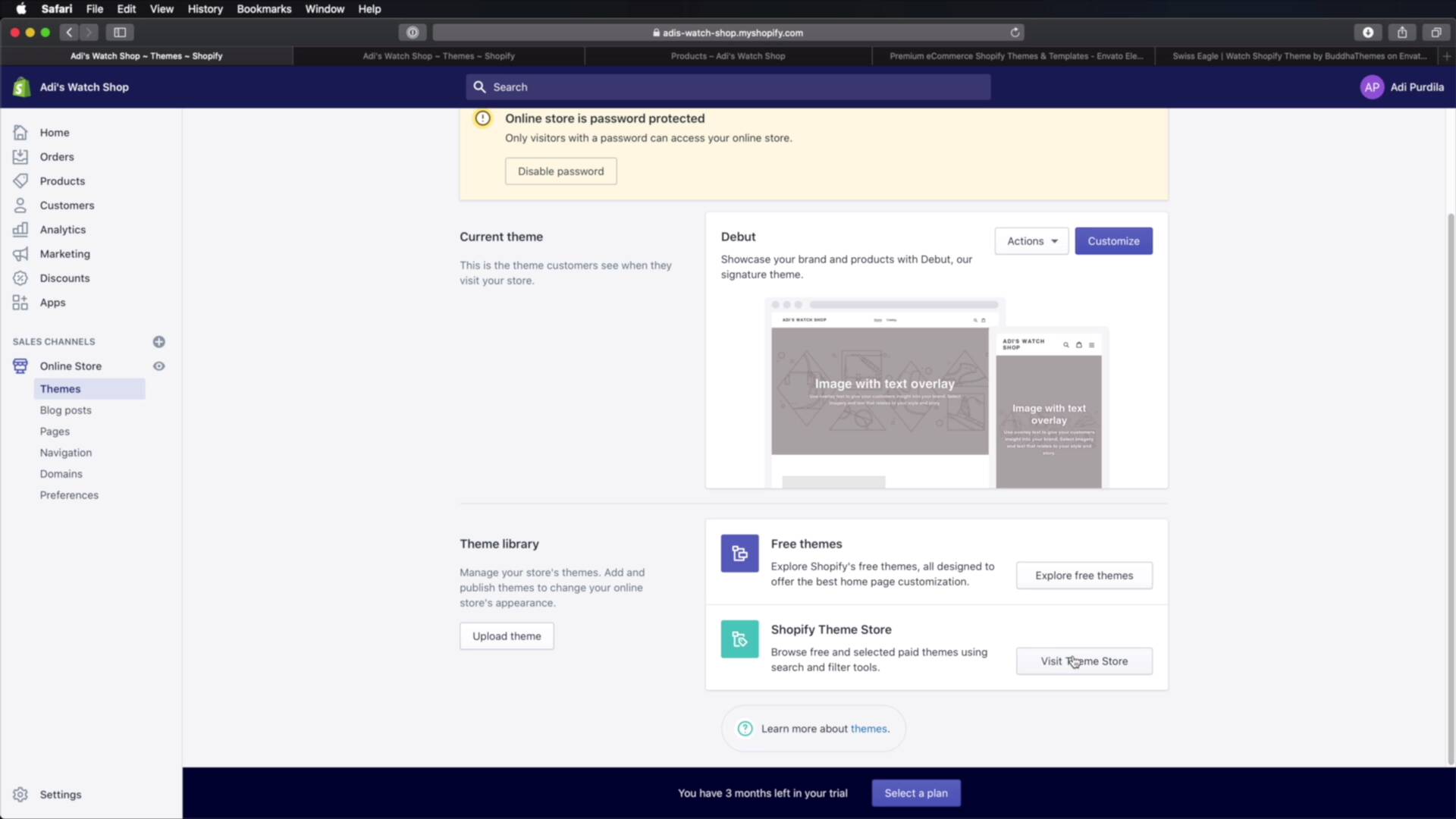
Welcome back to the course. In this lesson, we're going to download and apply a custom theme for our Shopify store, so let's begin. So far, we've been using the default theme that comes with any new shop created or store created with Shopify. But there are so many free and premium themes out there that we can grab and install. And that's gonna give us a much better-looking store, so let's see how we can install some of those. You go to Online Store in the back end, you click this. And under Themes you will see our current theme is called Debut, and you can also see a preview. And then we also have the Theme library, and here you can explore some free themes, or you can visit the Theme Store. So let's go ahead and do that to see what's available. And by the way, you can also find free themes here. So you would go to Industries, you would choose the one that's right for you, in my case it's Jewelry & Accessories. And here we can browse for Free themes or Paid. And because we see nice previews here, we can quickly find the one that we're looking for. So in my case, this one could be a good fit for me because it's selling or it's showcasing the same products that I'm selling in my store. What else, maybe this one, Supply, this is a free theme. And then we have Alchemy, which seems to also be about watches, so let's actually take a look at this one. We have two styles included, one is Blue, this is showcasing different products. But obviously, you can use any theme here to sell your products regardless of what it's showing in the preview, this is just a suggestion, really. So we can actually view a demo of this, we can see a nice preview here both on desktop and on mobile devices. And if you're happy with this, you can click Start with this theme, okay? You would need to log in to your Shopify store, so let's go ahead and do that. And actually, sorry, [LAUGH] I didn't write that correctly. So you need to write it like this, you would just need to copy this little bit here, just leave out the HTTPS. So hit Log in, hit Add theme, and now this takes you back to the admin interface. It's showing you that it's adding that theme to your Theme library. And now that's added, you can preview it, and you can publish it, so let's actually hit Publish. So now if we go back to the front end, We can see that our shop or our store now looks totally different. The content is exactly the same, but the appearance is totally different. So that's how you can add a free theme from the Theme Store, the Shopify Theme Store. But what if it's not a free theme and instead it's a paid theme? Well, obviously, at some point, you will need to buy it, right? But Shopify has a very cool thing that's called a theme trial. So let's say you find a theme that you like, in my case maybe this one, which is $180. So with the style selected, I can hit Try theme, and that allows me to use that theme. Let's log in again, so that allows me to use that theme in a trial mode, basically. Eventually, at some point, I will have to buy it. But for now, I can try it out, see if it's a good fit, which is something very, very cool. All right, so now this is my shop, my store with this new theme. And as you can see, it's a completely different look than what we previously had. Now, well, for this course, we're not gonna use this theme or the one previously. Instead, we're gonna use this one, it's called Swiss Eagle, you can find it on Envato Elements. And actually, on Envato Elements, you can find 232 Shopify themes. And if you have an Element subscription, obviously you can download any of these for free. So I went ahead and downloaded Swiss Eagle, and I have it right here. You get a zip file, you just unzip that, and this is the content of that zip file. For this particular theme, install.zip is the one file you're interested in. So to install Swiss Eagle, which, by the way, looks something like this. It's a very nice-looking theme, and it's a great fit for what I'm selling, Right? So to install this, you would go back to Shopify under Themes, Upload theme, Choose File. I would open up my theme folder, select install.zip, Choose, and then Upload file. Now, depending on your Internet connection, this might take very little or it might take a bit longer. In my case, it's taking a bit longer because I'm working with a slower Internet connection. And now the theme is uploaded, it's currently being installed. And once that's done, we can go ahead, click Actions and Publish. Go ahead and hit that button, Theme published. All right, so now if we go back to our front end, refresh, and we'll see our new theme installed and ready to go. So obviously, it's missing all the imagery, it's now replaced with these placeholder images. But we installed it, all we have to do now is edit it. All right, and that's how you can apply a custom theme to your Shopify store. Now, in the majority of cases, you will need to edit this theme because you might not like its colors, typography, layout, and so on. So we'll do the same here in the next lesson, see you there.





