

- Overview
- Transcript
3.4 How to Set Up the Navigation
When learning how to set up a Shopify store, a key step is setting up the navigation menu. In this lesson, we’ll be updating the main menu so that our store navigation is functional and optimized. This is a very simple process, so let’s begin.
1.Introduction
1.1Welcome to the Course01:57
2.How to Set Up a Shopify Store
2.1Planning the Store06:53
2.2How to Sign Up and Create an Online Store06:40
2.3How to Set Up Shopify04:51
2.4How to Add Products in Shopify09:37
2.5How to Add and Manage Shopify Collections06:12
3.Customizing Your Shopify Store
3.1How to Apply a Custom Theme07:30
3.2How to Edit a Shopify Theme10:39
3.3How to Add New Pages and Blog Posts04:29
3.4How to Set Up the Navigation03:50
3.5How to Add and Edit Theme Languages04:15
3.6How to Add a Custom Domain02:30
3.4 How to Set Up the Navigation
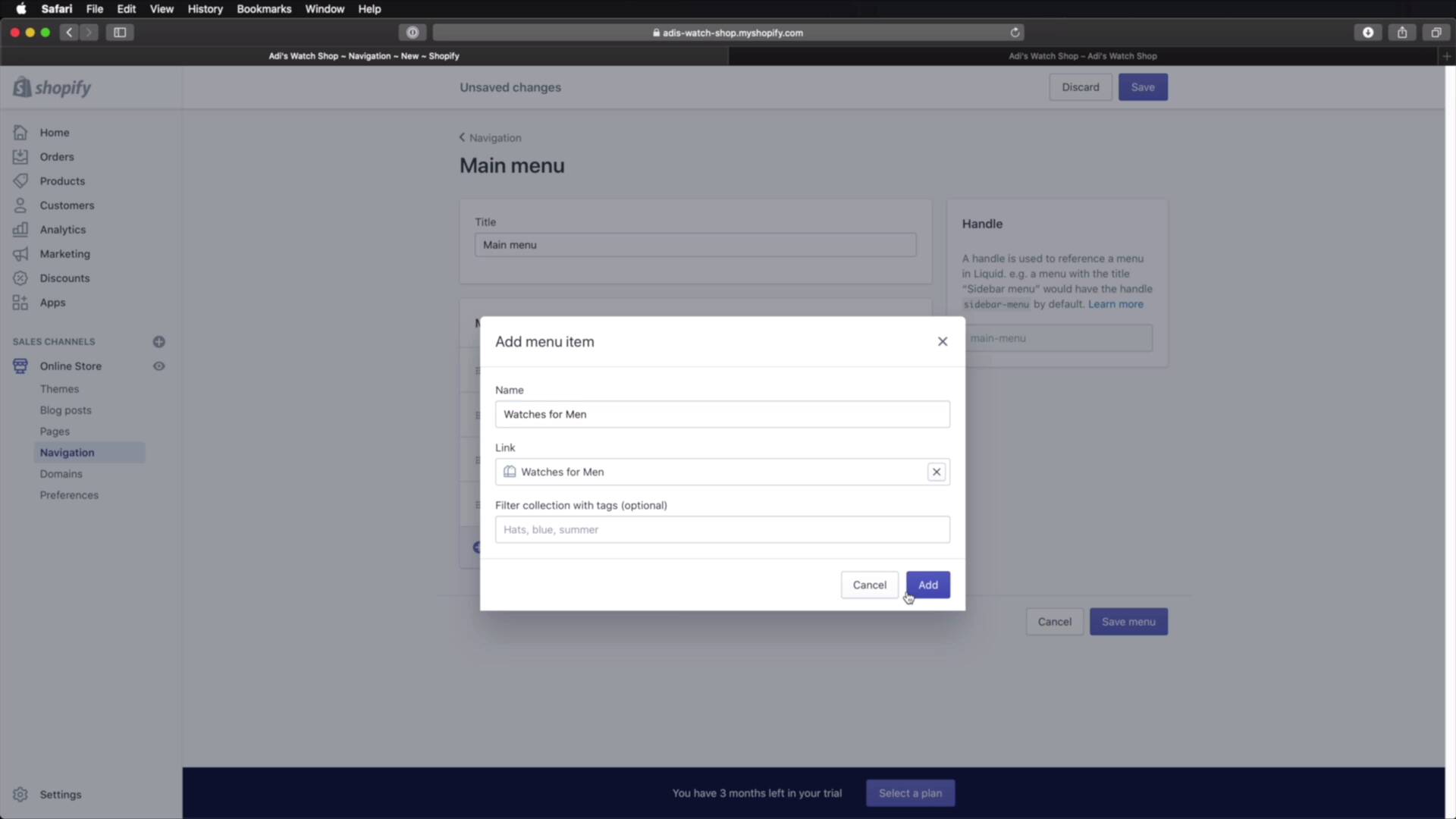
Welcome back to the course. In this lesson, we'll be updating the main menu, so that our store navigation is spot on. This is a very simple process, so let's begin. The main menu is the one displayed right here. And currently, we just have Home and Catalog, but we have some additional pages that we wanna display here. So to do that, we'll go back to the admin interface, Online Store > Navigation. And you can see that we currently have two menus set up. We have a Footer menu which is displayed in the footer. And we have a Main menu which is displayed right here, in this sticky header. So let's click on Main menu. As you can see, we just have two items, Home and Catalog. Well, let's edit Catalog, because I want it to say Products. So let's apply that, and let's save the menu. And now if we do a refresh, You'll see that it now says Products. But let's add some more pages. You hit Add menu item. Let's call this About Us. And let's go to Pages > About Us. It's that simple. Let's add another one, Contact Us. Again, we go to Pages > Contact Us. Let's add that. You can add even more menu items. For example, you can add links to your various collections. So, Watches for Men, let's add that. Let's also add Watches for Women. Let's add that as well. And you can also make these children of other menu items. So in this case, I want these two collections to be under Products. So once that's done, Save. And when you refresh, You now have a submenu and the proper links for those collections. That's pretty cool. Now, what about that Footer menu? Well currently, this just has a Search item in here, and it's probably not being displayed on this theme. Let's see, if we go to Themes, and we hit Customize, and we go to Footer, we can actually import a Footer Logo. So we can choose to use that. But it doesn't seem to allow us to display a menu here in the footer. So again, this depends from theme to theme. This one chooses to display its navigation just here in the main menu. All right, and that's how you can set up the navigation on a Shopify store. Now by default, our theme language is set to English. But what if that's not the case for you? Well, Shopify allows us to change the theme language and also add new ones. Let's see how to do that in the next lesson. See you there.





