
 Lessons: 11Length: 1.3 hours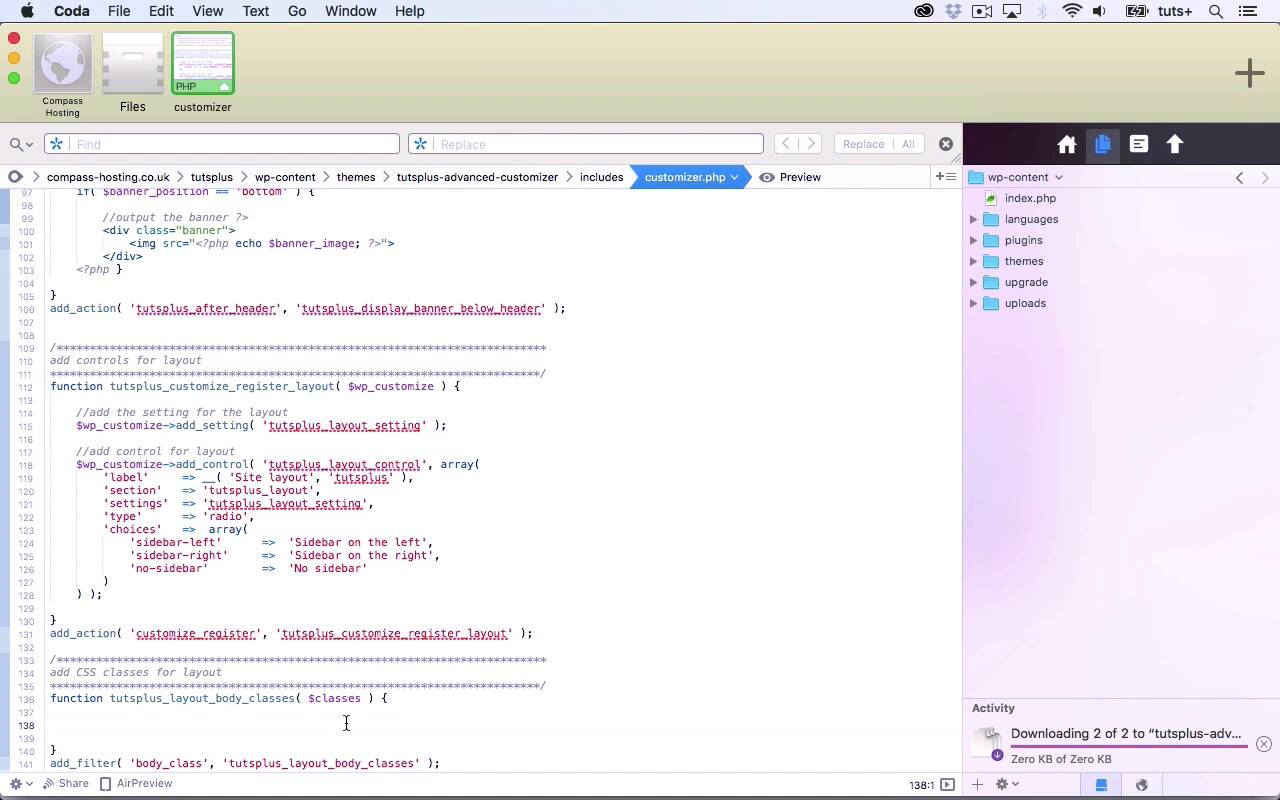
- Overview
- Transcript
3.2 Adding Classes to Your Page for Layout Styling
In this lesson, I'll show you how to use the settings from the Customizer with the body_class filter to add CSS classes to your theme.
Related Links
1.Introduction
1.1Introduction00:48
1.2Creating a File for Customizer Code and Setting Up Sections08:04
2.Header Design
2.1Adding Settings and Controls for Image Upload11:29
2.2Displaying Images in the Theme08:51
3.Customizing Layout
3.1Adding Controls for Layout06:23
3.2Adding Classes to Your Page for Layout Styling06:38
3.3Styling the Layout CSS Classes06:53
4.Customizing the Color Scheme
4.1Creating a Control and Settings for Color Schemes04:10
4.2Organizing the CSS11:57
4.3Adding Color Styles to the Theme Stylesheet10:14
5.Conclusion
5.1Conclusion02:55
3.2 Adding Classes to Your Page for Layout Styling
Hello, and welcome back to this Tuts+ course on the WordPress customizer. In this part of the course we're going to move on from these radio buttons we've already created for site layout. And we'll add a CSS class in the page, or in every page on our site, that will enable us to target back to us with CSS and change the layout. Now, there are many ways that you can use the customizer to add CSS, and some of them aren't as tidy as others. One of the easiest ways is to attach to the WB head hook to add styling into the head section of each page on the site. Now, that's not really good practice from a CSS and HTML point of view. It's not a good idea to have lots of styling in the head section of the page. The styling should really be in the style sheet for the theme. So instead of doing that, what I'm gonna do is add a class to every page on my site that will relate to the setting or the option that's been selected here. So if you remember, I had sidebar left, sidebar right, and no sidebar. So what I want to do is to the body element of my page which contains the whole of the rest of the page I want to add one of these as a class depending on what the user has selected. And the way to do that in WordPress is to use the body class filter. And you can see here a tutorial on how you add to the body class in WordPress. And what's particularly important is that we don't lose any of the classes that are already there in the body class, so the php body_class function that is present in any well-coded theme. We'll add a number of classes to the body element of the page which will relate to what type of template, and what type of content wherein in WordPress. It's really important we don't lose that because the theme could already have styling based on that. So what we do in order to add extra classes is we define an array. So we use classes as the object of our function and we use an array like this to add additional values to our array of classes. So let's do that in our customizer file. So I've already added some commented out text. So that has classes as its object, and then I will be hooking that to a filter, not to a hook, so I add add filter instead of add action. My first parameter is the name of the filter, which is body_class, And the second parameter is the name of my function. Now, it's common with filters to override the contents of the filter. And if you're using filters in your own themes, that's probably how you're using them to amend or override existing content. But here, I don't want to override or amend anything that's already there. Instead, I'm going to add to that array. So the first thing I'm going to do is define a new variable using get_theme_mod, which I need to spell correctly. Which we've already used to fetch this the mode up here, the banner position in the banner image, so it works in just the same way. So I'm defining a variable called body class and I need to find the setting for my layout, so that's this here, tutsplus_layout_setting. So I'm fetching the value for that setting, which will either be sidebar left, sidebar right, or no sidebar in the database and then I take the classes array of variables, And I add BodyClass to it. And that's how you add an existing variable to an array of variables, you use the square brackets here. And then I need to return classes, because this will return all of the elements in my array, which includes the classes already added by the bodyclass function, and it includes this bodyclass variable here, so the value for this. So that will add that class to the body element of my page. So let's go back to the customizer. If I click sidebar on the left, you can't see anything yet, cuz it hasn't actually made any changes. But let me inspect the code so you can see what's happening. So body class here, hang on a moment, I need to refresh it, so I'll reload that, and we have an error. So let's just take a look at code, the error I've done there is adding the square brackets twice, because here I want to return this array of variables. I don't use this, I only use that one I'm adding to the array of variables. So let's save that and refresh again. And we'll go into our Site layout section, and we'll select Sidebar on the left. And I need to make sure I'm inspecting this part of the page, not this part of over here. And you can see here, body class, it says sidebar-left as one of the classes in body. So if I select sidebar-right, again, inspect the page of the site, not the customizer, we've got sidebar-right here. So that adds that class to the body element of the page. And you can see how there are lots of other classes added, including Home because this is the home page, for example. And we haven't overwritten those at all, which is really important. So in the next part of the course we'll be targeting that class that we've added to the body in order to amend the layout styling for the theme depending on what the user has selected here. See you next time and thanks for watching.





