
 Lessons: 11Length: 1.3 hours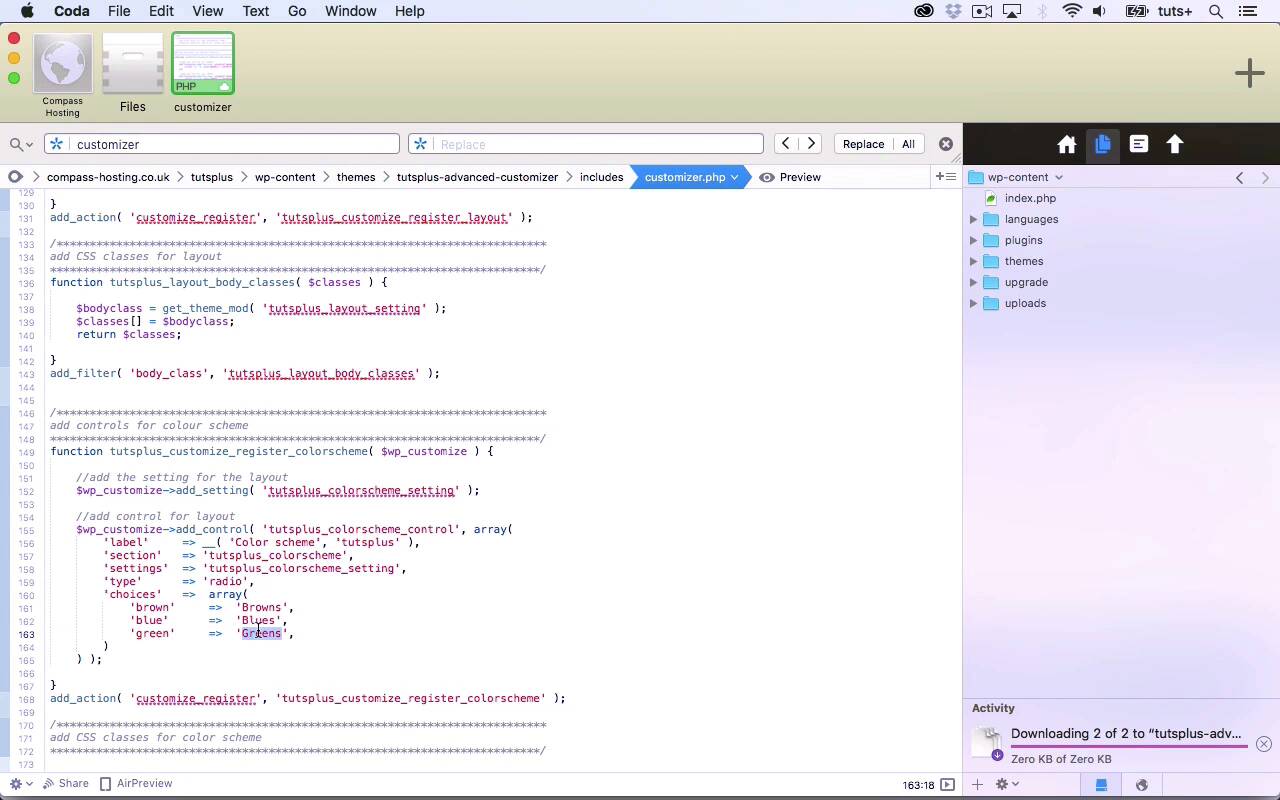
- Overview
- Transcript
4.1 Creating a Control and Settings for Color Schemes
In this lesson, we'll add a control in the Customizer for users to select a color scheme and add it to the body element using the body_class filter.
Related Links
1.Introduction
1.1Introduction00:48
1.2Creating a File for Customizer Code and Setting Up Sections08:04
2.Header Design
2.1Adding Settings and Controls for Image Upload11:29
2.2Displaying Images in the Theme08:51
3.Customizing Layout
3.1Adding Controls for Layout06:23
3.2Adding Classes to Your Page for Layout Styling06:38
3.3Styling the Layout CSS Classes06:53
4.Customizing the Color Scheme
4.1Creating a Control and Settings for Color Schemes04:10
4.2Organizing the CSS11:57
4.3Adding Color Styles to the Theme Stylesheet10:14
5.Conclusion
5.1Conclusion02:55
4.1 Creating a Control and Settings for Color Schemes
Hello, and welcome back to this Tuts+ course on the WordPress customizer. In this part because we're gonna start working on our color scheme, and I'll create a setting and control for the color scheme. And I'll also add some classes to the body element in much the same way as we did for the layout. So let's take a look at the code. So I've added some commented out text. And in order to make things a bit simpler, I'm just going to copy wat we did for the layout and edit that. So we'll start with the controls and the settings. So we need to edit the name of this function. So we'll call it tutsplus_customize_register_colorscheme. And we'll change that there in add_action. I want to change the name of my color scheme setting. And then I will copy that into the settings argument here for the control. Again, I'm changing layout to color scheme here, so it's tutplus_colorscheme_control and I'll change the text, In the label. And then for the section, let's go up to the top. We've got this tutsplus_colorscheme section, which we set up right at the beginning. So we'll replace that with that, and then we need to change the choices. So let's take a quick look at the site. So that's in sort of shades of brown at the moment. Not all that pretty but that's one of the options that we'll have. So, We'll have shades of blue as an option. Let's go for shades of green. And we'll add a fourth option, which will be monochromes. So that will just be black-and-white with a bit of gray. So just checking through that. We've got register_colorscheme as our function name. We've got a setting called tutsplus_colorscheme_setting, tutsplus_colorscheme_control. The label is colorscheme. The section here is tutsplus_colorscheme which we copied from the top. The settings again, we copied that from here. We've got a radio button set and we've got these four options. So let's save that and if we go over to the site, we've got Color Scheme, and here are our options. But at the moment that doesn't actually do anything. So let's add the CSS to the body class, the body element like we did before. So again, I'm going to copy this function here and edit it. And so the argument for get_theme_mod that we need here is this tutsplus_colorscheme setting. And then we're gonna be adding that to the array of values in classes. So if I go back into the Color Scheme here, having refreshed the screen and I'll select blues. Let's inspect the code and then here is my body. And it's got sidebar, right, because that's what I set up in the last part of the course. And it's got blue and if I change that to greens, it will change. Hang on, let's make sure we're inspecting the right thing, it will change to green. So that's now working and that's adding a class to the body element. Now what we need to do is edit our theme, so that that will carry through to the styling. And that's what we'll do in the next part of the course. See you next time and thanks for watching.





