
 Lessons: 11Length: 1.3 hours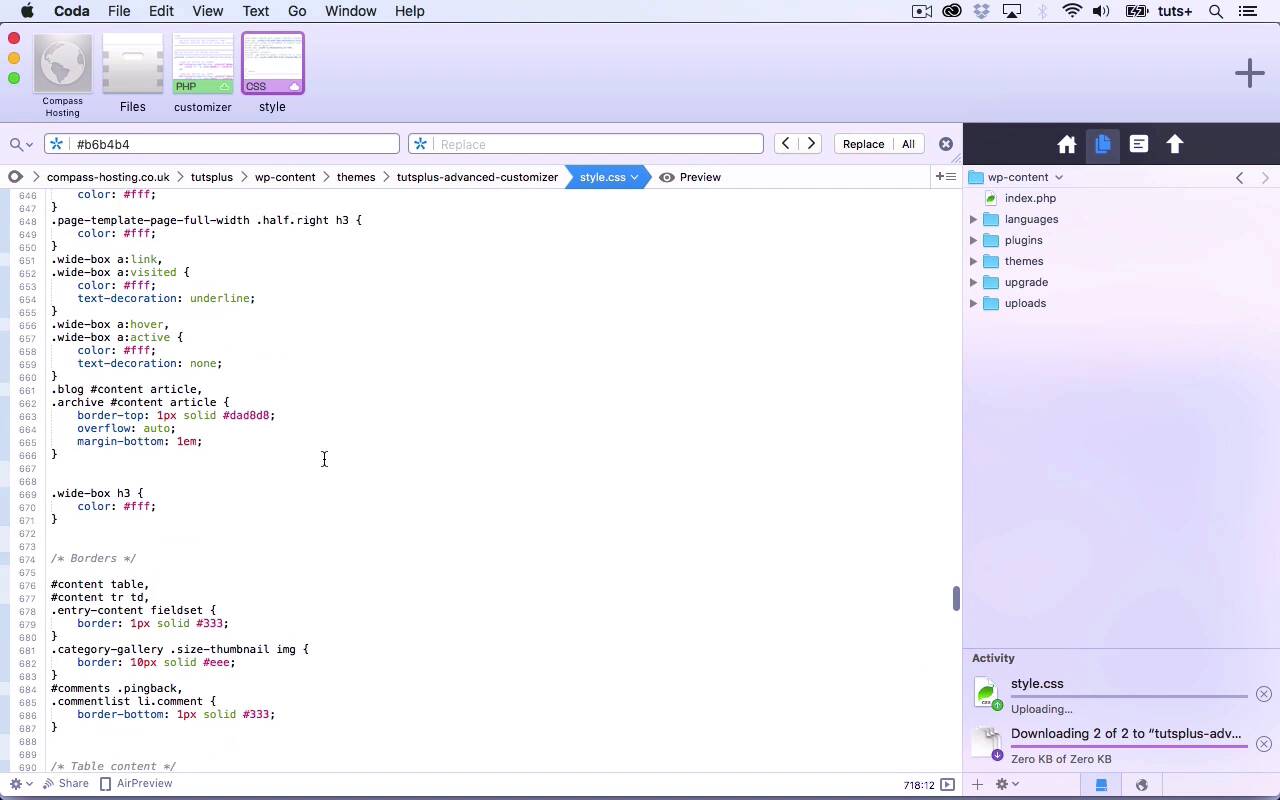
- Overview
- Transcript
4.3 Adding Color Styles to the Theme Stylesheet
In this lesson, you'll add CSS to your stylesheet to interact with the color scheme.
Related Links
1.Introduction
1.1Introduction00:48
1.2Creating a File for Customizer Code and Setting Up Sections08:04
2.Header Design
2.1Adding Settings and Controls for Image Upload11:29
2.2Displaying Images in the Theme08:51
3.Customizing Layout
3.1Adding Controls for Layout06:23
3.2Adding Classes to Your Page for Layout Styling06:38
3.3Styling the Layout CSS Classes06:53
4.Customizing the Color Scheme
4.1Creating a Control and Settings for Color Schemes04:10
4.2Organizing the CSS11:57
4.3Adding Color Styles to the Theme Stylesheet10:14
5.Conclusion
5.1Conclusion02:55
4.3 Adding Color Styles to the Theme Stylesheet
Hello, and welcome back to this Tuts-plus course on the WordPress Customizer. In this part of the course, we'll continue adding CSS to our style sheet, to enable us to use the color scheme that you can see here. So at the moment, all I've got is the default or the brown color scheme, whether you like it or not that's what it is. Now I've checked and there appear to be some problems with it. So here you can see links and the links in the widget areas need to change and also the headings in the widget area. So let's go back to to our style sheet. So I want the links in my side bar to be white. So let's see if we've got that anywhere. I think the issue might be because of this body brown. We've got specificity fighting with us here, so let's have a look see if we can find widget areas. And see if that helps. That's looking better. So all I need to do is add body in there so we got an extra element, I know its not the tidiest form of CSS but its targeting the same element so it seems to be working okay. So let's go back to our first color, so now I'm gonna to do the first color for brown, for blue, sorry, and I'm gonna use a color pic as find a color of blue. So here I've got a color picker, I've picked a blue that I quite like and I'm gonna copy that, put hash on it. And then what I need to do is copy this part. And change all the browns to blue. And also change the color. And then I'll do the same with this and note that I'm only copying the body brown bits and replacing brown with blue. And don't copy that because that's the default. So save that and then test it on my site. So now I'm on my site which I've refreshed and I select the blue color scheme, and that is now working. So I have blue headings, and I have a blue background to my widget area, and I also let's have a look, see if we can find some links. We can't make any links, here we are, here's a link. So, you can see that that's now working. So now let's do this for the other elements. So now let's do it for the other aspects of color scheme that are still in blue. So color two is my footer background. So, that's this here which is currently grey and I'm gonna make it another shade of blue, I think. So, let's find a sort of blue-grey. So, again we copy that. And we'll paste in the color, and then I'm gonna do the same for the links on HAVA. Now let's find a slightly different shade of blue. So let's do, no, that's not gonna be distinct enough, I'm thinking accessibility here. I'm gonna actually make it the opposite, I'm gonna make it orange, just to be difficult And obviously you can do what you want. I'm not necessarily producing the most beautiful color scheme here but what I am doing is showing you this technique and how you can use it with the customizer. So now we have all of this to copy. So we save our style sheet and then we'll test it on the site and here we are and you can see the orange there on the link and you can also see this blue on here. Now I don't like this gray hair, this sort of brownie color, so let's go and change that. So we've got widget area a link I visited, I'm just gonna make them white in all cases for simplicity. Now you could add these to the color scheme but that's gonna take us longer, so I'm not gonna worry about it. This white I know will stand out against all the colors that I'm using. Now, before I save that, I'm gonna go back and do the greens and the monochromes, and I'll run through those quickly and then show them to you. So you can see after all the green ones, and I'm now doing the monochrome one. So I'm using .mono, which was the class that I used in the customizer. So that's the first color for the monochrome now I'll do the second. This is the footer background so actually I'm gonna make that darker. So that's all of the colors in my color scheme added. Now let's check it on the site. So now here I am back in the customizer, and you can see if I select greens, and if I select monochrome, we get the right color scheme. Now let's have a look at the about page again and see that link. Yeah, the link's got an underline, it's not quite as obvious as I'd like it so if I wanted to make this more accessible and perfect it, I would do a bit of tweaking with the links for the monochrome scheme, but here you can see the greens and I've got a nice green link there which changes color only slightly on hover so again, this we might want to make a bit paler and in fact let's do that. So that is the color of links on hover. So back in the color picker his own green, I'm gonna copy that and then go back to that website, paste that in. So that's the shade of green we've got, let's find something a bit lighter. Let's use that sort of minty green. And back on our site, when I hover, that's a bit more obvious so let's look at this link further down in the text. And it's still not as obvious as I'd like, but we're getting there. And so that's that's how you create a color scheme and add it to your style sheet. Now I've done that without adding any styling to the head section of the page, which is a much better way to code CSS. And the way I did that was by using the body class filter to add a class to the body element, and then use that target that in my style sheet. So that's how you add a color scheme to the customizer and get it working. So in this course, we've added a site header, we've added layout options, and we've also added a color scheme, all by modifying our theme to include use of the customizer. In the next part of the course, I'm gonna wrap up by summing up what we've learned and giving you a recap on everything that we've covered. See you next time, and thanks for watching.





