

- Overview
- Transcript
3.2 Recolor Backgrounds
With our styles in place, we can begin modifying them in order to create extra color schemes. We’ll start by recoloring the background areas of our design.
1.Introduction
1.1Welcome to the Course00:37
2.Create the Main Design
2.1Set Up the Layout and Backgrounds20:54
2.2Add the Site Title and Menu06:42
2.3Add the Top Section Text and Button08:58
2.4Create Feature Icon and Text07:06
2.5Duplicate Features and Add the Final Button04:40
3.Create Additional Themes
3.1Create Document Styles11:03
3.2Recolor Backgrounds04:37
3.3Recolor the Title and Solid Button03:41
3.4Recolor the Icons and Hollow Button02:33
3.5Demo and Quick Notes on Additional Themes06:27
4.Conclusion
4.1Wrapping Up04:11
3.2 Recolor Backgrounds
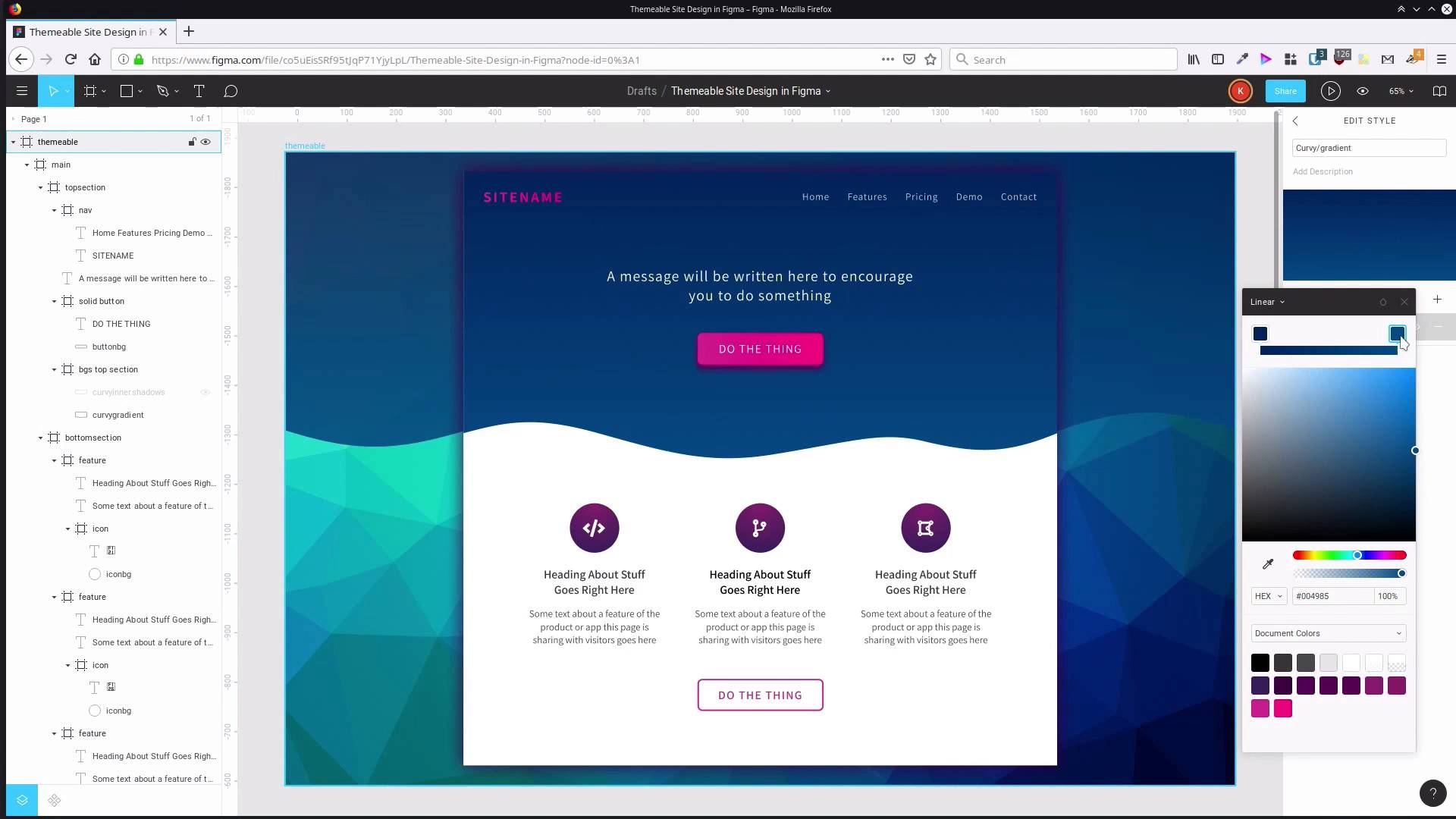
Welcome back to create a themeable site design in Figma. In the last lesson we went through, we created all of these document styles that are applied throughout a design, and if we change the styles, it'll change the whole site coloring. Now you recall right at the start of the course, we added in three different background images and there were three different colors. So now what we're gonna do is use the styles that we just set up to recolor our theme to match a different background image. So, in the background image's frame that you created earlier, set the visibility to on for the 03 named background. You can turn off the other one as well if you want, and now we're gonna start modifying our color scheme. And we're gonna begin by focusing on these backgrounds, these curvy elements that we set up at the beginning. The first thing that we're gonna change is the gradient. That's where our main color comes from. And we're going to set the visibility for the shadows layer to be off, because as we're changing the color, that shadow is gonna clash with things and make it a bit harder to figure out what the best color to use is in there. And then we wanna do the same thing for our inner shadows in the main section. So now, to start modifying this color scheme, we have this style here, the curvy gradient that we created earlier. We can just hit this button here to go into the properties of that style, and now we can start changing the gradient that we have applied in here. So click this gradient, and now, just the same way that we created the gradients for the first color scheme, we'll do the same thing again. So grab the sampler, and we'll start looking for a dark color from our background gradient that we can bring in. And you see there that it's changed here and here. And then for the light color we'll do the same thing again, probably go around here. So as with the last color scheme, I have already spent some time picking out colors that work well for this blue color scheme. And of course, choose colors that you prefer if you would like to do your own color scheme. Or, with the dark color, I've gone with 00245B, and for the light color, 005C9F. Now we can go ahead and turn the shadow section back on, There and there. Now we want these shadow colors to be replaced as well. So we're gonna shut that down. Click outside the frame again, so we get access to our local styles. Now our effects are down here. This is colors, any flat colors or gradients, and then shadows and what have you are down here in the effects section. We wanna change the shadows for our curvy section, so hit that settings button again and we'll go into the settings for the top gradient. All we're gonna need to change is the color, so 00237D. And then we'll do the same thing in the next gradient, 00237D. And now we've got that same color graduation that we had in our purple color scheme, so that is both of those curvy sections taken care of. And there's just one more step to finish up modifying the colors of the backgrounds, and that is to take care of this shadow that's around the main section. So we will just click outside the frame again. We're gonna change the main shadow down here. So we'll hit the settings button here so we can make our changes, and then we're gonna change the color to 000F42 and hit Enter. In this case, that actually still looks a little bit too dark. It kinda makes it look a little grubby, so we're gonna hit this button to open up the full color picker. And we're gonna drag the opacity down a little bit just to make it a bit more subtle, and we're gonna go for about 70% opacity. And hit Shift+0 to bring this up to 100% so we can get a more accurate look at the colors, and that is all looking quite nice. It's all smooth and it's all blending in with the background color so that we're gonna have a quite nice color scheme in this theme version of our design. So you can see the process that we´re gonna be going through to create this different color scheme. In the next few lessons, we´re gonna go through and do all of the re-coloring. Up next is gonna be modifying the coloring for the site name and for the solid button. So we´re gonna go through and change those in the next lesson. I´ll see you there.





