
 Lessons: 16Length: 2.6 hours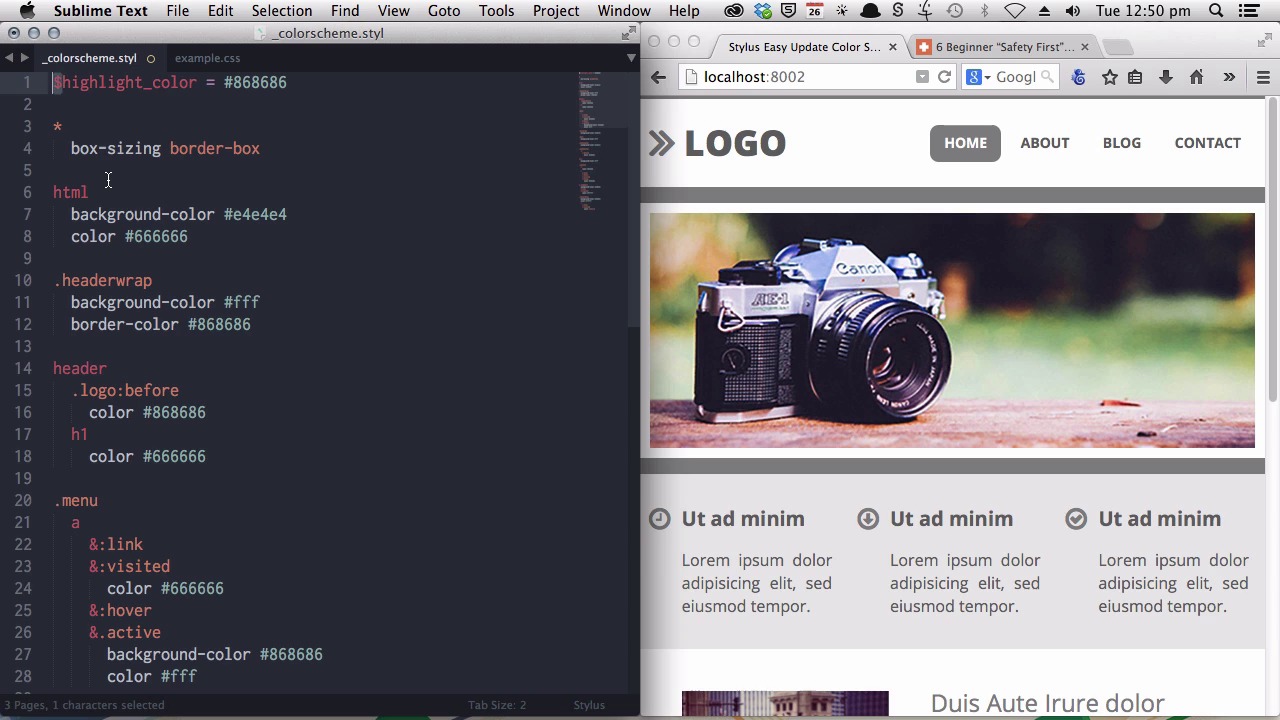
- Overview
- Transcript
3.1 Create an "Easy Update Color Scheme"
With regular CSS, whenever you want to change a color scheme you have to find and replace every instance of the altered color codes. With Stylus, variable-based color schemes make color scheme updates almost instantaneous. In this lesson you’ll create an “easy update color scheme” and learn about Stylus variables in the process.
Related Links1.Introduction
1.1CSS Needs a Hero01:17
2.Stylus Superhero Basic Training
2.1Quick and Easy Setup09:19
2.2Terse or Full Syntax, Your Choice05:50
2.3Faster Child and Pseudo Element Targeting via Nesting06:50
3.A Practical Intro to Stylus Variables
3.1Create an "Easy Update Color Scheme"08:02
3.2Create a "px to rem" Converter Variable14:35
4.Practical Intro to Mixins
4.1Create a "Zebra Stripe" Mixin12:45
4.2Use CSS3 Easily with Prebuilt "Nib" Mixins09:07
5.Practical Intro to Logic and Functions
5.1Adjust Base Font Size, Perhaps: Using Conditionals and Operators09:38
5.2What Functions Can Do That Mixins Can't06:16
5.3Create a "px to rem or em" Converter Function13:55
5.4Level Up Your Color Schemes With Stylus's Built-In Functions15:13
6.Stylus Superpowers
6.1Variables on the Fly: Property Lookup09:32
6.2Create a "Golden" Layout14:54
6.3Generate H-Tag Styles With a Single Line: Hashes, Iteration and Interpolation16:49
7.Conclusion
7.1Wrapping Up02:34
3.1 Create an "Easy Update Color Scheme"
Hi. Welcome to your [INAUDIBLE] superhero with Stylus practical intro to variables. In this lesson, you'll learn how a whole color scheme can be updated almost instantly just by changing a couple of lines of code. If you've done any scripting before with something like JavaScript or PHP, you'll already be familiar with the concept of variables. And variables in Stylus work in pretty much the same way. If you've never worked with variables before, basically, they're just something like a placeholder. Now if you imagine you're filling in a form, online, and there was a little field for your name, you could call that little field a variable. It could be anything, there's a placeholder there, and it's designed to capture some information. But the information could be anything, and it can vary all the time, hence it's called a variable. One of the places that Stylist Variables is most useful is in dealing with colors. You'll know from your own experience with CSS that whenever you want to change a color scheme, you have to go through and you have to find every single of instance of the color code that you want to change and you have to change all of those instances. And that can become a really tedious task if you have a sizeable style sheet. And with Stylus what you can do instead, is just create variables to represent each of the colors that you want to use in your design. And then when you wanna update your color scheme all you have to do is change the value of the variable and everything else will be handled automatically for you. On the right side of the screen here. You will see a grey scale basic site design. And this is a miniaturized version of the design from my 6 Beginner Safety First Color Guidelines for the Web article which you can read at webdesign.tutsplus.com if you'd like some more information on the background of that design. I'll include a link below the video. This is, just so you know, when you come to looking at these source files, this is a very crunched down version of the layout, so that it'll fit nicely on your video space. So that you can see everything nice and clearly. So, when you open it up and see that it's tiny, you'll know why. In the tutorial 6 Beginner Safety First Color Guidelines, we started with a gray scale color scheme and then we added in a highlight, a blue highlight. And that's what we're going to do here using a Stylus variable. On the left side, we have the stylus that is controlling the color element of this design. I've separated that out from the layout so that you can just have a look solely at the, color scheme code. Now if I was just using raw CSS, and I wanted to put this blue highlight in, I would have to manually update all of these color codes. Now let me show you what we can do instead. I want to replace this 868686 color card with blue. So if I had been writing this in stylus from the start, I would never have actually even written all of these 868686 color cards. What I would have done. Is, at the start, I would have created a variable. And. I would've called it highlight_color. And then set the value of 868686 again, so that. Now you'll notice that, that is done just by putting an equal sign in. Just another quick note on variables. I always place a dollar sign in front of variables. That's not actually necessary, you can write your variables without a dollar sign at the start. But I just find it makes it a little easier to read your code, if you have the dollar sign in front of all your variables. It makes it clearer which parts of your code are variables and which parts are not. So you have the option, in Stylus, to either write your variables like this, without a dollar sign. You can write them like this with a dollar sign. The only thing you cannot do is write them like this with an at sign. And that's because the at sign is used for something else in Stylus which we'll cover later in the course. All right, so now here is our highlight color variable. And if I had written this. In Stylus from the start, as I said, I would never have actually put these hex codes in. So, I'm going to replace all of those. [BLANK_AUDIO] All right. So, that, whoops. Except for the first one. Now that is how you would write a color scheme in Stylus. Instead of putting hex codes into your CSS, you instead would just use variables right from the start. Then, when you want to change the color, all you have to do. Is change this value up here. Now, we've just compiled once to commit the highlight color variable as it is now. And you can see that there's no change, so you're actually generating the exact same CSS at the end of the process here. But the major difference is, now what if I want to change this to the blue that I mentioned earlier? Now, all I have to do is change the value of the highlight color variable. So, grab the hex code for blue, add that in, save and compile. And there you go. You can see immediately the color blue has been applied all throughout the design. Now this means from that point on, you can change this whole color scheme just by changing this variable, so let's try a red. Again, the whole color scheme has been completely changed just by using this variable. And this is where the color picker package that we installed right at the start of the course comes in really in handy. Now I can open up the color picker. And I can choose a new color straight from this color picker. So, let's go with a green. Save and recompile. There we go. Aqua-ish green-ish. Or, let's try, a bit of purple. [BLANK_AUDIO] So you can see even in this just really simple example of how powerful that becomes. You know, and so imagine if you're doing work for a client and they ask to see a few different versions of a color scheme. You can do that for them in just a couple of minutes, or say you are a theme creator or a template creator. As long as you have a variable driven color scheme, you're gonna be able to bash out ten, ten different color schemes, ten different versions of your product in just a couple of minutes. Which gives you a lot of of ways to leverage your basic work. And there's many, many different ways that you can use variables in Stylus, but with colors that's one of the, the most helpful, most practical ways that you can put them into action. And you will some of the other ways that you can use variables as the course goes on. In the next video, you'll learn how to create a pixel to brand conversion variable. And that will let you think about your design in terms of pixels, but the code that gets output at the other end, will all be done in relative units. All right, lets move on to that now.





