
 Lessons: 16Length: 2.6 hours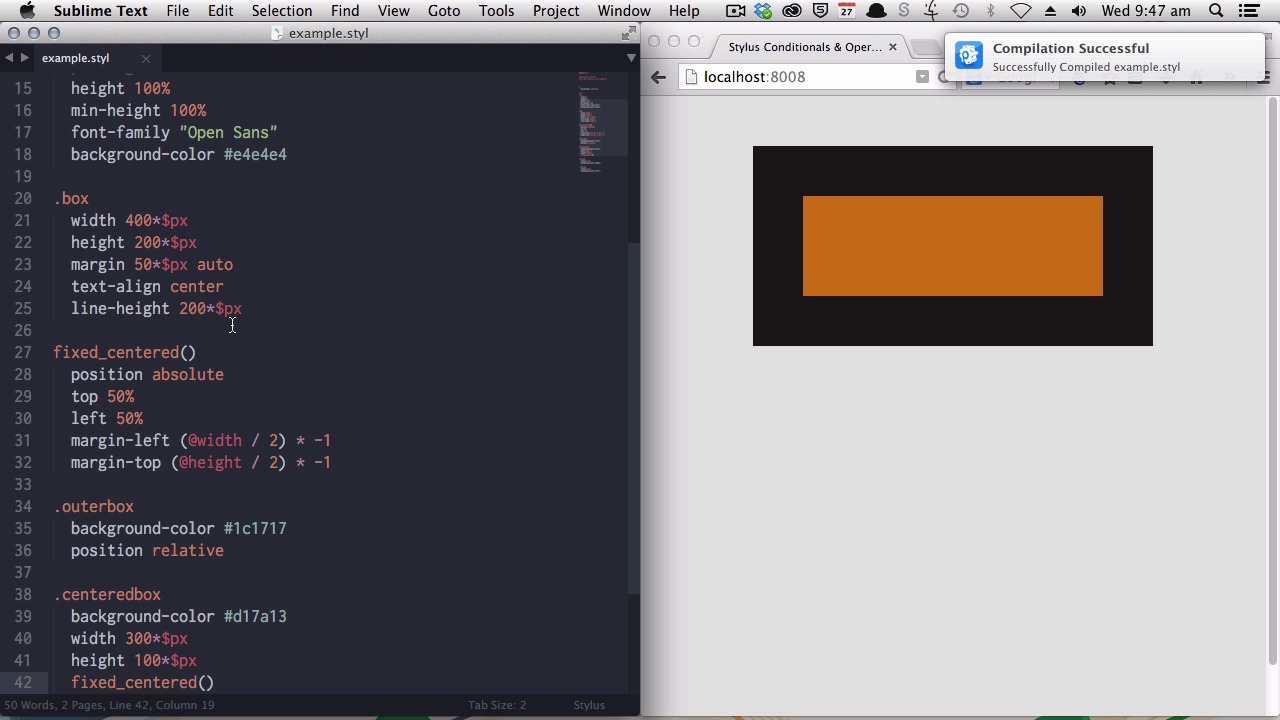
- Overview
- Transcript
6.1 Variables on the Fly: Property Lookup
Variables are great, but what if there’s a value you need to fetch within a style, or you don’t want to create clutter for a single-use variable? In this lesson you'll learn how to use the Stylus “property lookup” feature for variable-like functionality, without creating actual variables.
1.Introduction
1.1CSS Needs a Hero01:17
2.Stylus Superhero Basic Training
2.1Quick and Easy Setup09:19
2.2Terse or Full Syntax, Your Choice05:50
2.3Faster Child and Pseudo Element Targeting via Nesting06:50
3.A Practical Intro to Stylus Variables
3.1Create an "Easy Update Color Scheme"08:02
3.2Create a "px to rem" Converter Variable14:35
4.Practical Intro to Mixins
4.1Create a "Zebra Stripe" Mixin12:45
4.2Use CSS3 Easily with Prebuilt "Nib" Mixins09:07
5.Practical Intro to Logic and Functions
5.1Adjust Base Font Size, Perhaps: Using Conditionals and Operators09:38
5.2What Functions Can Do That Mixins Can't06:16
5.3Create a "px to rem or em" Converter Function13:55
5.4Level Up Your Color Schemes With Stylus's Built-In Functions15:13
6.Stylus Superpowers
6.1Variables on the Fly: Property Lookup09:32
6.2Create a "Golden" Layout14:54
6.3Generate H-Tag Styles With a Single Line: Hashes, Iteration and Interpolation16:49
7.Conclusion
7.1Wrapping Up02:34
6.1 Variables on the Fly: Property Lookup
Hello. Welcome to Stylus Superpowers. This is the final stage of the course become a CSS Superhero with Stylus. In this lesson, you'll be learning about something called property lookup, which, as the name suggests, is a way to look up properties from within the style that you're creating. And like a lot of other things, the best way for you to understand what this, what this functionality does, is just to see an example in action. Now what we're gonna do is, use property look up, to center this orange box that you can see on the right side of your screen in it's surrounding doc box. Okay, let's begin. The first thing that we're gonna do is just put the CSS inside this class that we would be using if we were to just manually center this box vertically and horizontally. I'll just paste the correct code in so you can see the effect. Okay, you can see that, that has horizontally and vertically centered that box. And the way that is done is by adding these characteristics, this a position absolute, setting the top and left positions to 50%, and then you have a margin left value of -150, which is half. The width and -50, which is half the height. So that's how you create the the positioning. The centering. But you don't want to have to manually divide your width and height values by two every time you wanna. Do this centering. You also wanna be able to change your width and height without having to subsequently adjust your margin left and margin top settings. We can eliminate those manual steps by using by using property lookup, to lookup the value of the property width and the value of the property height from within. This style. And the way that works is simply by. Using an @ symbol. And then just typing in the name of the property that you wanna look up. Now this @ symbol will tell stylus to look up the property width. So it will jump up here and it will grab this 300. Flexible pixel value. And we know that we just want a negative value that's half of this width. Now that means we can just first divide the width by 2. [BLANK_AUDIO] Now that will give us our 150 value. And then to turn into a negative number, we just multiply it by -1. And that will give us the exact same output. Now there you go. That's still centered. That tells us that we got the margin left failure that we needed. And you can then do the same thing for this margin top value. Again just type the @ symbol and then enter height. We will divide that height property lookup value by 2 and then multiply it by -1. And there we go. We still have our vertically and horizontally centered interior box. Now you recall earlier when we were talking about variables, I said that you can't use the @ symbol inside your variable names, or at the beginning of your variable names, and that's the reason why. Because in stylus, the @ symbol. Denotes property look up. Now, the other cool thing is you don't have to only use property look up within the actual style that you're, working on. You can also use property lookup inside a mixin, and then you can feed that mixin into any class that you need to use it in. So we can just grab all of this code. Just chop it out and then we can create a new mixin. Let's call it fixed_centered. So we've just taken that exact same code, entered it into a mixin. And now, I can just use the mixin inside the class. And again, perfect behavior, just how we want it. Now you would be able to use the fix centered mixin. On any site that you needed to, or sorry, any class that you needed to and it will still work perfectly. It will still look up the properties from within the class that the mixin is used. Now for when to I can adjust this width and height values on this centered box and everything will still be perfectly centered. Let's say, take that down to 80. And there you go that works great and I haven't had to go and manually adjust any margin left or margin top settings. Everything just happens automatically. All right, let's have another look at a way that you might use the property lookup functionality. Just reveal these little boxes. Now, inside this box there is actually. Some text, some light text and down here we have some dark text. And we're gonna use a combination of property look up and some of the color functions that you saw in our earlier video, to automatically set the light background to have a dark text on top, and the dark background to have a light text on top. And we'll do that by creating a mixin that runs a conditional check to see if the background is dark or light and then set the text color accordingly. Okay. Now we're going to create the mixin first. And we will call it auto_text_color. 'Cuz it will automatically set the text color for us. We're going to include our. Conditional check, if, and then we're gonna use a function called dark, which checks to see whether or not any particular color is dark. And this is where we will use our property lookup. Again, we use the @ symbol to denote property lookup. And then what we are trying to find out is the background-color. So we look up background-color. Now if the background-color is dark, we want the text color to be light. So we will run the lighten function. On that background-color to create an inverted light version of that same color. So we'll lighten it by 80%. Now it, if the background color is not dark. We wanna do the opposite. So, else, color, and we're going to do the same process. This time we wanna darken it. So, if the background-color is not dark. We therefore know the background-color is light, so that means with a light background we want a dark text color. Now, all we need to do to set the text color for our little boxes is just run this mixin. Inside them. So there you go. That has automatically set a dark text color on a light background and a light text color on a dark background. Now, if we are to change the color codes here. Let's pick another dark background color. Let's, go with, say a dark purple. We're gonna get a nice light purple on top. Well, let's chose another light color. [BLANK_AUDIO] And the same again. We have the inverse dark version of that same color. So, you can see how useful the property lookup functionality could be if you just get a little bit creative with it. Property lookup can also be really useful when you wanna have variable like functionality but you just working with a value that is only gonna be relevant inside that particular class so you don't really need to have an external variable creating clutter. You just need something that you can work with inside that class alone. In the next lesson, you're gonna be working with variables and functions again, and this time it'll be to something known as the golden ratio, in your layouts. I'll see you there.





