

- Overview
- Transcript
5.10 Adjusting the Hour Hand
In this lesson, you will make the hour hand rotation a little more realistic by taking into account the number of minutes that have already passed in the current hour.
1.Introduction
1.1Introduction00:52
1.2Downloading Snap.svg07:42
2.Creating Graphics in a Snap
2.1Creating Basic Shapes09:38
2.2Complex Shapes08:16
2.3Shape Attributes05:57
2.4Grouping Shapes07:23
2.5Shape Transformations08:37
3.Animating in a Snap
3.1Animation Basics06:58
3.2Animation Callbacks04:53
3.3Easing06:26
4.Basic Interactivity
4.1Installing MAMP03:33
4.2Using an External SVG08:46
4.3Targeting Individual Shapes08:58
4.4Basic Interaction06:32
4.5Hover Events03:32
5.SVG Clock Animation
5.1Importing the Clock SVG06:08
5.2Targeting Individual Clock Shapes08:30
5.3Pulling the Current Time08:30
5.4Organizing the Code05:32
5.5Time Is Circular07:26
5.6Staying Current03:08
5.7Animating the Second Hand03:11
5.8Fixing the Second Hand Animation08:51
5.9Minutes and Hours09:43
5.10Adjusting the Hour Hand03:44
5.11Finishing Touches05:31
6.Conclusion
6.1Conclusion00:54
5.10 Adjusting the Hour Hand
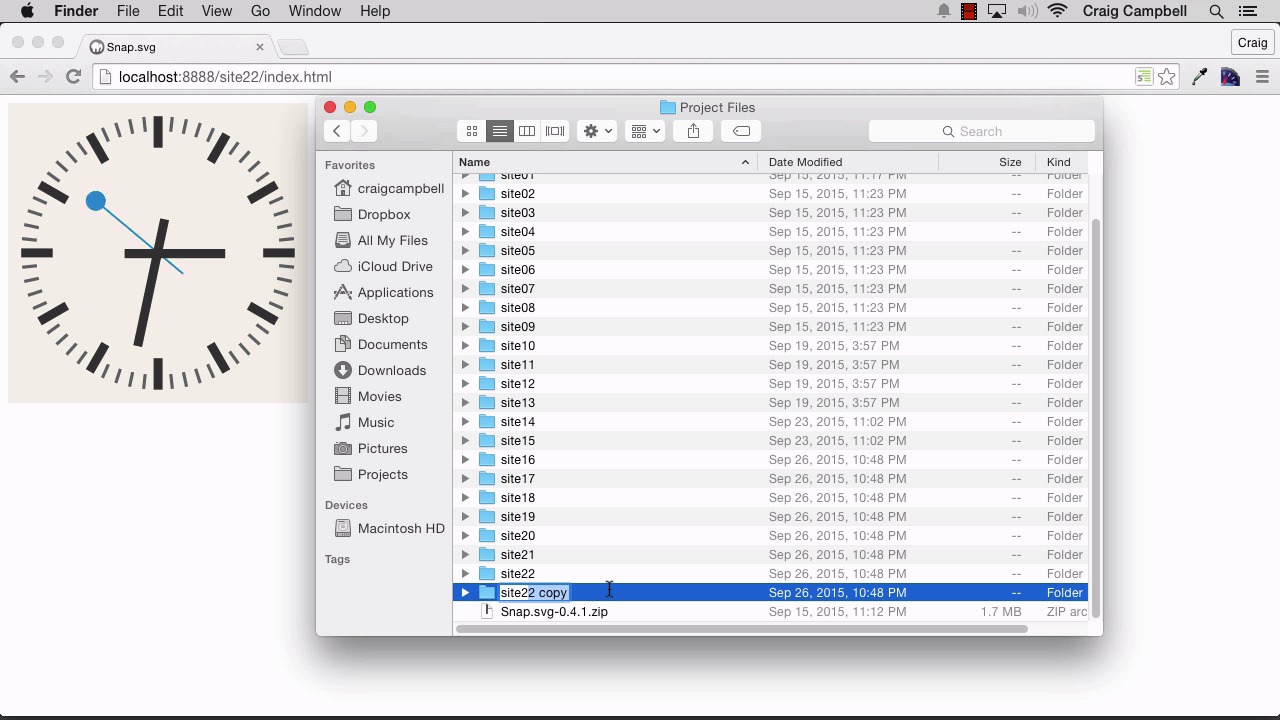
Hello and welcome back to animating with Snap.svg. The one last piece of animation that I want to enhance a little bit or to make it more realistic deals with the hour hand. Right now as you can see on our clock, It's 3:30. However on a normal clock if it's 3:30 then the hour hand would be half way between three and four. As we have it right now it's just gonna stay on three. Until that minute hand gets all the way back up to 12:00. Or up to zero minutes, I should say. At that point, we will see the hour hand animate from three to four. However, we don't want that to happen. We want it to gradually be moving as time elapses. So, if you remember, in order to get from one hour to the next hour, that is 30 degrees of rotation. If we go back to our code, we can see we're using hours times 30. That 30 degrees of rotation is what it takes to get from one hour to the next hour. But we want that to constantly be moving according to how many minutes have passed by. And we've got 60 minutes, and over the course of 60 minutes we need to move this hour hand another 30 degrees. So if we just take that 30 degrees divide it by 60 minutes, that tells us that every minute, we want this to animate another one-half degree. So we're just taking the 30 degrees, again, that we need to rotate. We're dividing it by the 60 minutes it's going to take to rotate that far. And that gives us 0.5. So every minute, we need to increase this rotation by 0.5 degrees. So let's go to our code and make that happen. I'm gonna jump into Finder. We're gonna make a copy of the site 22 folder. And we're gonna call it site 23. We'll grab site 23, drag it down two brackets and get started. So let's open up main.js, and now that we understand what needs to be done, it's actually a pretty simple process to make it happen. So right now we're calculating our hour rotation here. But we also need to increase that hour rotation by 0.5 degrees for every minute of that hour that has passed. So the way we're gonna do that is down here. I'm gonna point to hourRotation, and we're going to increase it using this +=. So if I were to say, for example, += 1, that would just increase the value of hourRotation by 1. But we're not gonna increase it by 1, we're gonna increase it by 0.5 degrees for every minute that has passed in this current hour. So all we need to do is we need to take minutes times 0.5. So for every minute that has passed in this particular hour we're going to rotate that hour hand another 0.5 degrees. That's why we're using this += here, because we're increasing this value by this amount. And that's really all we need to do in order to get our hour hand rotating where we need it to be. So let's jump back into our browser and navigate to the site 23 folder and see if that works. So when everything initially animates into place we can now see that our hour hand is between 3:00 and 4:00 which accurately represents where it needs to be. Now obviously, I would want you to do some more testing. Test it at different times of day just to make sure that everything is transitioning fine. But for the most part this should get us where we need to be. So that's how you create an animated clock using Snap.svg. Thank you for watching and I'll see you in the next lesson.





