

- Overview
- Transcript
5.7 Animating the Second Hand
Now that you have a timer running to keep your clock up-to-date, in this lesson you will smooth out the display by creating a fluid animation for the second hand.
1.Introduction
1.1Introduction00:52
1.2Downloading Snap.svg07:42
2.Creating Graphics in a Snap
2.1Creating Basic Shapes09:38
2.2Complex Shapes08:16
2.3Shape Attributes05:57
2.4Grouping Shapes07:23
2.5Shape Transformations08:37
3.Animating in a Snap
3.1Animation Basics06:58
3.2Animation Callbacks04:53
3.3Easing06:26
4.Basic Interactivity
4.1Installing MAMP03:33
4.2Using an External SVG08:46
4.3Targeting Individual Shapes08:58
4.4Basic Interaction06:32
4.5Hover Events03:32
5.SVG Clock Animation
5.1Importing the Clock SVG06:08
5.2Targeting Individual Clock Shapes08:30
5.3Pulling the Current Time08:30
5.4Organizing the Code05:32
5.5Time Is Circular07:26
5.6Staying Current03:08
5.7Animating the Second Hand03:11
5.8Fixing the Second Hand Animation08:51
5.9Minutes and Hours09:43
5.10Adjusting the Hour Hand03:44
5.11Finishing Touches05:31
6.Conclusion
6.1Conclusion00:54
5.7 Animating the Second Hand
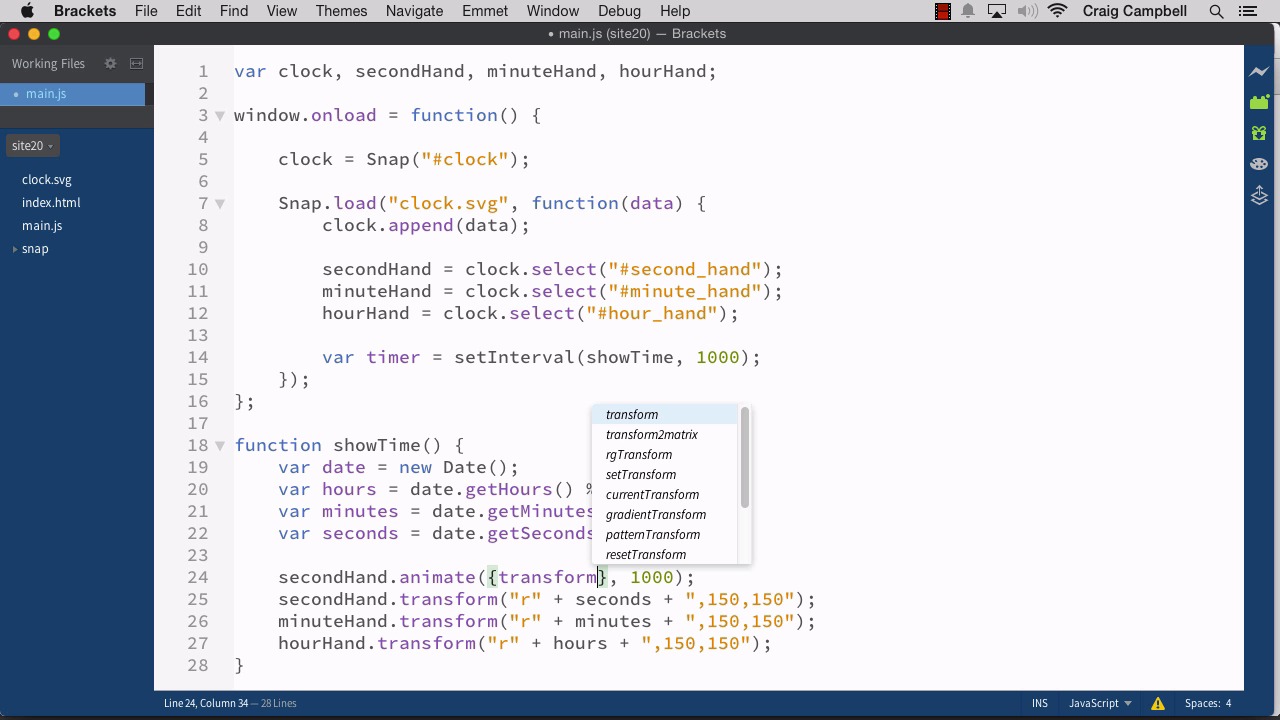
Hello, and welcome back to animating with Snap SVG. Now that we've got our set interval function working so that we're constantly refreshing our SVG to reflect the current time, let's actually make this a little bit smoother and turn it into an animation. After all, that's what this course is all about is animating with Snap SVG, so let's make that happen. I'm gonna grab the site 19 folder, copy and paste it. and we'll rename it to site20, and all of our changes in this lesson will be saved there, so let's drag that down to brackets and open it up. And now we've got our main JS file opened up here. So, again, we've got this set interval function running, which is running the showTime function over and over again every 1000 milliseconds or once per second. So now instead of just transforming our secondHand, we want to animate it. So instead of secondHand.transform, I'm gonna do a secondHand.animate. So inside our animate function, we need to include a pair of curly brackets there, and then the duration of our animation, which is going to be 1,000 milliseconds because we want this to happen once a second. And we want our second hand to be constantly moving at a constant rate of speed. So if that animation takes one second, and it recurs every one second, then ideally our second hand would just be constantly moving. So now inside the curly brackets here, we need to create that rotation. So we're going to do a transform: space, and then our transformation string, which we already have down here for our secondHand.transforms. So we're just gonna grab this here, copy it, and I'll paste it inside those curly brackets. So let's get rid of this line of code we no longer need that because we're now animating it instead of just moving it. So let's save that and see if it works I'm gonna jump back into our browser. And we're gonna navigate to the site20 folder to index.html, and let's see if that works. So, first of all, you see a very quick animation where everything's getting into place where it needs to be. And then the animation starts, but as you can see our second hand is moving along nice and smoothly. So all we did is we changed our transform method into an animate method and then just applied that same transformation, that same rotation transformation, to our animate method and made it last one second. So it's running over and over again once every second, but every animation is lasting exactly one second, so it's moving at a constant speed. Now as it gets closer to the 60 second mark, you're gonna see a slight problem that we'll have to address. Instead of continuing to rotate in the same direction to that zero second mark it animates backwards, counter-clockwise. That's obviously not what we want. We want it to keep rotating the same direction the entire time. So that's gonna be a little bit complicated, but this is a good start for now. So with this done, let's move forward to the next lesson. And in the next lesson we'll talk about how to handle that particular problem. So thank you for watching, and I'll see you then.





