

- Overview
- Transcript
4.1 Installing MAMP
Before you can use external SVG files, you need to install a web server on your machine. In this lesson, you will download and install MAMP on your computer.
Related Links
1.Introduction
1.1Introduction00:52
1.2Downloading Snap.svg07:42
2.Creating Graphics in a Snap
2.1Creating Basic Shapes09:38
2.2Complex Shapes08:16
2.3Shape Attributes05:57
2.4Grouping Shapes07:23
2.5Shape Transformations08:37
3.Animating in a Snap
3.1Animation Basics06:58
3.2Animation Callbacks04:53
3.3Easing06:26
4.Basic Interactivity
4.1Installing MAMP03:33
4.2Using an External SVG08:46
4.3Targeting Individual Shapes08:58
4.4Basic Interaction06:32
4.5Hover Events03:32
5.SVG Clock Animation
5.1Importing the Clock SVG06:08
5.2Targeting Individual Clock Shapes08:30
5.3Pulling the Current Time08:30
5.4Organizing the Code05:32
5.5Time Is Circular07:26
5.6Staying Current03:08
5.7Animating the Second Hand03:11
5.8Fixing the Second Hand Animation08:51
5.9Minutes and Hours09:43
5.10Adjusting the Hour Hand03:44
5.11Finishing Touches05:31
6.Conclusion
6.1Conclusion00:54
4.1 Installing MAMP
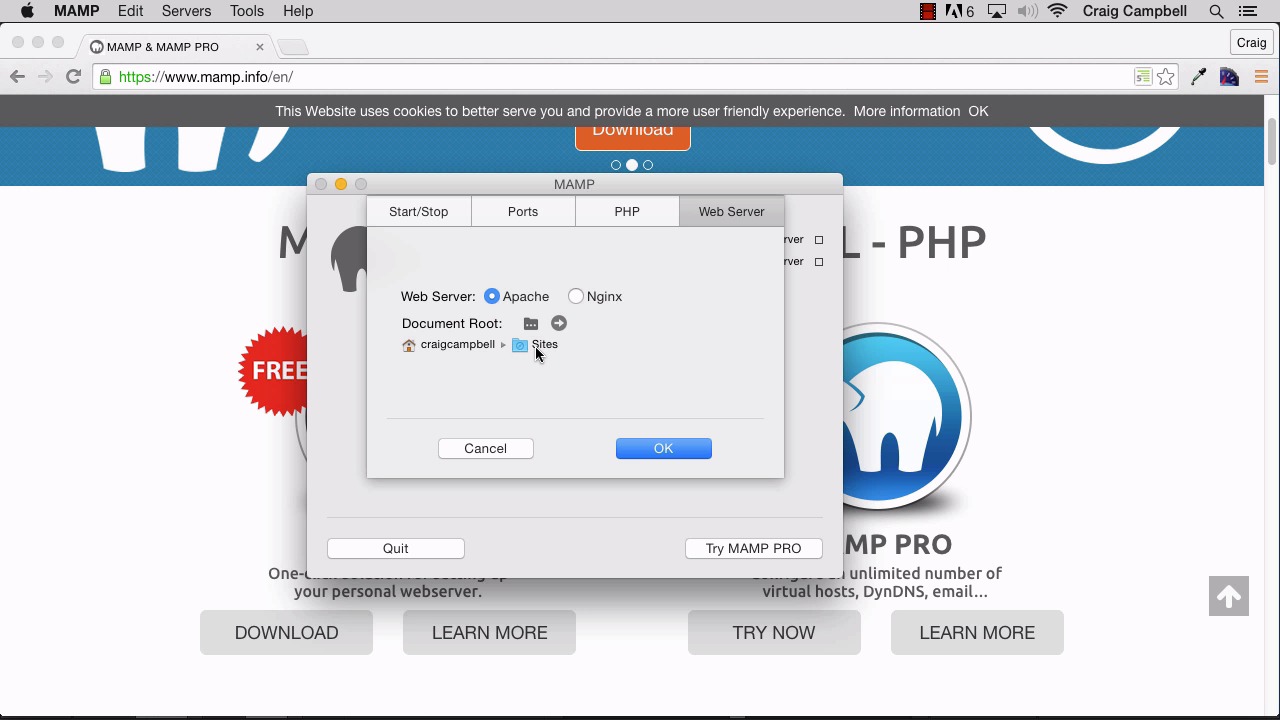
Hello and welcome back to animating with Snap.svg. Now that we have a pretty good understanding of how to use Snap.svg to modify and manipulate our SVG shapes, I want to talk about how to import external SVGs and to manipulate those as SVGs. That way we're not restricted to just drawing the shapes using code because that's not always very fun and be nice if we could manipulate some more advanced graphics, things that you could draw in illustrator or other vector drawing programs. But one major issue that we're going to come across. If we try to import an external SVG, is that our browser won't display it. Snap.svg will not allow you to do that unless you're running a web server. So if you upload everything online, you could test it that way. Or you could just install a web server on your local machine. That way you can test it locally without having to upload it every time you make changes to it. Well, the good news is there's a very easy-to-install, easy-to-use piece of software called MAMP that acts as a My Apache server with support from MySQL and PHP. So I'm not gonna walk you through downloading that, you can find it at mamp.info and you can download it for OS X or for Windows. And we're gonna run that as our local web server. And one thing we need to keep in mind is that we need our MAMP server to be pointing to the right directory. So I'm using my project files folder. I want to make sure that MAMP is pointing to my project files folder in order to run the web server. By default if I were to go to preferences here and if we go to the Web Server tab you'll notice that it is set to the sites folder by default. And I can create any number of sites within that site folder. And as long as I create something in that site folder MAMP will display that in the browser as long as we point to local host. But the files we're working with in this lesson are gonna be in our project files folder. So I need to change that path. So I'm gonna click here on the folder with three dots on it, and we're going to navigate to that path. I'm gonna go to my Snap.svg folder. I'm gonna go to project files. And I'm going to navigate to, in fact, I'll just leave it in project files and and that way we can run any of these folders whenever we want to. So we'll use our project files folder, we'll click on Select. And there we go. So now we'll click on OK. And in order to run everything in order for this to work right we just need to click on Start Servers. And once it starts, it should light up and turn green. And it opens up a new browser window with local host 8888. Now to show that this works we're just going to get rid of everything after the 8888. And we're gonna keep that forward slash there, we need to keep that :8888 or it won't work. And then we'll type forward slash and then we'll point to site01/index.html. And nothing shows up there, let's move forward to site09, I know that has something in it, and there we go. So we're still able to see the files that we've created and now that our map server is pointing to the project files folder, we can look at any path within that project files folder to see the html pages contained therein. So now that we've got this up and running in the next video we can get started importing an external SVG file. So thank you for watching and I'll see you then.





