


- Overview
- Transcript
5.6 Staying Current
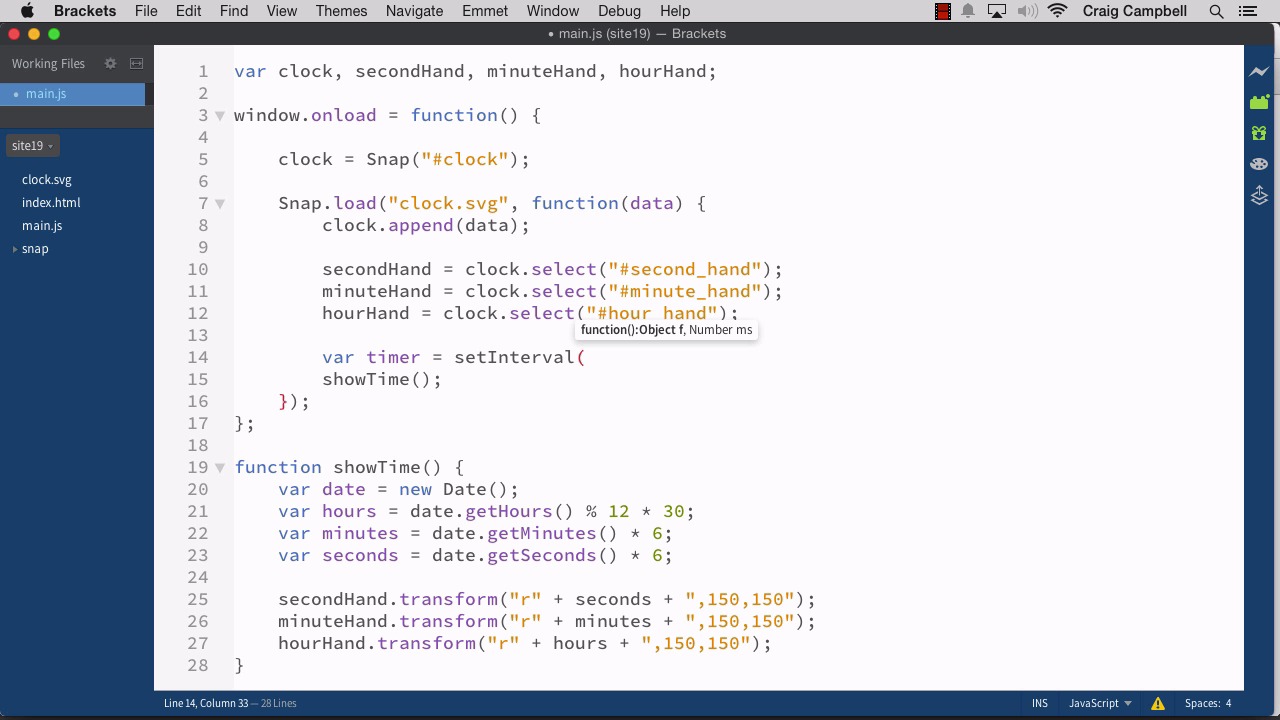
The problem with pulling the current time is that after one second passes, the time you’ve retrieved is no longer current. In this lesson, you will explore some JavaScript code that will update your clock once every second.
1.Introduction
1.1Introduction00:52
1.2Downloading Snap.svg07:42
2.Creating Graphics in a Snap
2.1Creating Basic Shapes09:38
2.2Complex Shapes08:16
2.3Shape Attributes05:57
2.4Grouping Shapes07:23
2.5Shape Transformations08:37
3.Animating in a Snap
3.1Animation Basics06:58
3.2Animation Callbacks04:53
3.3Easing06:26
4.Basic Interactivity
4.1Installing MAMP03:33
4.2Using an External SVG08:46
4.3Targeting Individual Shapes08:58
4.4Basic Interaction06:32
4.5Hover Events03:32
5.SVG Clock Animation
5.1Importing the Clock SVG06:08
5.2Targeting Individual Clock Shapes08:30
5.3Pulling the Current Time08:30
5.4Organizing the Code05:32
5.5Time Is Circular07:26
5.6Staying Current03:08
5.7Animating the Second Hand03:11
5.8Fixing the Second Hand Animation08:51
5.9Minutes and Hours09:43
5.10Adjusting the Hour Hand03:44
5.11Finishing Touches05:31
6.Conclusion
6.1Conclusion00:54
5.6 Staying Current
Hello, and welcome back to animating with Snap SVG. Now that we know how to convert our hours, minutes, and seconds into degrees of rotation, now let's talk about how to keep our clock up to date. Right now, our time is only accurate as soon as the browser loads. One second later, it's already off, so we need to create some kind of loop that's going to keep checking the time and keep updating the clock accordingly. So let's start again by creating a new copy of our site18 folder, and we'll call this new copy site19, and all of our progress will be saved there at the end of this lesson. So we'll open up our site19 folder and get started. So we've got our main.js file, which is where most of our logic is right now. And we've created some transformations here after pulling the current time. And now we need to pull the current time once per second, so we're gonna create a loop that's going to do that for us. So we're going to do that using the JavaScript method called set interval. And we're gonna do that up here in our call back function. Right now, we're just calling the show time method once. Now we're gonna call it over and over again. So I'm gonna create a timer. So we'll create a variable here. I'm gonna call it timer, and we're going to set this equal to, again, the setInterval method, you'll notice that the I in Interval is capitalized. And then in parentheses, it's expecting two things, it's expecting the function that we want to run over and over again at that interval, and then the duration of that interval. How long do we want to wait in between intervals before we call the function again. So, the function we're calling is showTime, and the interval is gonna be one second. We're going to call it every 1000 milliseconds, or basically, every second. So now, we no longer need showTime here because we're calling the showTime method over and over again right here. So let's save our JavaScript file, jump into our browser and navigate to the site19 folder and see if it works. And sure enough once per second our time is updating, and it's displaying the accurate time. We can see the second hand moving around, and once that second hand gets all the way around to the top we should see our minute hand move forward. So I'll pause the video. We're not gonna wait an entire 30 seconds for that to happen. I'll pause the video and then we'll see that happen. Okay, so we've got about ten seconds left. And hopefully when our second hand is pointing to the top, we'll see our minute hand over here rotate to the next minute. Let's watch that happen, and there we go. So we see that it works just fine. Now as it is, our hour hand is only gonna move once every hour. It's just gonna move down to the next hour, so that's gonna be kind of a jerky animation. We're not really animating it just yet. We're really just updating the screen once per second. In the next lesson, we're gonna talk about how to actually animate this rotation instead of just jumping from one frame to the next. But until then, let's just make sure our files are saved. And I'll see you in the next lesson. Thank you for watching.





