

- Overview
- Transcript
5.9 Minutes and Hours
In this lesson you will build on what you have already done with the second hand and apply it to the minute and hour hands.
1.Introduction
1.1Introduction00:52
1.2Downloading Snap.svg07:42
2.Creating Graphics in a Snap
2.1Creating Basic Shapes09:38
2.2Complex Shapes08:16
2.3Shape Attributes05:57
2.4Grouping Shapes07:23
2.5Shape Transformations08:37
3.Animating in a Snap
3.1Animation Basics06:58
3.2Animation Callbacks04:53
3.3Easing06:26
4.Basic Interactivity
4.1Installing MAMP03:33
4.2Using an External SVG08:46
4.3Targeting Individual Shapes08:58
4.4Basic Interaction06:32
4.5Hover Events03:32
5.SVG Clock Animation
5.1Importing the Clock SVG06:08
5.2Targeting Individual Clock Shapes08:30
5.3Pulling the Current Time08:30
5.4Organizing the Code05:32
5.5Time Is Circular07:26
5.6Staying Current03:08
5.7Animating the Second Hand03:11
5.8Fixing the Second Hand Animation08:51
5.9Minutes and Hours09:43
5.10Adjusting the Hour Hand03:44
5.11Finishing Touches05:31
6.Conclusion
6.1Conclusion00:54
5.9 Minutes and Hours
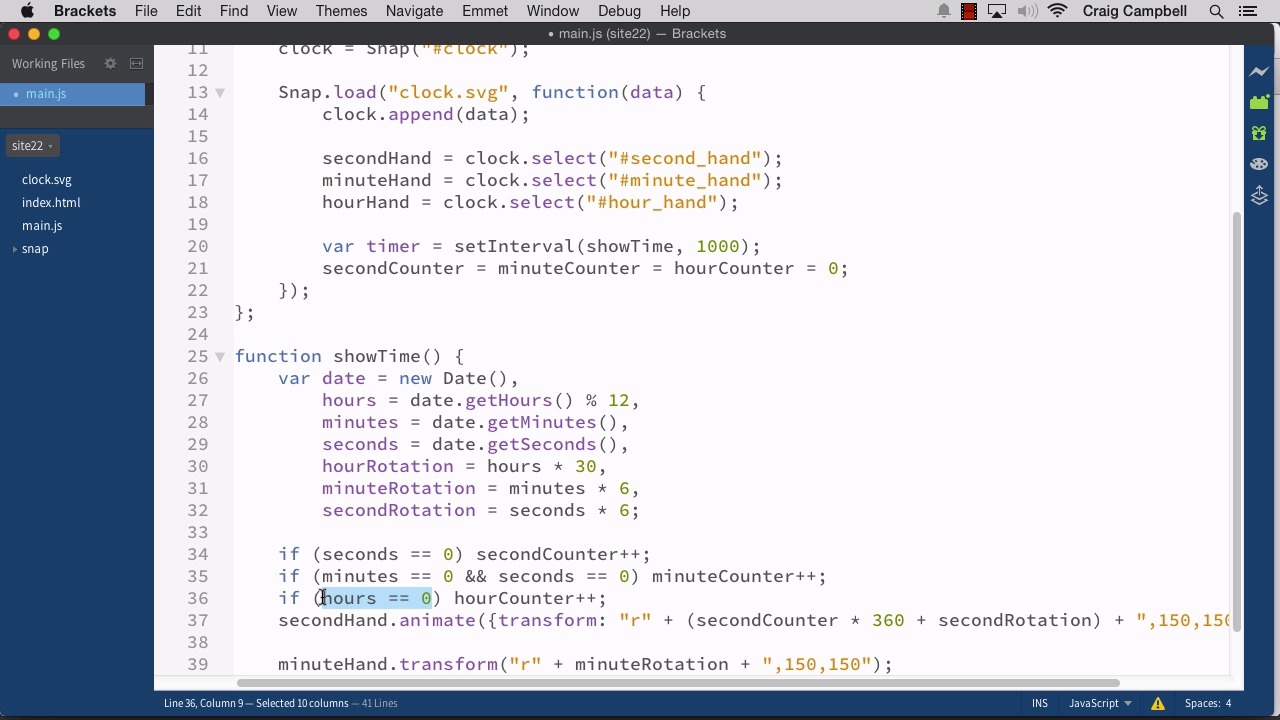
Hello, and welcome back to Animating with Snap SVG. In this lesson, now that we've gotten our second hand, where it needs to be as far as rotating around, and rotating in the same direction the entire time, let's apply the same concepts to our minute, and hour hands. So, let's start by making a copy of our site 21 folder, and let's rename it. Site 22. And then, we'll open up that folder in brackets, and go to our main .gs file. So one thing I want to do first, is our variable names here don't really make a whole lot of sense, because our hours are being set equal to a degree of rotation, and then, down here we're referring to, or are going to be referring to our get hours again. So instead of having to refer to, date.getSeconds, and date.getMinutes, and date.getHours multiple times. Let's store those in the hours minutesm and seconds variables, and then, we'll have other variables for our rotation. First of all, instead of saying var every time, let's just put this all as one statement. Instead of having semi-colons at the end, will have commas at the end of each one, and a semi-colon at the end of just the last one. So, we have hours and minutes and seconds. So, for hours we're going to get rid of times 30. For our minutes we're going to get rid of times 6, and for our seconds we'll get rid of the times 6. That way, the seconds variable is storing the seconds. Not seconds in degrees, but seconds in seconds. So now, we'll create more variables for our degrees. So we'll type comma, and go to the next line, and yeah, let's actually move these over, so it makes more sense that they're all one declaration, or multiple declarations in one statement. And then, we'll do another variable for our rotation. And we're gonna set that equal to hours times 30. So, it's the same calculation we had up here before, but now we're separating it into two different variables, because we're gonna need these variables for all of our IF statements. So, we have hourRotation equals hours times 30, comma. Go to the next line. And then, minute rotation equals minutes. And remember this one is times 6. And then same for the seconds. We'll create another variable called second rotation and set that equal to seconds times 6. So now, we also need to make sure that we update this variable here, because this variable, or this particular point in our transformation. This needs to reflect degrees, not seconds. So, instead of seconds we need to point to secondRotation. And that should be good. Now down here we've got our transform statements. We're not gonna use these anymore, but I'll go ahead and change these to minute rotation. And our rotation, so that when we copy those later they'll be right there available for us. And now, we're gonna take a look at these IF statements. So, we have if seconds equal zero then, we're gonna increase the value of our second counter. But our minute, and hour calculations are gonna be a little bit more complex, and let me explain why. So let's say, first of all let's change this from date.getSeconds to just seconds, and let's go down to our minutes. So let's go ahead, and type this out, if (minutes == 0), then we're going to increase minuteCounter by one. The problem with this is that, remember this showTime function is repeating, once every second. So if minutes equals zero, minutes is going to stay equal to zero for 60 seconds. And so, if this is all we put in the if statement, then our minuteCounter++ is going to increase by 1 every second for 60 seconds. Obviously, that's not what we want. We only want this to happen at the very beginning of the minute, or the very beginning of the hour. We don't want this to occur over, and over again throughout that entire minute, so we also need to check to see if seconds is equal to zero. That way it will only happen once at the beginning of the minute instead of once per second. Because that will create some really crazy animations by the time you get to the end of that first minute. Alright, so now let's go to the next line, and do the same thing for hours. So, if hours equals 0, then we're going to increase The hourCounter by one. But again, this needs to be more complicated. Because now we have two levels of confusion here. Because it's gonna happen once per minute. Because remember, the hour is gonna be set to zero. Whenever we're at 12 o'clock, and it's going to stay that way for an entire hour. So, we only want it to happen in the first minute of the hour, and the first second of that minute. So, we're gonna do the same thing we did up here. We're gonna make sure that minutes is equal to 0, and seconds is equal to zero. So, it's going to copy that. And then, after hours = 0, we'll say, and with two ampersands, and then, paste minutes =0, and seconds = 0. So, that should take care of our counters. Now we just need to apply the transformations. So now, let's animate the minute hand. So we'll do minuteHand.animate. And let's go ahead, and put our curly brackets, and our duration. Now for the minute hand, I'm gonna keep the duration pretty small. I want it to snap into place once every minute. I don't want it to slowly move into place over the course of 60 seconds. Instead, once we start animating from 59 seconds to zero seconds in that span I want the minute hand to take over really quickly. So we're going to make that last 200 milliseconds. But we're also going to, make it an elastic animation, so that it kind of bounces into place, and it's gonna look really nice. So, we'll do mina.elastic for the easing equation for that particular animation. So now, inside the curly brackets we wanna do a transform:, and then, we wanna use a modified version of this minute rotation that we did for the transform. So, let's cut that, and paste it here. And we can get rid of this line of code now. And again we need to apply some more logic to this, similar to what we did up here. So, we're gonna do inside parentheses, let's go ahead, and put our parentheses there. Around the entire minute rotation. And at the beginning we're gonna do minute counter times 360 plus minute rotation. And then, it'll be the same way for our hours. So, let's change this to our hand.animate. Instead of typing it over we'll just change what's there. So, instead of .transform it's .animate. And then, inside curly brackets we'll have a transform colon space. And then, we'll have our calculation here, or our transformation string, I should say. And then, we'll close that curly bracket, comma space. And then, I want this to last one second, so it's going to take one second for thhis to occur, and you'll notice that this is actually going to occur once every second, this is going to occur over, and over again, so we actually need to change a little bit of how that hour rotation is handled, but we'll do that,and the next lesson for now, I just wanna finish out what we're doing here. So, f or this calculation. Again, let's surround that parentheses. And then, we're gonna point to hourCounter times 360. Plus our rotation. So, that should get us a little closer to what we're going for. Let's save or file, jump back into our browser, and let's navigate to site 22, we're already there, so let's just refresh the page. And once everything gets into place we'll see that it's almost 4 o'clock. And in the next 15 seconds. Actually, it is already 4 o'clock. If I had done this one minute earlier we could have seen this actually happen. So there's one way we can actually change our clock using Apple, or using iOS. And we're gonna do that in System Preferences. And for our system preferences, you might have noticed that minute hand animate over, but for our system preferences I'm going to go to date and time. And then once that loads, you'll notice that date and time are being set automatically. Now, I don't want that to happen. So, I'm gonna click on the lock to make changes down here. And then, I'm gonna enter in my password. And then, I'm gonna turn off set date time automatically. So now, we can actually set the date and time ourselves. So, if we click on 4, I can hit the down arrow, and bring it to 3. On the 01, I'm gonna hit the down arrow a couple of times, and bring it to 3:59 and then, we'll save that. And now, we have 20 seconds to watch this animation happen over here. And let's refresh it, so that all of our counters get set back to 0. So now, we see this animating up, and we're about to hit the next hour, so we just wanna make sure that our minute hand doesn't rotate backwards. Back around to the start point. Excuse me. And let's see. Sure enough, it happened. And we also saw the hour hand move down to the next hour. But you get the basic idea. So, the next thing we need to do, is to address the position of the hour hand. So, we'll take a look at that in the next lesson. For now, just make sure all your files are saved. And I'll see you then. Thank you for watching.





