

- Overview
- Transcript
2.6 Design the “Rates” Page
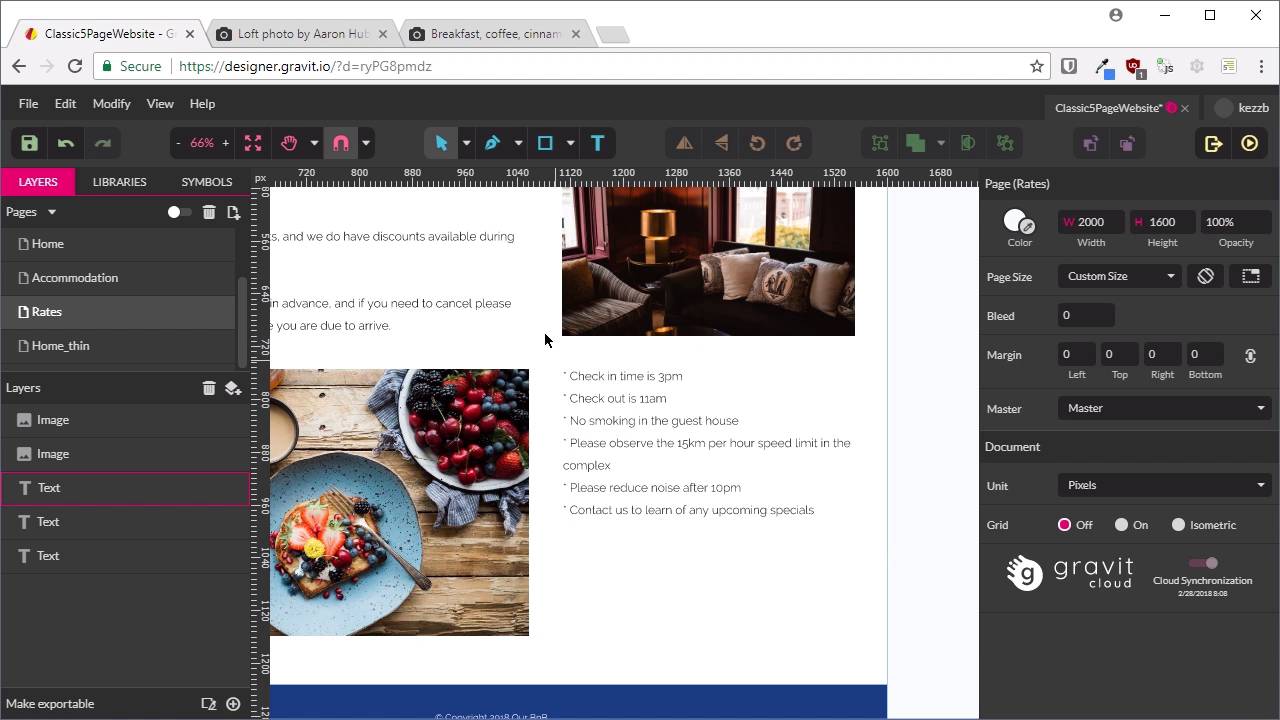
The Rates page will be very similar to the Accommodation page, so we’ll create that now by duplicating and modifying the Accommodation page.
Related Links
1.Introduction
1.1Welcome to the Course00:43
2.The Design Phase
2.1Design the Master Layout19:04
2.2Master Layout: Thin Width08:59
2.3Design the Home Page12:54
2.4Home Page: Thin Width05:03
2.5Design the “Accommodation” Page05:31
2.6Design the “Rates” Page03:41
2.7Design the “Guest Comments” Page03:33
2.8Design the Contact Page04:59
2.9Export Images03:43
3.The Coding Phase
3.1Code Up the Master Layout24:37
3.2Code the Home Page16:05
3.3Code the “Accommodation” Page04:50
3.4Code the “Rates” Page02:33
3.5Code the “Guest Comments” Page04:28
3.6Code the Contact Page06:39
4.Conclusion
4.1Wrapping Up04:35
2.6 Design the “Rates” Page
Hey, welcome back to your build the classic five page website. In the last season, we created the Accommodation page, which is going really straight forward with this design, just the heading, some text and a couple of images. And this is sheets that in the case of doing a site like this for real client, that will provide you with photographs of the business. And some text on the business as well that you would then assemble in the way that you're doing this. And so now we're going to skip over to the Rights page. Even though it's not next in the menu, we're gonna do a design for the Right page it's going to be basically identical to the Accommodation page. Really doesn't hurt to try to replicate things that you've done, use them more than once to make things more efficient. So it's gonna be the same process again to duplicate this page. Switch to Multi-Page mode, select the Accommodation page. Hit Ctrl+D. Give it a second, then Rename this page to rates. Then will go back to single page mode. And we're gonna select our Master page, again here. And now all we need to do is just replace this content with content for the Rates page, gonna change accommodation to read rates. And now, we're gonna replace this content with some placeholder text on the right for our imaginary bed and breakfast. So, $120 a night, blah, blah, blah. We're gonna replace this bullet list here, with a different set of information to do with the business. They can even just fill this in with your origin place all the bullet here. Or if you want your font this design font is available in the source file for this course. So you can just copy and paste in if you prefer. So now we've got all of our text is updated for this Rates page, now we need to do is replace this image, so back to unsplash. Again, links are in the notes below this video. We'll copy this image in, we're gonna replace this one with it. So we need to be 445 pixels wide, go ahead and do that, 445. Just get it lined up in the same spot and now we can go ahead and delete the other image. And here's another breakfast image for our bed and breakfast. We're gonna copy that one in as well and replace this 606 wide image with it, that'll be 606. And this one's actually a little too high for this area, so what we're gonna do is a bit of a trick. We've got our underlying image here, just this one, I've got it selected. We can see the pinky purple outline there, I'm gonna use this as a clipping box. So I'm gonna take the image that we just bought in, drag and drop it onto the other image, and you can see there that it just clipped the bottom off. So that image is now controlling the size of the image that you have here, so that makes the layout correct. And that is all that we need to do for this Rates page. So that's a really straight forward one, nice and quick. And now we can move on to our fourth page which is the guest Comments page. So we're gonna go through setting up that page design in the next lesson, I'll see you there.





