

- Overview
- Transcript
4.3 Code Editors
Lesson Notes * Fire FTP * JSFiddle. * Codeanywhere.net * Coda * 18 Wonderful IDEs for Windows, Mac, and Linux
Transcript Hi guys, welcome back to 30 Days to Your First Website Design, a Tuts+ Premium course. I’m Ian Yates and today we’re going to talk about Code Editors. We’ll begin as always by taking a quick look at what we’re going to cover in this video:
- We’ll firstly look at what’s needed in terms of the bare minimum of software.
- We’ll then look at a few options.
- After which we’ll take a look at our project so far.
- Lastly, as ever, once I’ve handed some further reading over to you, I’ll set a small assignment.
When building a web site, there are two things which you’ll need as a bare minimum to get things going: You’ll need a text editor to write your various bits of code in and an FTP client, which is the program used to publish your files to the web server.
That’s it. You could therefore very easily use NotePad, or Text editor (depending on whether you’re on a Mac or PC) to write your files, and then upload to your webspace using (for example) FileZilla – a free and perfectly capable FTP client. There are plenty of FTP applications available, including Transmit (for the Mac), there are also plugins for your browser, such as Fire FTP for Firefox. And there are even fully blown apps available for the browser, which take care of your editing, such as JSFiddle. There’s even file storage, editing, and ftp services such as Codeanywhere.net.
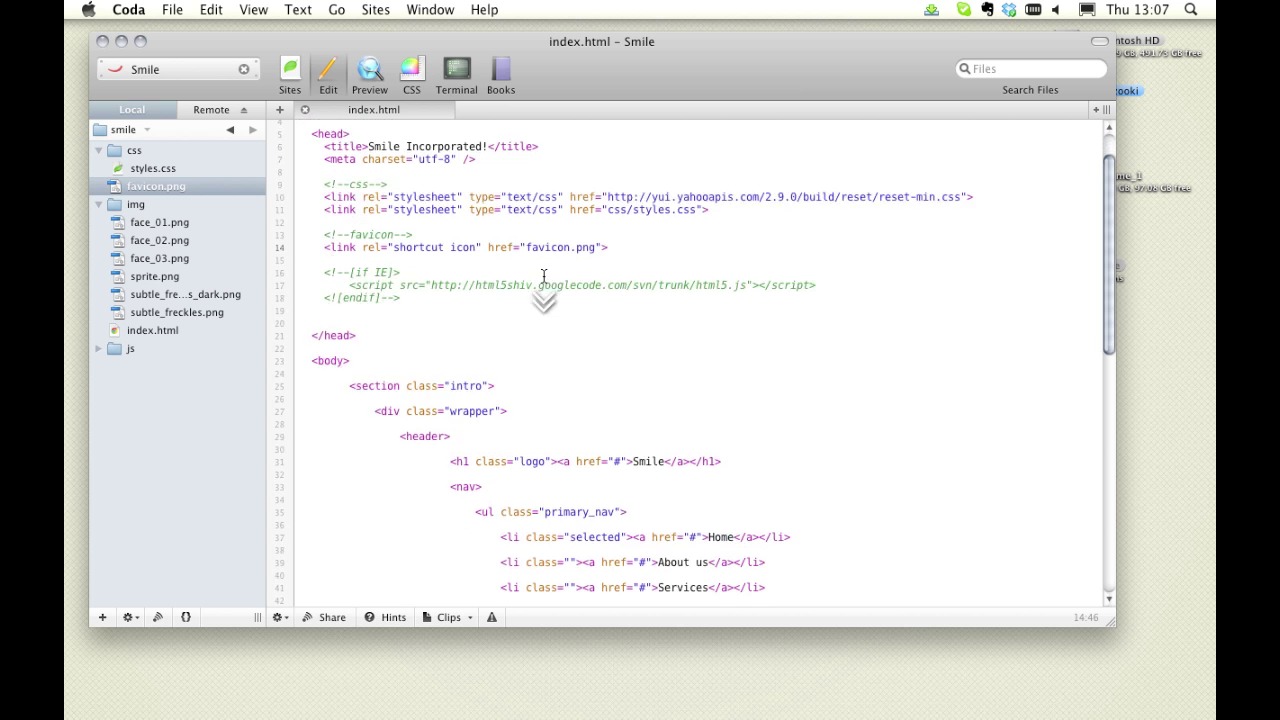
There are, of course, applications for your system, and you’ll have undoubtedly heard of Dreamweaver. Some like TextMate for its simplicity – and there are tons of others which I don’t really have time to list. My choice is Coda (for the mac) and it deals with things much like many others, but I happen to like the interface. It allows you to manage your projects locally (on your own system), acts as an FTP client for uploading directly to the web once your editing is complete, and helps you out with things like code hints. Applications such as Coda are known as IDE’s (or Integrated Development Environments) as they perform various functions for developing code-based projects.
Now I’ve made a start on our project – you’ll remember we discussed the directory structure – that should look familiar to you. I’ve also prepared a background tile for our two textured areas, plus we have the sprite.png which we made in an earlier video, and the images of our friendly staff. Let’s take a look at what I’ve altered in our basic HTML document.
[Live demo not available in transcript.]
Next Steps OK, it’s time for some further reading: To help make your mind up where code editors are concerned, check out Andrew Burgess’ 18 Wonderful IDEs for Windows, Mac, and Linux. He outlines all the main contenders and lists the fundamental pros and cons of each.
And before we jump into the next video, I have an assignment for you: having chosen your IDE, open up the project so far from the download files. Familiarize yourself with what’s been done, because next time we’re going to flesh out more of the web page using our basis.
Next time on 30 Days to Your First Website Design we’re going to continue our coding and look at the web standards model. I’m Ian Yates and from all of us at Tuts+ thanks for watching!
1.Introduction
1.1Introduction02:44
1.2What is Web Design?06:01
1.3Usability06:07
1.4Content05:20
1.5Goals05:27
2.Planning
2.1Three Don'ts of Design Theory02:48
2.2Inspiration05:45
2.3Style and Theme06:05
2.4Conceptual Sketching11:12
2.5Designing with Grids09:01
2.6The Anatomy of a Webpage05:44
2.7Whitespace05:03
3.Design Concepts
3.1Backgrounds and Textures10:18
3.2Navigation08:31
3.3Web Typography09:12
3.4Features Section16:04
3.5Contact Form12:25
3.6Footer Section09:05
3.7Prepping Your Design05:23
4.Site Elements
4.1Sprite Sheets14:07
4.2Project Organization04:47
4.3Code Editors14:45
4.4Web Standards Model16:25
4.5Semantics14:36
5.Prepping Your Design
5.1Further into CSS12:49
5.2Browsers16:50
5.3Behavior: jQuery slideshow12:43
5.4Form Validation13:23
5.5Cross Browser Testing11:21
5.6Google Analytics07:25
6.Conclusion
6.1Conclusion00:48





